Extract Colors from Image Free Online, No Signup
Drop a photo, logo or screenshot and get its exact palette: dominant colors ordered by coverage, each with hex, RGB and HSL codes ready to click and copy. The average color comes along for free.
Extract colors from your image
Drop an image here
Photos, logos, screenshots — anything with colors worth copying
Files are processed on this device only. Nothing is uploaded.
More colors capture subtle shades; fewer give the clean brand-level palette.
Useful for logos on white, where the background would otherwise crowd out the brand colors.
Color Extractor — illustrated, step by step
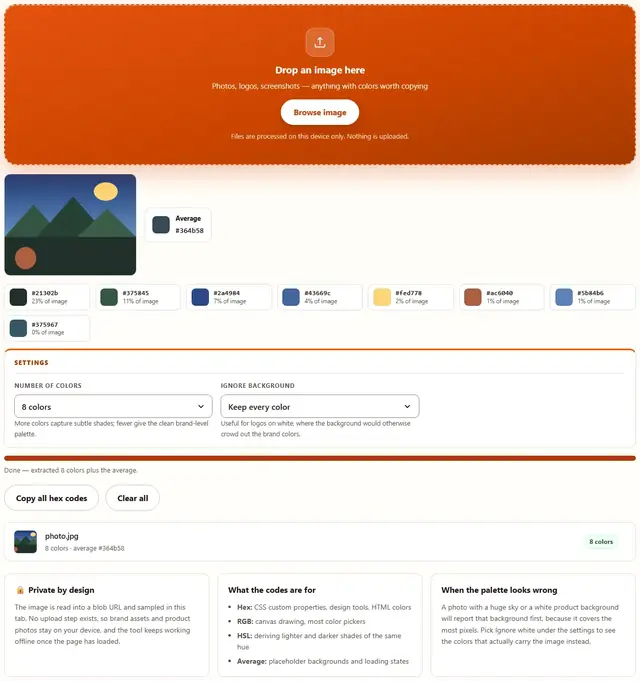
How to extract colors from an image
Three steps, no accounts, no watermarks on the output.
Drop the image
Drop a JPG, PNG or WebP on the box, or click Browse. The palette appears instantly, ordered by how much of the image each color covers.
Tune the palette
Choose how many colors you want, and turn on Ignore white if a logo background is crowding out the brand colors.
Copy the codes
Click any swatch to copy its hex code, or use Copy all hex codes to grab the whole palette at once. Nothing is uploaded anywhere.
Why extract colors in the browser?
Because the image being sampled is often the one you are designing for: a client photo, a product shot, brand artwork. Keeping the sampling in the tab means it never touches a server, there is no account and no queue, and the codes are ready the moment the file loads. Details are in our file-handling policy.
Troubleshooting
Are my images uploaded when I extract colors?
No. The image is read into the page with a blob URL, drawn to a canvas and sampled pixel by pixel right here in this tab. There is no upload endpoint, so artwork, product photos and brand assets stay on your device.
How are the colors chosen?
The tool samples the pixels on a grid, then buckets them by a quantized version of each channel so similar shades group together. The most populated buckets become the palette, ordered by how much of the image they cover, and fully transparent pixels are ignored so a logo's background does not dominate the result.
Why does one color appear twice?
Because two visibly different shades can sit close together in RGB space, and the sampler reports both. That is usually useful: a photo lit from one side has a bright and a dark version of its main color, and knowing both is what lets you pick a text color that stays readable across the whole image.
What is the average color for?
It is the single color that best represents the whole image, which is exactly what you want for a placeholder background, a loading skeleton or a card that sits behind the image before it loads. It is also a quick sanity check: if the average is muddy brown, the image has no strong brand color to extract.
How do I use the extracted colors?
Click any swatch to copy its hex code, then paste it into your CSS, design tool or color picker. The card also shows RGB and HSL, which is what most design tools ask for when hex is not an option.
Does extracting colors modify my image?
No, and it cannot: the tool only reads pixels. The original file is never changed, never re-encoded and never sent anywhere. If you want to recolor the image itself, use an image editor with the hex codes this tool gives you.
Reading a palette you can actually use
The first swatch is the anchor: the color that covers the most of the image, and the one to build a scheme around. The next three or four are its companions, usually neighboring shades of the same hue plus one contrasting accent that the eye notices. Designers work from the middle of the list as much as the top, because the anchor is often a background tone and the readable text colors live in the darker entries further down.
The average color is the pragmatic one. It is what a browser should paint behind the image while it loads, what a card background should be so the layout never flashes white, and a quick read on the mood of the photo. If the palette feels unusable, the average is usually still exactly right for one of those jobs.
| Task | Which color | Where it comes from |
|---|---|---|
| Brand accent | Most saturated swatch | Middle of the palette |
| Readable text | Darkest swatch | Bottom entries |
| Card or page background | Average color | Whole-image mean |
| Loading placeholder | Average color, lighter | HSL lightness + 10% |
| Button that stands out | Complement of the anchor | Hue + 180° |
Extract, convert and compress
Color extraction reads pixels and changes nothing, which is why it pairs well with every other tool here. Extract the palette first to decide a background color, then convert or compress the image with confidence that the result will still sit correctly against it.
If the image needs recoloring rather than reading, take the hex codes to an editor, and use Image Converter to change the format or Image Compressor to shrink the file. The palette is a property of the pixels, so it survives both.
Got the palette, now need the image in another format?
The Image Converter switches between JPG, PNG and WebP in one click: same privacy, same speed.
Open Image Converter