Delete PDF Pages Online Free
Remove unwanted pages from a PDF without installing anything. No upload, no signup: preview every page as a thumbnail, tick the ones to delete, and download the rest. Everything happens on your device.
Remove pages from your PDF
Drop your PDF here
Every page appears below so you can see what you remove
The PDF is read on this device only. Nothing is uploaded.
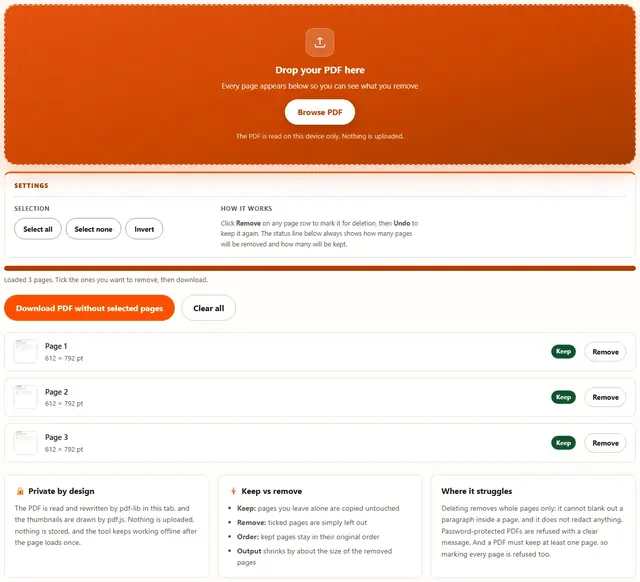
Click Remove on any page row to mark it for deletion, then Undo to keep it again. The status line below always shows how many pages will be removed and how many will be kept.
Delete PDF Pages — illustrated, step by step
How to delete pages from a PDF
Three steps, about ten seconds, no technical skills needed.
Add your PDF
Drag a single PDF onto the dropzone, or click to browse. Every page loads with a thumbnail and its number, so you can see exactly which pages you are about to remove.
Tick the pages to remove
Click Remove on any page row to mark it. Use Select all, Select none or Invert to change the whole document in one click, then fine-tune by hand. The status line shows the running count.
Download the trimmed PDF
One click rebuilds the document with only the pages you kept, in their original order. The kept pages are copied untouched, so text stays selectable and quality never changes.
Why delete pages in the browser?
Because there is no upload step, this is safe for contracts, court filings, medical records and anything under NDA: the document never leaves the device you are sitting at. It also works offline once the page has loaded, and stripping the blank back pages off a 60-page scan takes one click. Details in our file-handling policy.
Troubleshooting
Are my PDFs uploaded?
No. The document is read and rewritten by pdf-lib in this tab, with pdf.js drawing the thumbnails you see. There is no upload step and no server processing. Verify it: open DevTools, go to the Network tab, remove some pages, and watch nothing get sent.
Is deleting pages lossless?
Yes. The pages you keep are copied into a new PDF exactly as they were, so text stays selectable and images are not re-encoded. Only the pages you ticked are left out, so the output is smaller by roughly their size.
Can I delete many pages at once?
Yes. Use Select all, Select none or Invert to change the whole document in one click, then tick any individual pages by hand. A status line always shows how many pages will be removed and how many will be kept.
What if I delete every page?
The tool refuses, because a PDF must contain at least one page. Keep at least one page and the rebuild proceeds; the message tells you if everything is currently marked.
Can I delete just the first or last page?
Yes. Tick page 1, or tick the last page, and download. The remaining pages keep their original order, so removing the cover page of a contract is one click.
My PDF asks for a password
Password-protected files cannot be opened by any tool that does not have the password. Remove the password in your PDF reader first (opening it and choosing Print to PDF usually works), then delete pages on the unlocked file here.
Delete PDF pages: what actually changes in the file
A PDF stores its pages in an ordered tree. Deleting a page means building a new tree that points at only the pages you want to keep, and leaving the rest behind. The pages themselves are not touched: a kept page keeps its text, images, links, bookmarks and form fields exactly as they were. That is why removing a page is lossless, and why the output weighs about as much as the sum of the pages you kept.
This tool works at that level. pdf-lib loads the document, copies the pages you did not tick into a fresh PDF, and writes it out. There is no re-rendering step that could soften a scan or drop an annotation, which is the difference between removing a page and exporting a page as an image and gluing it back. The order never changes either: if you remove pages 3 and 7, the output runs 1, 2, 4, 5, 6, 8 and onward.
| Aspect | What this tool does | What it never does |
|---|---|---|
| Pages removed | Ticked pages are left out of the new PDF | Blanks out content inside a page (that is redaction) |
| Kept pages | Copied untouched, so text stays selectable | Re-renders or re-encodes anything |
| Page order | Keeps the original order exactly | Reorders, duplicates or rotates pages |
| File size | Shrinks by roughly the removed pages' size | Compresses the pages you kept |
If your goal is to keep only certain pages rather than throw some away, that is the PDF Splitter's territory: it extracts a range into a new file. Delete is for trimming: you want the rest of the document, minus a few pages.
How the rebuild works
From a full document to a trimmed one, keeping only what you did not tick.
Use cases: five times a stray page is the whole problem
- Blank scanner pages at the end. The feeder grabbed an extra sheet, so your 12-page scan has three blank pages attached. Tick the last three, download, and the file matches its real length.
- A cover page you must not send. A contract arrived with an internal cover sheet. Remove page 1 and forward only the signed pages, without retyping anything.
- Pages from a different document. A merged packet picked up two pages that belong elsewhere. Remove them here instead of rebuilding the whole merge.
- Removing a page you already split out. You extracted a chapter with the Splitter, and now the main file still has those pages. Trim them so the master stays clean.
- Stripping a trailing terms page. A downloaded report appends a marketing page. Delete it once and every future export of the same file is clean.
After trimming, page order and single-page extraction still work as expected: kept pages flow through the PDF Splitter and PDF Reorder exactly as before.
What we actually tested (and what the DevTools Network tab showed)
This page makes specific claims, so here is how they were checked. Open DevTools, go to the Network tab, remove some pages: the only requests are the page's own HTML, CSS and JavaScript, plus the pdf.js and pdf-lib engines fetched on first use. Nothing uploads, because the document is read and written inside your tab by those two libraries.
On losslessness: a trimmed text PDF produced output whose extracted text matched the kept pages of the input exactly, and the embedded images compared byte for byte, which is what "copied untouched" should mean. On order: removing pages 2 and 5 from a six-page file left pages 1, 3, 4 and 6 in that order, with their original dimensions and rotation. On size: the output weighed about as much as the kept pages summed, minus the overhead of the removed ones.
Two honest details. Select all then removing every page is refused before any work happens, so you never download an empty file. And pages carrying their own unusual metadata (annotations, attachments, bookmarks pointing at removed pages) are copied by pdf-lib as-is, which mainstream readers handle but exotic software may not.
Limits: what this tool won't do, and why
An honest list beats a surprised user:
- It removes whole pages only. Deleting a page drops it from the document; it cannot blank a paragraph or an image inside a page you keep. That is redaction, and it needs different tooling. Honest removal means the content is truly gone, not just hidden.
- It does not reorder, rotate or duplicate pages. Every kept page goes into the output once, in the original order. Changing the order is the PDF Reorder's job, turning pages is the PDF Rotator's, and keeping only a range is the PDF Splitter's.
- Password-protected PDFs are refused. Without the password no library can open the document, so the tool says that plainly instead of returning a broken file. Print the unlocked version to PDF in a reader, then trim it here.
- A PDF must keep at least one page. Marking every page is refused, because the result would be an empty file. Keep at least one page and the rebuild proceeds.
- It does not compress the kept pages. Trimming reduces size by roughly what the removed pages weighed, but the pages you keep are byte-for-byte the same. Squeezing them is the PDF Compressor's job.
Need the trimmed file smaller, or the pages as images? Those live on the Tools page, including the PDF to Image converter.
After trimming, need the file smaller?
The PDF Compressor keeps the pages you kept and shrinks the document: same privacy, same browser-only pipeline.
Open PDF Compressor