Sign PDF: Draw, Type or Upload a Signature Free
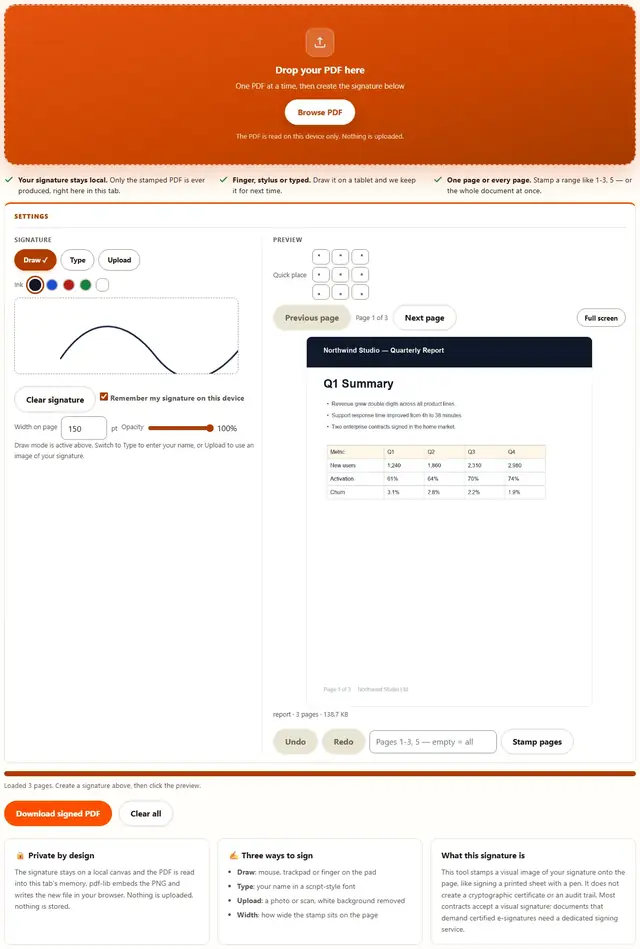
Sign a PDF right here: draw your signature with a mouse or finger, type your name in a script font, or upload a photo of your signature. Click the page to place it, then download. No upload, no account, no watermark.
Sign your PDF
Drop your PDF here
One PDF at a time, then create the signature below
The PDF is read on this device only. Nothing is uploaded.
- Your signature stays local. Only the stamped PDF is ever produced, right here in this tab.
- Finger, stylus or typed. Draw it on a tablet and we keep it for next time.
- One page or every page. Stamp a range like 1-3, 5 — or the whole document at once.
Draw mode is active above. Switch to Type to enter your name, or Upload to use an image of your signature.
Sign PDF — illustrated, step by step
How to sign a PDF
Three steps. The PDF engine downloads only when you sign, so the page itself loads instantly.
Add your PDF
Drag a single PDF onto the dropzone or click to browse. The preview of page 1 appears as soon as the file loads.
Create the signature
Draw on the pad with a mouse or finger, switch to Type and enter your name, or switch to Upload and pick a PNG or JPG of your signature. The white background is removed automatically.
Place & download
Click the page preview where the signature should sit, set the width in points, move between pages to sign more than one, then press Download signed PDF.
What people sign PDFs for
Accept a lease or rental agreement: the landlord emails a PDF, you sign at the bottom of page 1 and send it back the same evening.
Sign a school or medical form: permission slips and intake forms come home as PDFs. Sign on the phone during pickup instead of printing, signing and scanning.
Initial every page of a contract: move through the preview page by page and place your initials where the dotted lines sit.
Approve an invoice or purchase order: stamp the approval line, keep the file's text searchable, and return it in one pass.
Troubleshooting
Is signing a PDF here really free?
Yes, the whole signer is free: draw, type or upload, place as many signatures as you need on as many pages, no signup and no watermark on the result. The status line shows the original and new file sizes after every download.
Can I sign a PDF on my phone?
Yes. The pad responds to touch, so you draw with your finger, tap the page preview to place the signature and download the signed file, all on the phone screen. Type mode works just as well when drawing small is awkward.
Can I put my signature on more than one page?
Yes. Place a signature, press Next page, place another, and keep going. Every placement is listed under the preview with its page number, each one can be removed on its own, and Clear all drops them together.
Is my signature or my PDF uploaded anywhere?
No. The signature lives on a local canvas, the PDF is read into this tab, and pdf-lib embeds the PNG and writes the new file in your browser. Nothing is transmitted. You can verify it: open DevTools to the Network tab, sign a file, and watch nothing get sent. Privacy policy.
Is this a legally binding electronic signature?
This tool places a visual image of your signature on the page, the same as signing a printed page with a pen. Most contracts accept that. It does not create a cryptographic certificate or an audit trail, so for documents that specifically require certified e-signatures, use a dedicated signing service and check what your jurisdiction accepts.
How do I remove a signature I placed by mistake?
Press Remove next to that entry in the placement list under the preview, or Clear all to drop every placement and start over. Nothing is written to the file until you press Download signed PDF.
The signature has a white box around it
Uploaded images get their solid white background keyed out automatically, so a signature on plain white paper lands cleanly. If your image has a grey, textured or off-white background the key-out cannot separate it: draw or type the signature instead, or edit the image to pure white first.
Learn more
Signing means handing your file to a tool: Are online file tools safe? explains what to check, and every other browser guide lives on the blog.
How to sign a PDF without printing it
The old way is print, pen, scan, email. Here the PDF is read into your browser tab, you draw or type the signature on a local canvas, click the exact spot on the page preview where it should sit, and pdf-lib embeds the PNG into a fresh copy of the file for download. Nothing is transmitted, no account needed. Whether you searched for sign pdf or for how to add a signature to a PDF, the steps are the same: add one file, create the signature, click the page, press Download signed PDF.
The dashed outline on the preview shows exactly where the stamp will land, and the placement list under it keeps score: page number, width, remove button. What you see is what you get.
Sign a PDF free: no account, no watermark
Free here means the whole tool, not a trial: all three signature modes, unlimited placements on unlimited pages, the width control and the removal list, no signup, no watermark, no page cap. The status line tells you the exact result size after each run, and Clear all resets both the document and the placements. The PDF engine is fetched only the first time you sign, from this site's own folder, so the page opens instantly.
After signing, the file is usually a little bigger because the signature PNG rides along inside it. When size matters, send the result to the PDF Compressor. Other free browser tools live on the tools hub.
Draw, type or upload: which signature mode to use
All three modes produce the same thing, a transparent PNG that gets stamped onto the page. They differ in how you create it:
| Mode | Best for | Notes |
|---|---|---|
| Draw | A real pen-like signature | Works with mouse, trackpad and finger; the pad trims empty margins so the stamp hugs the ink |
| Type | Legible names on forms | Renders your name in a script-style font, scaled to fit the pad |
| Upload | A signature you already have | PNG or JPG; solid white background is keyed out so no white box lands on the page |
The width field controls the stamp size in PDF points: 150 pt is roughly two inches wide, a natural size for a signature line. Change it before placing, or remove a placement and put it back at the new width.
Placing signatures where they belong
The preview is a live render of the real page, so the click point is converted from screen pixels into PDF coordinates before the stamp is drawn. The signature is centered on the point you clicked, at the width you set, on the page you were viewing.
| What you want | What to do | What lands on your disk |
|---|---|---|
| Signature at the bottom of page 1 | Open the file, click the signature line | One placement, one signed file |
| Initials on every page | Place, press Next page, repeat | Every page carries its own stamp, listed with page numbers |
| A smaller stamp | Lower the width, then place | The PNG is scaled to the width in points |
| Start over | Remove one entry or Clear all | Nothing is written until you download |
Placements are independent: removing one never touches the others, and navigating pages never moves a stamp that is already placed.
Where a browser PDF signer earns its keep in the US
Six real jobs and the mode each one suits:
- Sign a lease before the walkthrough. Landlords send the PDF by email; sign on the phone with a finger and send it back without finding a printer.
- Approve a vendor invoice. Stamp the approval line on page 1, keep the amounts searchable, and reply in the same minute.
- Initial a multi-page contract. Move page by page and place initials where the form asks, no printing of twenty sheets.
- Sign a school permission slip. The form comes home as a PDF; type the name, tap the line, done before pickup.
- Countersign a purchase order. Two signatures on one file: yours at the bottom, the counterparty's added when it comes back.
- Sign an NDA on a tablet. The pad takes a stylus or finger, and the width control keeps the stamp inside the box.
When the form also needs values typed in before you sign, the PDF Form Filler writes those first, then you sign the result here.
What we actually tested in the browser
Five checks we ran while building this page, and what came back:
The typed signature reaches the output file
We loaded a one-page test PDF, switched to Type, entered a name, pressed Use this text, clicked the preview and downloaded. The result opened in a PDF reader with the name visible on the page, and the file contained a new embedded image object: the PNG had been stamped in, not drawn over the text.
Placements on two pages both survive
We placed a signature on page 1, pressed Next page, placed another on page 2 and downloaded a two-page file. Both stamps rendered in the output and the placement list had reported page 1 and page 2 correctly before the download.
The click point is the stamp center
We clicked near the right end of a signature line and inspected the output: the image's position matched the clicked point, centered, at the 150 pt default width. The preview outline and the final stamp sat on the same spot.
Removal works before the file is written
We placed three signatures, pressed Remove on the middle entry and downloaded: the output contained two images. Clear all emptied the list, disabled the download button and left the original document untouched.
What DevTools shows while you sign
Keep the Network tab open and run a signing session: the only requests after page load are the PDF engine files, from this site's own folder. Your file's bytes and your signature never appear in a request body. There is no upload code path.
Honest limits: what this signer won't do
- It is a visual signature, not a certificate. The output carries your signature image, nothing cryptographic and no audit trail. Documents that require certified e-signatures need a dedicated signing service.
- It does not fill form fields. Clickable AcroForm boxes are ignored here: use the PDF Form Filler for typed values, then sign the result.
- Uploaded images need a clean white background. Grey, textured or photographed-desk backgrounds survive as a halo around the signature. Draw or type instead, or prepare the image first.
- Encrypted PDFs must be unlocked first. An encrypted file can't be read without its password: open it in any PDF reader, use Print to PDF to make an unlocked copy, then sign that.
- The file grows slightly. Each placement embeds one PNG. A few signatures add a few dozen kilobytes; run the result through the PDF Compressor when size matters.
None of this is buried in fine print: the card beside the tool repeats the visual-signature caveat, and the troubleshooting answers cover the white-box and phone cases.
The form needs values before your signature?
PDF Form Filler types into text boxes, ticks checkboxes and picks dropdown options in the browser: same privacy, then sign the result here.
Open PDF Form Filler