Image Converter: WebP to JPG, PNG and JPEG Free
Convert WebP to JPG (and PNG, JPEG, and back again) without installing anything. No upload, no signup, no watermarks: batch conversion with a quality slider, and your files never leave your device.
Convert your images
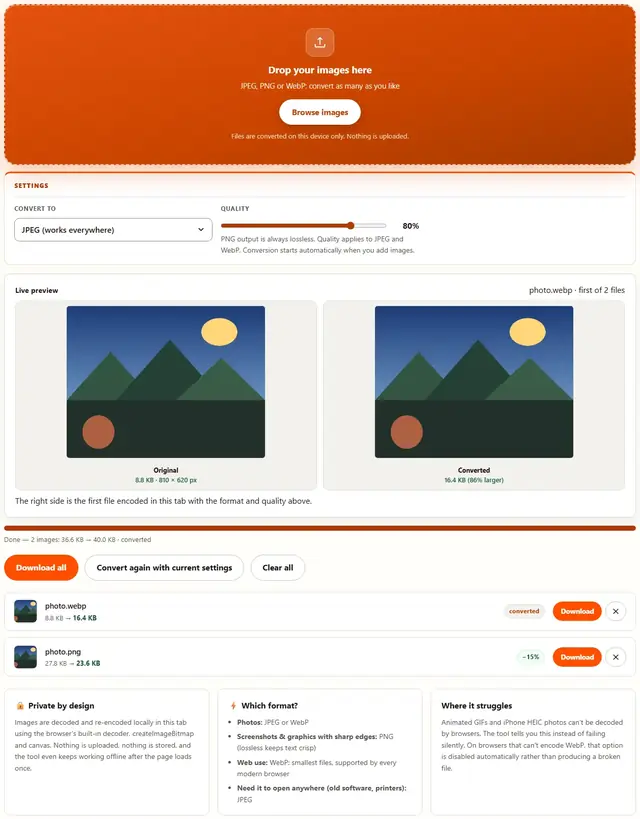
Drop your images here
JPEG, PNG or WebP: convert as many as you like
Files are converted on this device only. Nothing is uploaded.
PNG output is always lossless. Quality applies to JPEG and WebP. Conversion starts automatically when you add images.
The right side is the first file encoded in this tab with the format and quality above.
Image Converter — illustrated, step by step
How to convert an image
Three steps, about ten seconds, no technical skills needed.
Add your images
Drag JPEG, PNG or WebP files onto the dropzone or click to browse. Drop as many as you want. They convert one after another as a batch.
Pick a format & quality
WebP makes the smallest files, JPEG opens everywhere, PNG keeps sharp edges lossless. Around 80% quality is the sweet spot for JPEG and WebP. Conversion starts automatically.
Download the result
Each row shows the exact before/after size so you can see what you saved. Download a single file or grab all of them with one click.
Why convert in the browser?
Because there is no upload step, conversion here is safe for confidential documents, client work and personal photos. The files never leave the device you're sitting at. It also works offline once the page has loaded, and a whole folder of images can be converted and downloaded in one go. Details in our file-handling policy.
Troubleshooting
The file stayed the same size: was it not converted?
Conversion only helps when it actually changes something. If the new file would be no better than your original, for example re-encoding an already-tidy JPEG, BeeToolify keeps the original instead of handing you a re-compressed copy for no reason.
My HEIC photos give an error
Browsers can't decode HEIC (the iPhone default), so no web-based converter can read it. We'd rather say so than fail silently. On your iPhone, open the photo, tap Share → Options → Image Format → JPEG, then convert the JPEG here.
What happens to animated GIFs?
A browser can only decode the first frame of an animated GIF, so converting it would freeze the animation. BeeToolify detects this and tells you instead of quietly returning a still image. Keep the GIF as it is, or use a dedicated GIF editor if you need changes.
The WebP option is grayed out on my iPhone
Older Safari versions can't encode WebP, so the tool disables that option automatically rather than producing a broken file. Update iOS, or convert to JPEG or PNG instead.
Are my images uploaded?
No. Decoding and re-encoding happen entirely in this browser tab. There is no upload step and no server processing. You can verify it: open DevTools → Network, convert a file, and watch nothing get sent. Privacy policy.
WebP won't open on my phone: how do I fix it?
Older Android gallery apps, Windows photo viewers and some messaging apps can't decode WebP, so the file shows a blank thumbnail or an unsupported-format message. Convert it to JPEG here and open or send the .jpg. Every device reads JPEG, and you can convert right in the phone browser.
Why won't my HEIC file convert?
Because HEIC is built on a video codec that browsers do not ship, so the decoder a web page needs is not installed. That is why ours reports the error instead of pretending. The fix is on the iPhone side: open the photo, tap Share, then Options, then Image Format, and choose JPEG. To skip it next time, set Settings, Camera, Formats to Most Compatible.
WebP to JPG converter: what actually changes when you convert
WebP arrived in 2010 and every current browser reads it, yet plenty of American software still shrugs at it: upload boxes that only accept .jpg, office printers, older Windows photo viewers. That is why people search for a webp to jpg converter. WebP isn't bad, JPEG is just the format nothing rejects.
The browser decodes the WebP into raw pixels, redraws them on a canvas at their original size, and re-encodes them as JPEG at your quality setting (80% by default). Dimensions never change and nothing gets cropped; the download arrives as name-converted.jpg, so your original stays untouched. What you lose is transparency: JPEG has no alpha channel, so a white background is painted in first.
| Format | Compression | Transparency | Typical file size | Best for |
|---|---|---|---|---|
| JPEG | Lossy, quality 1–100 | No | Small for photos | Photos, forms, email, printing |
| PNG | Lossless, slider off | Yes | Large for photos | Screenshots, logos, sharp text |
| WebP | Lossy or lossless | Yes | Often the smallest | Websites, WordPress, apps |
Convert WebP to PNG when you need the transparency back
A logo on a colored slide, a sticker, a marketplace cut-out: those need alpha to survive, and PNG holds it the same way WebP does. Choose PNG and transparency passes straight through; PNG is lossless, so the slider grays out. It is also the easy way to convert WebP to PNG for software that has never heard of WebP. Alpha cannot survive a trip through JPEG in either direction.
PNG to JPG converter free online: why the file suddenly gets smaller
PNG stores every pixel exactly: perfect for screenshots and logos, wasteful for photographs. The same camera photo as PNG can be several megabytes; a JPEG at 80% quality is often a small fraction of that, at the same dimensions and visually identical. That gap is why png to jpg converter free online is such a common search.
The trade-off is real: JPEG is lossy, each save trims a little more detail, and transparent areas become solid white. Convert when the destination insists on .jpg (job portals, insurance claims, print shops) and keep PNG when the file needs small text or transparency.
| Conversion | What changes | What stays the same |
|---|---|---|
| JPEG → PNG | Gets bigger: lossless stores lossy pixels | Dimensions, colors as displayed |
| PNG → JPEG | Shrinks a lot; white replaces transparency | Dimensions, visible picture |
| WebP → JPEG | Opens in software that ignored WebP | Dimensions, decoded detail |
| PNG → WebP | Usually shrinks; alpha is kept | Dimensions, colors, alpha |
| JPEG → WebP | Typically smaller at the same quality | Dimensions, one more lossy pass |
Format is rarely the only gate: if the portal also caps the size, our guide to compressing a photo for an online form covers the KB ranges and pixel sizes US forms ask for. Still unsure which format a file should end up in (or whether converting to WebP is worth it), that decision is worked through in the WebP vs JPEG vs PNG comparison.
JPEG to WebP converter: lighter images for a faster website
Traffic runs the other way too. With a folder of JPEG photos and a site to publish them on, a jpeg to webp converter moves the same pictures into a format that is typically smaller at the same visual quality, and every current browser renders WebP. Around 75–85% quality is where photos look clean while still shrinking noticeably.
Convert image to WebP for WordPress
WordPress has accepted WebP in the media library since version 5.8, so converted files upload with no plugin. Convert your JPEG and PNG uploads, keep the original as a fallback, and you have cut the weight of the file that usually decides your Largest Contentful Paint, the Core Web Vitals measure of how fast the main content appears. Files already uploaded can be squeezed in the Image Compressor, which handles all three formats with live before-and-after sizes.
How to convert a screenshot to JPG (and when you shouldn't)
Screenshots are the opposite of photographs: flat color, hard edges, tiny type. Below about 90% quality JPEG puts halos around small letters and grain across interface borders. So when you convert a screenshot to JPG for a support ticket, push the slider to 90–100% first. You usually still get a smaller file than the PNG you started with.
Keep PNG when the capture will be zoomed or read pixel by pixel. Lossless encoding leaves text exactly crisp. Crop and downscale first: a 3840-pixel capture sent at 1200 pixels wide is where most of the real savings live, and the Image Resizer does that in one pass.
Which format should you pick? A one-glance decision matrix
Match the output to what the file does next, not what it came in as. Four situations cover almost every conversion, each with its own trap.
Use cases: five situations where converting the format actually fixes the problem
- A photo blog chasing better Core Web Vitals. A WordPress publisher converts new uploads to WebP and re-exports the heaviest posts: hero images weigh less and the Largest Contentful Paint has less to wait on.
- An eBay or Poshmark seller whose listing photo won't upload. The picture is a PNG and the upload box only accepts
.jpg. Convert to JPEG at 85–90% and the listing goes through, with a smaller file attached. - A designer who needs transparency and only has a JPEG. JPEG never stored an alpha channel, so no converter can invent one. Convert it to PNG first, then knock the background out in your editor.
- A screenshot to JPG for an email thread. Support teams and refund claims want attachments that open everywhere. Convert at 90% or higher so the text stays readable and the message stays under attachment limits.
- A phone that won't open an image a friend sent. The file is a WebP and the gallery shows a blank thumbnail. Convert it to JPEG here on the same phone, then open the downloaded
.jpg: no app, no account.
What we actually tested (and what the DevTools Network tab showed)
This page makes specific claims, so here is how they were checked. Open DevTools, go to the Network tab, convert a photo: the only requests you see are the page's own HTML, CSS and JavaScript. Nothing uploads, because the path runs through createImageBitmap, a 2D canvas and canvas.toBlob, all inside your tab.
On the quality slider, the same photo at 40%, 80% and 95% produced three file sizes in that order every time, and the before/after numbers on each row show it without asking you to trust us. On the pixels: a conversion re-encodes what is there. It does not enhance it. Dimensions stay identical, colors match, and each pass approximates fine texture a little more, so convert once, from the file you plan to keep.
Batching: files convert one after another, and Download all fires the saves a fraction of a second apart so your browser doesn't block them. Two honest details: transparent areas come out white with JPEG output (we fill the canvas white on purpose), and a same-format conversion that isn't smaller keeps your original. The output comes back without camera EXIF.
Limits: what this converter won't do, and why
An honest list beats a surprised user:
- HEIC and AVIF are not supported. iPhones have saved HEIC for years, but browsers ship no decoder for it, so nothing running in a web page can read those files: exactly why yours gives an error instead of a result. AVIF has no reliable encoder exposed to web pages, so we don't ship a button that would fail.
- Animated GIFs are refused, not frozen. A browser decodes only the first frame, so a converted GIF would silently lose its animation. The tool says so instead.
- Every conversion costs a little quality. JPEG and WebP are lossy, and re-encoding accumulates: converting the same picture four times looks worse than converting it once. Keep your originals.
- JPEG cannot hold transparency. Those pixels become white here. Output PNG or WebP if alpha matters.
- PNG ignores the quality slider. It is always lossless, so the control disables itself, and a photo in PNG often comes out larger than your JPEG, which is the format working as designed.
Need to resize, strip metadata or hit a KB target? Those live on the Tools page.
Also shrinking images?
The Image Compressor handles JPEG, PNG and WebP with a live quality slider: same privacy, same speed.
Open Image Compressor