Convert EPUB to PDF Online Free
Turn a DRM-free .epub ebook into a clean, printable PDF: chapters laid out in order, images and styles carried over, output on A4 or Letter. Everything happens on your device, so an unreleased manuscript never touches a server.
Convert your EPUB to PDF
Drop your .epub file here
The book is unpacked and read entirely on this device
The file is read on this device only. Nothing is uploaded.
EPUB To PDF — illustrated, step by step
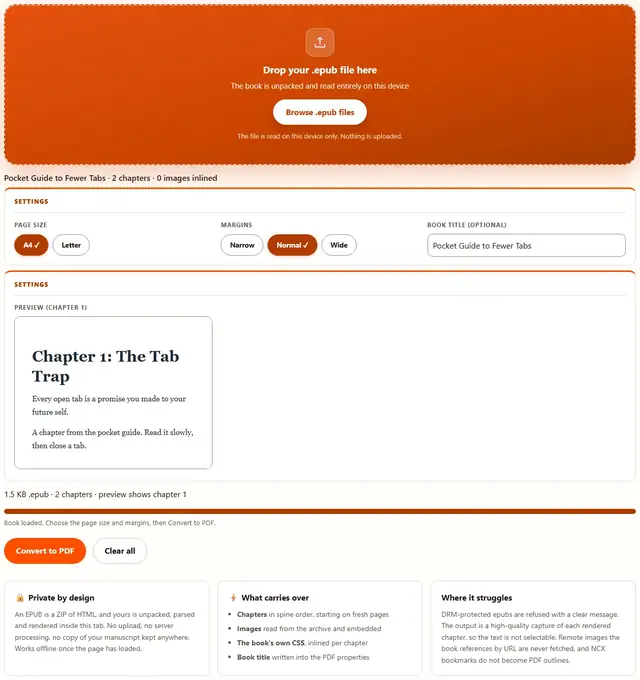
How to convert EPUB to PDF
Three steps, about a minute depending on the length of the book.
Add your epub
Drag the .epub file onto the dropzone. The converter opens it like the ZIP tool does, reads the package file inside, and lists the title, author, chapter count and image count it found.
Check the preview
The frame below the controls renders the first chapter exactly as the PDF will look, after the book's own stylesheets and images have been inlined. Pick A4 or Letter and one of three margin presets.
Download the PDF
Click Convert to PDF. Each chapter is rendered, captured and sliced onto pages in spine order; every chapter after the first starts on a fresh page. The file is named after the book's title.
Why convert in the browser?
An unreleased novel, an internal training manual, a manuscript under NDA: none of it belongs on a stranger's upload queue. Because there is no upload step, the book never leaves your device, and the conversion works with the network disconnected once the page has loaded. Details in our file-handling policy.
Troubleshooting
Are my EPUB files uploaded?
No. An EPUB is a ZIP archive, and it is unpacked, parsed and rendered inside this tab by the same local engines the ZIP and PDF tools use. There is no upload step and no server processing. Open DevTools, go to the Network tab, convert a book, and watch: the only requests are the page itself and the converter engines fetched on first use.
Does this work on DRM-protected epubs?
No. If the EPUB contains a META-INF/encryption.xml file, it is protected by Adobe, Kobo, Google or another vendor's DRM, and this converter refuses it with a clear message instead of producing garbage. Use the bookseller's own app to export or print the book, or ask the publisher for a DRM-free edition.
Is the text in the PDF selectable?
No. Each chapter is rendered in a sandboxed frame and captured as an image, so the pages print beautifully but the text cannot be selected, copied or searched. If you need a text-selectable PDF, extract the book's text first with a reader and convert it with TXT to PDF.
Do the book's styles and images carry over?
Yes. The stylesheets shipped inside the EPUB are inlined chapter by chapter, images are read from the archive and embedded as data, and relative paths are resolved against each chapter's location. What you see in the preview is the page the PDF is made from, fonts and colors included where the book provides them.
What about bookmarks and the table of contents?
The PDF gains no outline or clickable bookmarks. The NCX or nav document is used only to find the chapters, not to build a sidebar. Chapters do start on fresh pages, and the book title is written into the PDF properties, which most readers show in their file lists.
Why is my image-only or fixed-layout epub refused?
Fixed-layout EPUB3 books made of positioned image pages have no readable chapter documents in the spine, or their spine points at images instead of HTML. This converter lays out flowing text, not absolute page geometry, so it refuses rather than emitting a scrambled file. Those books are best printed from their own reading app.
EPUB to PDF: what actually happens to your book
An EPUB is not a document with pages. It is a ZIP archive holding XHTML chapters, a manifest of everything inside, a spine that lists the chapters in reading order, and stylesheets plus images the chapters reference. Converting it to PDF means laying out those chapters on a fixed paper grid, which is exactly what a reading app does on screen. This tool performs that same layout, then captures it into a PDF.
The converter opens the archive with the same ZIP engine behind the Extract ZIP tool, finds META-INF/container.xml to locate the package file, reads the manifest and spine in order, and parses every chapter with the browser's own HTML engine. Stylesheet links are replaced by the CSS they point at, relative image paths are rewritten to the actual bytes inside the archive, and remote URLs are deliberately left untouched because the tool never fetches anything from the network. Each rendered chapter is then captured and paginated onto A4 or Letter paper.
| EPUB part | What the converter does with it |
|---|---|
| META-INF/container.xml | Locates the package (.opf) file; refuses the book if it is missing or unparsable |
| OPF manifest and spine | Lists the chapters in reading order and supplies the title and author |
| Chapters (XHTML) | Parsed by the browser engine, rendered inside a sandboxed frame |
| Stylesheets (.css) | Inlined per chapter; relative asset paths inside them are resolved and embedded |
| Images (.png, .jpg, .gif, .svg, .webp) | Read from the archive and embedded as data; remote http(s) images are never fetched |
| DRM (META-INF/encryption.xml) | Detected and refused with an explanation, before any page is laid out |
Two honest details. Each chapter starts on its own page, which matches how print editions treat chapter boundaries but adds a little white space when chapters are very short. And because the PDF is assembled from captures, a chapter with drop caps, positioned sidebars or multi-column CSS will be drawn exactly as the browser lays it out, including any quirks of that layout.
How your epub becomes paginated pages
The conversion is a four-stage pipeline, all inside the tab.
Use cases: five times an EPUB PDF is the right file
- Reading a library loan on a printer. Your library lent you an EPUB, the office needs it on paper, and the loan window is closing. Convert it here and print; the chapter layout and images come out like a typeset edition.
- Reviewing a manuscript. An author sent you a chapter draft epub for print review. Converting to PDF lets you annotate page by page in any PDF reader without installing an e-reader.
- Archiving a bought-but-DRM-free book. DRM-free purchases deserve a durable copy you can open anywhere. A PDF is readable by every device and app on earth, forever, with no store login.
- Producing handouts from an internal manual. Your company's training epub becomes a stapled handout for the workshop room, with the book's own styling intact.
- Keeping a stable reading copy. When an app maker drops a format, a PDF snapshot of the book is the format that never goes away, and this page makes one in under a minute.
Need the book's words instead of its pages? TXT to PDF and PDF to Text round-trip the plain text. All tools live on the Tools page.
What you control, and what you don't
| Setting | What it changes | Default |
|---|---|---|
| Page size | A4 (210 x 297 mm) or US Letter (8.5 x 11 in) for every page | A4 |
| Margins | Narrow (12 mm), Normal (19 mm) or Wide (25 mm) white space on every edge | Normal |
| Book title | Prefilled from the OPF metadata; becomes the PDF title property and file name | From the book |
| Chapter breaks | Each chapter after the first starts on a fresh page | Always on |
| Fonts | Fonts embedded in the epub are used; otherwise the system serif stack | From the book |
What we actually tested (and what the Network tab showed)
This page makes specific claims, so here is how they were checked. Open DevTools, go to the Network tab, convert a book: the only requests are the page's own HTML, CSS and JavaScript, plus the ZIP, html2canvas and jsPDF engines fetched on first use. Nothing uploads, because the archive is read, rendered and written inside your tab.
On structure: a test EPUB with a container.xml pointing at OEBPS/content.opf, two chapters in the spine, one linked stylesheet and one embedded PNG produced a loaded-book summary of "2 chapters, 1 image inlined", and the converted PDF came out as two pages, one chapter per page. On assets: the first chapter rendered in the sandboxed preview with its image inlined as a data URL, and the book's title and author appeared in the summary line exactly as stored in the OPF metadata. On DRM detection: a fixture with a META-INF/encryption.xml entry was refused with the DRM message and zero pages were produced.
Two honest details. A very long book is captured chapter by chapter, which keeps each canvas small, but past roughly six hundred pages the browser may still run low on memory, and the converter says so rather than freezing silently. And an image-heavy novel at Normal margins produces a larger file than the epub itself, because every page is stored as a photograph of a laid-out page.
Limits: what this converter won't do, and why
An honest list beats a surprised user:
- No DRM-protected books. An encryption.xml file stops the run before any page is laid out. The book must be DRM-free to convert.
- The text is not selectable. Pages are captures of rendered chapters, so Ctrl+F and copy-paste do nothing. Extract the text with a reader if you need it.
- No PDF outline. The chapter list (NCX or nav) orders the pages but is not rebuilt as clickable PDF bookmarks.
- Remote assets stay remote. An image referenced by an absolute http(s) URL inside the book is never fetched, so it will not appear in the PDF.
- Fixed-layout and image-only books are refused. They contain no flowing chapter documents for this converter to lay out.
- Very long books strain memory. Around six hundred pages the browser may give up mid-job; split the file or use a shorter book.
Need to shrink the result, or merge it with other documents? Those live on the Tools page, including the PDF Compressor and PDF Merger.
Need selectable text from a PDF instead?
The PDF to Text extractor pulls the words out of any text-based PDF, page by page, with page markers.
Open PDF to Text