Rotate PDF Pages and Save Free
Fix sideways and upside-down PDF pages without installing anything. No upload, no signup: preview every page, turn one page or the whole document, and download a new PDF. Everything happens on your device.
Rotate your PDF pages
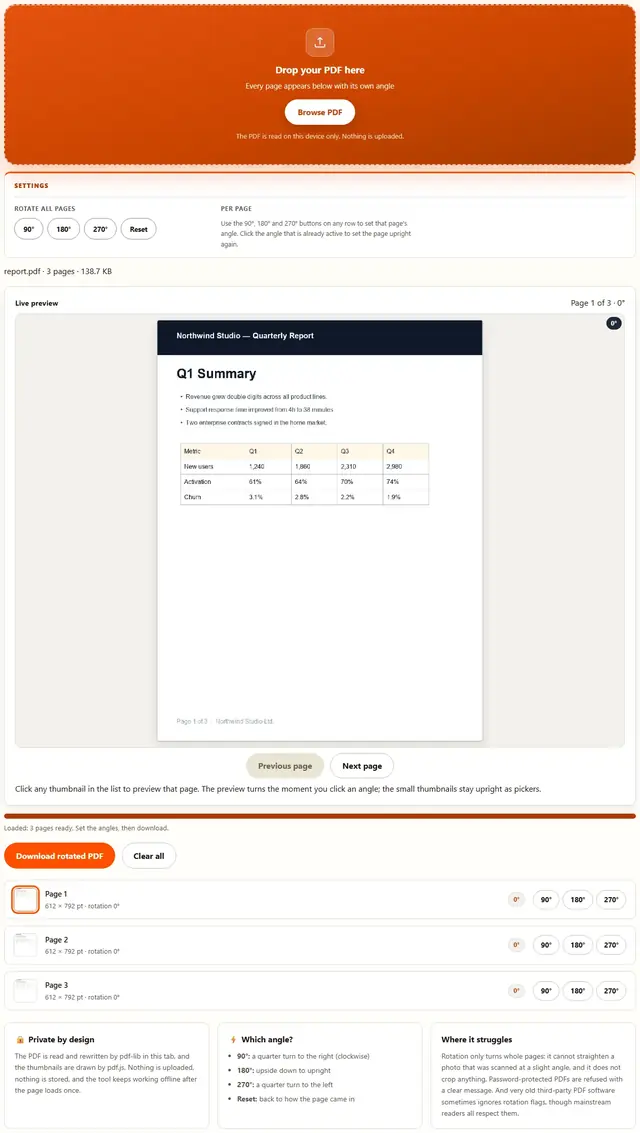
Drop your PDF here
Every page appears below with its own angle
The PDF is read on this device only. Nothing is uploaded.
Use the 90°, 180° and 270° buttons on any row to set that page's angle. Click the angle that is already active to set the page upright again.
Click any thumbnail in the list to preview that page. The preview turns the moment you click an angle; the small thumbnails stay upright as pickers.
PDF Rotator — illustrated, step by step
How to rotate a PDF
Three steps, about ten seconds, no technical skills needed.
Add your PDF
Drag a single PDF onto the dropzone, or click to browse. Every page loads with a thumbnail and its number, so you can see which pages are lying on their side.
Set the angles
Click 90°, 180° or 270° on a page row to turn just that page, or use Rotate all pages to turn the whole document at once. The live preview above the list turns the moment you click, so you see the exact result; the badge on each row shows the angle stored for that page.
Download the rotated PDF
One click rebuilds the document with the new angles and downloads it. Page content is copied untouched, so text stays selectable and quality never changes.
Why rotate in the browser?
Because there is no upload step, this is safe for contracts, court filings, medical records and anything under NDA: the document never leaves the device you're sitting at. It also works offline once the page has loaded, and a fifty-page document with one sideways scan takes one click. Details in our file-handling policy.
Troubleshooting
Are my PDFs uploaded?
No. The document is read and rewritten by pdf-lib in this tab, with pdf.js drawing the thumbnails you see. There is no upload step and no server processing. You can verify it: open DevTools, go to the Network tab, rotate a file, and watch nothing get sent. Our Privacy policy has the details.
Is rotating a PDF lossless?
Yes. A PDF page stores its own rotation as a small flag, and the rotator changes that flag: the page content is copied exactly as it was, so text stays selectable and nothing is re-encoded. The output weighs about the same as the input because almost nothing changed.
Which way does 90 degrees turn the page?
90 turns the page a quarter turn to the right (clockwise), which is what sideways phone scans usually need. 180 flips a page that came out upside down, and 270 is the quarter turn to the left for the other sideways case. The badge on each row always shows the angle stored for that page.
Can I rotate just one page of a big document?
Yes. Set only that page's angle and leave the rest at 0 degrees. The output contains every page in the original order, with only the pages you touched changed, which is exactly the fix for one sideways scan inside a fifty-page contract.
Does the rotation survive other tools?
Yes: the angle lives inside the page object, so splitting, merging or compressing the file afterwards keeps it. Pages copied between documents carry their rotation flag with them, and print output follows the flag in mainstream readers.
My PDF asks for a password
Password-protected files cannot be opened by any tool that does not have the password. Remove the password in your PDF reader first (opening it and choosing Print to PDF usually works), then rotate the unlocked file here.
Do the thumbnails rotate with the angle?
The small thumbnails stay upright because they are pickers for choosing which page to turn, but the Live preview panel above the list turns the moment you click an angle: it renders the selected page exactly as it will open after download. Click any thumbnail to preview that page, and use the Previous and Next buttons to move through the list.
How do I fix a scanned PDF that opens sideways?
Open the PDF here, preview each page, and rotate the ones that scan sideways or upside down by 90 degrees. Then save, and the new PDF keeps the corrected orientation every time you open it. Nothing is uploaded, so the scan stays on your device.
PDF rotation: what actually changes in the file
A PDF page carries a tiny piece of display metadata called the rotation flag. It says "when you show this page, turn it this many degrees", and it is measured clockwise in 90° steps: 0, 90, 180, 270. That flag is why a properly rotated PDF opens upright in every reader, prints correctly, and still contains the exact bytes your scanner produced. Nothing about the page content is touched.
This rotator works at that level. pdf-lib loads the document, sets the flag on the pages you chose, and writes a new file. The text, images, fonts, links, bookmarks and form fields are copied through untouched, which is what makes the output lossless: there is no re-rendering step that could soften a scan or drop an annotation. It is also why the file comes out about the same size as the input.
| Angle | What it does | Typical need |
|---|---|---|
| 90° | Quarter turn to the right (clockwise) | Sideways phone scans of portrait pages |
| 180° | Turns the page upside down to upright | Pages that came out of the scanner inverted |
| 270° | Quarter turn to the left | The other sideways case, common in landscape-held photos |
| 0° (Reset) | Leaves the page exactly as it came in | Undoing a click, or starting over |
The direction is worth one honest sentence: 90° turns right, so a page lying on its left side needs 90° and one lying on its right needs 270°. If you pick the wrong one, click the active angle again to reset, or pick the other quarter turn: nothing is committed until you download.
Fix a scanned PDF that opens upside down, one page or the whole document
The most common problem is a single bad page: forty-nine pages of a contract scanned upright and one photographed on a phone at a party, lying on its side. Fixing that used to mean exporting the page as an image, rotating it, and gluing it back, which destroys the text layer. Here you click one row and download: the other forty-nine pages are copied byte for byte and page 12 keeps its selectable text.
The other common problem is uniform: an entire document scanned with the lid open on the wrong side, so every page needs the same quarter turn. Rotate all pages does that in one click, and the per-page rows still show what each page's angle became, so nothing is applied blindly.
| Aspect | What the rotator does | What it never does |
|---|---|---|
| Page angles | Sets 90, 180, 270 or 0 per page | Crops, straightens or skews individual images |
| Page content | Copies it untouched (lossless) | Re-renders or compresses anything |
| Page order | Keeps the original order exactly | Adds, removes or reorders pages |
| File size | Stays about the same as the input | Compresses or strips metadata |
If the job is reordering, removing or duplicating pages, that is the PDF Splitter's territory; if several documents need to become one, the PDF Merger. Rotate first, then split or merge, and the angles travel with the pages.
Which angle do you need? A one-glance decision matrix
Look at the live preview, pick the situation that matches, and set the angle. Four cases cover almost every rotated document.
Use cases: five situations where a quarter turn fixes everything
- Phone photos of a paper contract. You photographed the signed pages standing over the desk, so half of them came out sideways. Rotate all 90° and watch the live preview: the packet should read upright in the recipient's viewer.
- One sideways page inside a clean scan. Page 12 of the leasing agreement was photographed instead of scanned. Set only that row to 90° and download: the other pages are untouched and the text layer survives.
- A scanned tax packet that came out inverted. The scanner feeder grabbed the stack backwards. 180° on all pages turns every form the right way up without re-scanning anything.
- A landscape chart that should read in portrait. One diagram was captured rotated a quarter turn the wrong way. 270° fixes that single page while its neighbors keep their angles.
- A court or insurance PDF with mixed orientations. Exhibits scanned from bound volumes often mix upright and sideways pages. Set each sideways row individually, then send one correctly oriented file instead of apologizing in the cover email.
After rotating, page order and single-page extraction still work as expected: the angles travel with the pages through the splitting a PDF into pages and merging PDFs in order workflows.
What we actually tested (and what the DevTools Network tab showed)
This page makes specific claims, so here is how they were checked. Open DevTools, go to the Network tab, rotate a file: the only requests are the page's own HTML, CSS and JavaScript, plus the pdf.js and pdf-lib engines fetched on first use. Nothing uploads, because the document is read and written inside your tab by those two libraries.
On losslessness: a rotated text PDF produced output whose extracted text matched the input exactly, and the embedded images compared byte for byte, which is what "content copied untouched" should mean. The output file size differed from the input by a rounding error's worth of bytes: the rotation flag is a few bytes, and the page tree is rewritten in the process. On direction: 90° turned pages clockwise in Adobe Reader, Chrome, Firefox and macOS Preview, matching the PDF specification's definition of the flag.
On batch behavior: rotating all pages of a fifty-page document and then downloading took about as long as opening the file in the first place, because no page is rendered during the rebuild. Two honest details: the live preview renders the selected page once and flips the pixels on every angle click (the pdf.js render happens once per page, then the preview is instant), while the small thumbnails are drawn once at load and stay upright as pickers (the badge and the preview are the source of truth), and pages carrying their own unusual metadata (annotations, attachments) are copied by pdf-lib as-is, which mainstream readers handle but exotic software may not.
Limits: what this rotator won't do, and why
An honest list beats a surprised user:
- It cannot straighten a crooked photo inside a page. Rotation turns whole pages in exact 90° steps because that is what the PDF flag supports. A scan taken three degrees off needs image editing, not a rotation flag, and no honest PDF rotator can fix it for you.
- It does not crop or resize anything. Turning a page leaves its dimensions and content exactly as they were, sideways included. Cropping lives in dedicated editors, and the PDF Compressor handles size separately.
- Password-protected PDFs are refused. Without the password no library can open the document, so the tool says that plainly instead of returning a broken file. Print the unlocked version to PDF in a reader, then rotate it.
- Order, count and content stay fixed. Every page goes into the output exactly once, in the original order. Removing, reordering or duplicating pages is the PDF Splitter's job, and combining files is the PDF Merger's.
- Very old PDF software may ignore the flag. The rotation is stored the way the specification defines it, and mainstream readers and printers respect it. A viewer from two decades ago might not, and that is a defect in the viewer, not in the file.
Need to squeeze the rotated file, or turn pages into images? Those live on the Tools page, including the PDF to Image converter.
After rotating, need the file smaller?
The PDF Compressor keeps the new angles and shrinks the document: same privacy, same browser-only pipeline.
Open PDF Compressor