PDF to PowerPoint Free: Every Page as an Editable Slide
Turn a PDF into a PowerPoint you can edit: each page becomes one slide, with the largest text promoted to the slide title and the rest as body text. Runs in this tab — no upload, no signup.
Convert your PDF
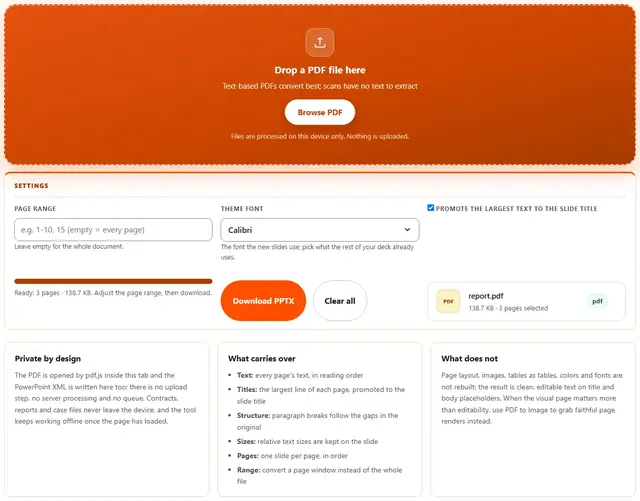
Drop a PDF file here
Text-based PDFs convert best; scans have no text to extract
Files are processed on this device only. Nothing is uploaded.
Leave empty for the whole document.
The font the new slides use; pick what the rest of your deck already uses.
PDF To Powerpoint — illustrated, step by step
How to convert a PDF to PowerPoint
Three steps, no accounts, no watermarks on the output.
Drop the PDF
Drop a PDF on the box, or click Browse. The page count appears as soon as the document opens.
Choose pages and font
Leave the range empty for every page, pick the theme font, and keep the title promotion on unless the PDF has no real headings.
Download
The .pptx downloads with its exact file weight shown. Every page becomes one slide.
Why convert in the browser?
PDFs are often finished documents: contracts, reports, case files. Rebuilding the deck locally means the file never touches a server, there is no account and no queue, and the PowerPoint is ready the moment the document loads. Details are in our file-handling policy.
Troubleshooting
Is my PDF uploaded when I convert it?
No. The PDF is opened by pdf.js inside this tab and the PowerPoint is written as XML and zipped here too. There is no upload endpoint, so sensitive documents stay on your device.
Will the slides look like the PDF pages?
No, and that is the point: the pages are reflowed into clean editable slides — a title placeholder and a body placeholder per slide — rather than pasted as pictures of the page. The text is what carries over; the exact page layout is not rebuilt.
What happens to images, charts and tables?
They are not extracted: this converter is text-first. Re-add the images in PowerPoint (PDF to Image can export the page renders for dragging in), and rebuild tables as PowerPoint tables from the extracted text.
Can it convert a scanned PDF?
Scanned pages are images with no text layer, so there is nothing to extract: the tool says so instead of producing empty slides. Run OCR on the scan first, then convert the recognized text.
Which fonts do the slides use?
The theme font you pick (Calibri, Arial or Trebuchet MS) is written into the deck's theme, so PowerPoint opens it with the right face immediately. Text sizes follow the PDF's own sizes, so hierarchy survives.
The PDF is very large
Use the page range box for big documents: convert the chapter you need, e.g. 1-20, and repeat for the rest. Each conversion stays entirely local, so the only limit is your device's memory.
What conversion can and cannot recover
A PDF stores positioned text: every line with its exact coordinates, font size and weight — but no notion of slides, titles or bullets. This converter rebuilds that structure: the largest line near the top of each page becomes the slide title, and the remaining lines become body paragraphs, split where the vertical gaps in the original were largest.
That reconstruction is honest about what PDFs actually contain. Reading order usually survives because text was written in reading order; columns and sidebars can interleave, and anything drawn as vector art or a bitmap carries no extractable text at all. The result is a clean, editable starting point rather than a pixel-perfect copy.
| PDF content | In the PowerPoint |
|---|---|
| Text lines | Body paragraphs on each slide |
| Largest top line | Slide title placeholder |
| Relative sizes | Kept on the slide text |
| Images and charts | Not extracted — re-add in PowerPoint |
| Scanned pages | No text layer: run OCR first |
Edit, then finish the deck
The .pptx opens like any other presentation: restyle the placeholders, drop in the images, apply your company template. Because the slides use standard placeholder shapes, PowerPoint's own design tools (Designer, themes, master slides) all work on them normally.
Going the other way is just as easy: PowerPoint to PDF turns the finished deck into a PDF for sending, and PDF to Text pulls the raw wording out for quoting — all in the same tab, without the file ever leaving your device.
Need the reverse conversion?
PowerPoint to PDF turns a .pptx into a clean PDF: same privacy, same speed.
Open PowerPoint to PDF