Crop PDF: Trim Margins Free in Your Browser
Crop a PDF right here: type the margins, watch them on a live preview, and download a file with the white border trimmed away. Apply to every page or just one. No upload, no account, no watermark.
Crop your PDF
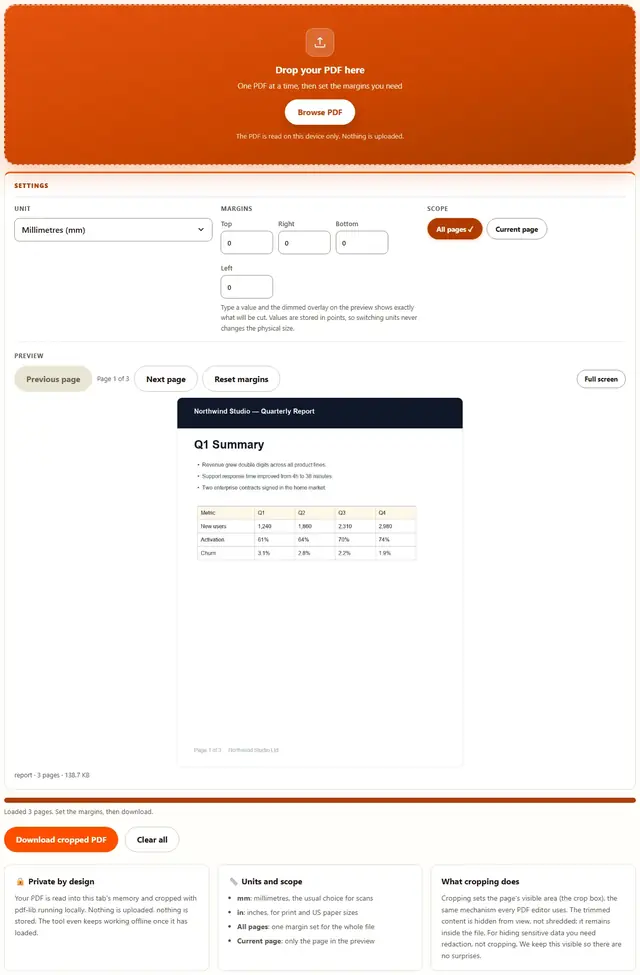
Drop your PDF here
One PDF at a time, then set the margins you need
The PDF is read on this device only. Nothing is uploaded.
Type a value and the dimmed overlay on the preview shows exactly what will be cut. Values are stored in points, so switching units never changes the physical size.
Crop PDF — illustrated, step by step
How to crop a PDF
Three steps. The PDF engine downloads only when you crop, so the page itself loads instantly.
Add your PDF
Drag a single PDF onto the dropzone or click to browse. The preview of page 1 appears as soon as the file loads.
Set the margins
Type the four margins in mm or inches and watch the dimmed overlay on the preview. Choose All pages or Current page for where the crop applies.
Crop & download
Press Download cropped PDF. The crop box is set inside your browser and the new file downloads right away.
What people crop PDFs for
Trim a scanner's white border: flatbed scans often carry a ragged white edge on every page. Crop it once, apply to all pages, and the document looks clean again.
Remove a black shadow edge: phone scans of books leave a dark strip down the binding side. A few millimetres on the left margin makes it disappear.
Fit a form into a portal's preview: some filing systems render pages oddly when the content sits far from the edge. Tight margins keep the text inside the visible frame.
Make a handout printable: shrink excessive margins so the content uses the sheet instead of floating in a sea of white.
Troubleshooting
Does cropping a PDF make the file smaller?
Not by much. Cropping sets the page's visible area: the content outside the new border is hidden from view but usually still sits inside the file, so the size barely changes. Cropping is about how the page looks and prints, not about shrinking it. When you need a smaller file, run the result through the PDF Compressor.
Can I crop only one page of a PDF?
Yes. Choose Current page next to Scope while the preview is on the page you want, and only that page gets the new margins. All pages is the default and applies the same margins to every page in the file.
Can I set the margins in inches instead of millimetres?
Yes. The Unit select switches between mm and in, and the numbers you already typed are converted to the new unit so the physical size does not jump. The preview updates as you type.
Will the printed page be smaller after cropping?
The visible page becomes what is left after the margins: page width minus left and right, page height minus top and bottom. Viewers and printers use that cropped area, so a Letter page with 10 mm off each side covers less sheet. The original page box stays in the file untouched.
Are my PDFs uploaded anywhere?
No. The file is read into this tab, the preview is drawn on a local canvas and the crop box is set by pdf-lib running in your browser. Nothing is transmitted. You can verify it: open DevTools to the Network tab, crop a file, and watch nothing get sent. Privacy policy.
It says my margins leave less than half an inch
The tool refuses to crop below 36 points (half an inch) in either direction, because the result would be an unusable sliver of a page. Reduce one or more margins until the warning clears, then download.
Can I crop a scanned PDF to remove the white border?
Yes, that is the most common use. Load the scan, type a guess such as 8 mm, watch the preview, and adjust until the border sits inside the dimmed area. Apply to all pages when the scanner left the same border on every sheet.
Learn more
Scans, margins and file size after editing: How to compress a PDF without losing quality and every other browser guide on the blog.
How to crop a PDF without uploading it
Most PDF websites want the file on their server first. Here the document is read into your browser tab, a live preview is drawn on a local canvas, the four margin fields define the new visible area, and pdf-lib writes the crop box into a fresh file for download. Nothing is transmitted, no account needed. Whether you searched for crop pdf or for how to trim pdf margins, the steps are the same: add one file, type the margins, press Download cropped PDF.
The dimmed bands on the preview are the exact area that will fall outside the visible page. What you see is what you get: type a larger margin and the band grows, type zero and it disappears.
Crop a PDF free: no account, no watermark
Free here means the whole tool, not a preview: every margin field, the unit switch, all pages or one page and unlimited runs, no signup, no watermark, no page cap. The status line tells you the exact result size after each run, and Clear all resets the margins to zero. The PDF engine is fetched only the first time you crop, from this site's own folder, so the page opens instantly.
After cropping, size is usually unchanged because the hidden content is still in the file. If smaller is the goal, send the result to the PDF Compressor. Other free browser tools live on the tools hub.
Millimetres or inches: setting margins the right way
The Unit select is a display choice, not a different mode: every value is stored internally in PDF points (1/72 inch), so switching from mm to in converts the numbers instead of reinterpreting them. A 10 mm margin stays 10 mm after you switch to inches, where it reads 0.394.
| You type | What it means | Typical use |
|---|---|---|
0 | No margin on that side | Full-bleed scans that already touch the edge |
5 mm | Light trim | Scanner shadow on the binding side |
8 mm | Standard white-border trim | Flatbed scans of receipts and forms |
0.5 in | Half an inch, print convention | Handouts and US Letter documents |
20 mm | Heavy trim | Wide margins you want gone before printing |
The preview updates on every keystroke, so you rarely need the exact number: adjust until the dimmed band covers the border and stop there.
Crop every page or just the one you are looking at
The Scope buttons decide where the crop lands. All pages applies the same four margins to every page in the document, which is right for scans where the machine left the same border on each sheet. Current page applies them only to the page shown in the preview, for documents where one page (a cover, a map, a wide table) is different from the rest.
| What you want | What to set | What lands on your disk |
|---|---|---|
| The whole scan loses its border | Margins + All pages | One file, every page cropped the same way |
| Only the cover page is cropped | Navigate to page 1, then Current page | One file, page 1 cropped, the rest untouched |
| Two different margin sets | Run once with All pages, then again with Current page on the odd page | Two passes, second output overrides the first |
| Start over | Reset margins | All four fields return to 0 |
The previous and next buttons move the preview page by page, and the indicator always reads Page 3 of 12 so you know exactly which page Current page means.
Where a PDF cropper earns its keep in the US
Six real jobs and the margins each one needs:
- Clean up phone photos of documents. Scanning apps leave a desk background around the page: crop 5 to 10 mm so only the paper remains.
- Fix a book scan. The binding side always carries a dark gutter. A left margin of 12 mm removes it without touching the text.
- Prepare exhibits for a court filing. County portals often complain about pages whose content sits too close to the edge; even margins keep the renderer happy.
- Fit a two-page handout onto one sheet. Trim generous margins before printing, then let the printer's booklet mode do the rest.
- Make a rental application render right. Some tenant portals crop the signature line when the form's margins are uneven. Even 6 mm fixes the preview.
- Tidy a scanned tax packet. Accountants ask for clean, edge-to-edge documents: trim the scanner border from all pages in one run.
When the job runs the other way and you need only some of those pages, the Extract PDF Pages tool picks them visually.
What we actually tested in the browser
Five checks we ran while building this page, and what came back:
The overlay matches the output
We cropped a Letter page with 10 mm on every side and measured the result in a PDF reader: 612 x 792 pt became 555.9 x 735.9 pt, exactly 28.35 pt (10 mm) less on each axis. The dimmed band on the preview covered the same 10 mm.
Unit switching keeps the physical size
Type 10 mm, switch the Unit select to inches, and the field reads 0.394 with the overlay unmoved. Switching back returns 10. The value is stored in points, so no rounding creeps in between units.
Text stays selectable
After cropping a text-heavy PDF, Ctrl+F in the result still finds words and the cursor still selects them: the crop box was written, the page content was never re-rendered.
The half-inch guard fires before the file is written
Entering 200 mm on a Letter page turns the status red with These margins leave only 36 x 36 pt, under half an inch. Reduce a margin before downloading. and the download button produces nothing until the margins are sane.
What DevTools shows while you crop
Keep the Network tab open and run a crop: the only request after page load is the PDF engine itself, from this site's own folder. Your file's bytes never appear in a request body. There is no upload code path.
Honest limits: what this cropper won't do
- Cropping hides content, it does not delete it. The trimmed area stays inside the file and any PDF viewer can reveal it by resetting the crop box. For sensitive data you need redaction, which this tool does not provide.
- The file size barely changes. Because the hidden content remains, a cropped 5 MB file is still about 5 MB. Use the PDF Compressor when size is the problem.
- One margin set per run. Every page in a run gets the same four numbers (or one page does). Different margins per page need separate runs with Current page.
- Encrypted PDFs must be unlocked first. An encrypted file can't be read without its password: open it in any PDF reader, use Print to PDF to make an unlocked copy, then crop that.
- Extremely large files depend on device memory. The preview renders one page at a time, but the whole document sits in the tab while it works, so a heavy scan pile is a desktop job.
None of this is buried in fine print: the card beside the tool repeats the hide-don't-delete caveat, and the troubleshooting answers cover the size and password cases.
Only need some of the pages?
Extract PDF Pages lets you tick the pages you want from thumbnails and get one clean file: same privacy, same speed.
Open Extract PDF Pages