GIF to Images Free Online, No Signup
Drop an animated GIF and get every frame back as a still image, composited exactly as a viewer shows it — including frames that only stored the changed pixels. Preview each frame with its delay, then download individually or as one ZIP.
Split your GIF into frames
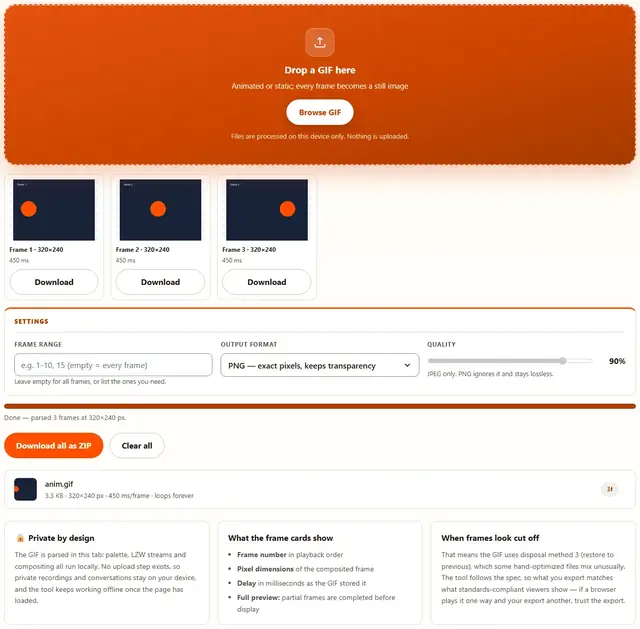
Drop a GIF here
Animated or static; every frame becomes a still image
Files are processed on this device only. Nothing is uploaded.
Leave empty for all frames, or list the ones you need.
JPEG only. PNG ignores it and stays lossless.
GIF To Images — illustrated, step by step
How to convert a GIF to images
Three steps, no accounts, no watermarks on the output.
Drop the GIF
Drop an animated or static GIF on the box, or click Browse. The frames appear in a grid with their delays.
Choose frames and format
Leave the range empty for every frame or type a selection. PNG keeps exact pixels; JPEG is lighter for photo frames.
Download
Grab frames one by one or everything at once as a ZIP. Nothing is uploaded anywhere.
Why split GIFs in the browser?
Because the animation is often the thing you would not host elsewhere: a screen recording of an internal tool, a private chat reaction, unreleased game footage. Parsing locally means the file never touches a server, there is no account and no queue, and the frames are ready the moment the GIF loads. Details are in our file-handling policy.
Troubleshooting
Is my GIF uploaded when I split it?
No. The file is parsed block by block in this tab: the palette is read, each frame's LZW data is decompressed, and the frames are composited following the animation's disposal rules. There is no upload endpoint, so screen recordings and memes stay on your device.
Why do some frames include parts of the previous frame?
Because optimized GIFs do not store full pictures. Many animators only draw what changed between frames, and the rest is carried over. The tool follows each frame's disposal method — keep, clear, or restore — so every exported frame is the complete image as it appeared at that moment, exactly what you see in a viewer.
What is the delay of each frame?
The hundredths of a second the GIF stores per frame, shown on every card. Most GIFs use 10 (100 ms), but values of 0 or 1 are common too and viewers treat them as roughly 100 ms. The exported stills do not carry timing; it is shown so you know the original pacing.
Can I extract just some frames?
Yes. The page range field takes the same forms as elsewhere: 1-5, 8, 11-13. Only those frames are composited and downloaded, which keeps a long GIF's export quick and the ZIP small.
PNG or JPEG for the frames?
PNG for exact pixels: GIF is already palette-limited, and PNG stores those same colors losslessly plus any transparency the frame had. JPEG when the frames are photographic and you want them lighter, using the quality slider to trade bytes for fidelity.
Will the frames keep the transparency?
Where the GIF had transparency, yes: exported PNGs keep the transparent areas. JPEG has no alpha channel, so those areas are filled with white before encoding — another reason PNG is the default here.
What a GIF frame really is
An animated GIF is frugal by design, and understanding that frugality explains every surprise the format offers. Instead of storing each frame as a complete picture, an optimized GIF stores only the pixels that changed since the previous frame, along with a disposal instruction telling the viewer what to do with the old image underneath: leave it, clear it, or restore whatever was there before. A viewer composites these layers in real time, and so does this tool, so every exported still is the complete picture at that instant rather than the fragment the file happened to store.
The 256-color limit is the other half of the story. Each frame references a palette — shared or its own — and those palette entries are all the color the format can express. That is why a GIF of a photograph looks flat next to the video it was made from, and why the PNG export here is exact: it preserves precisely the pixels the GIF defined, no more and no less, rather than introducing a second lossy step.
| Disposal method | Meaning | Export result |
|---|---|---|
| 0 or 1 | Leave the frame as drawn | Layer builds on the previous image |
| 2 | Clear to background | Frame region resets (often transparent) |
| 3 | Restore to previous | Whatever was under the frame returns |
Split, merge and re-encode
Getting frames out is often step one of a pipeline: edit stills in an image editor, pull the best frame as a cover image, or convert the animation to a format chat apps handle better. To rebuild an animation from edited stills, drop them into Images to GIF, which shares this page's engine in reverse — palette building, dithering and LZW encoding, all in the same tab.
If the GIF came bundled inside a PDF or a document, extract it first: Extract PDF Images pulls embedded pictures, and every tool here works on the same principle — the file never leaves your device.
Frames extracted — need them as a GIF again?
Images to GIF rebuilds animations from any stills: same privacy, same speed.
Open Images to GIF