Create Zip File Online Free, No Install
Bundle any files into one ZIP in your browser: compression on or off, folder paths kept, and an exact before and after size. No upload, no signup, no watermark.
Create your ZIP file
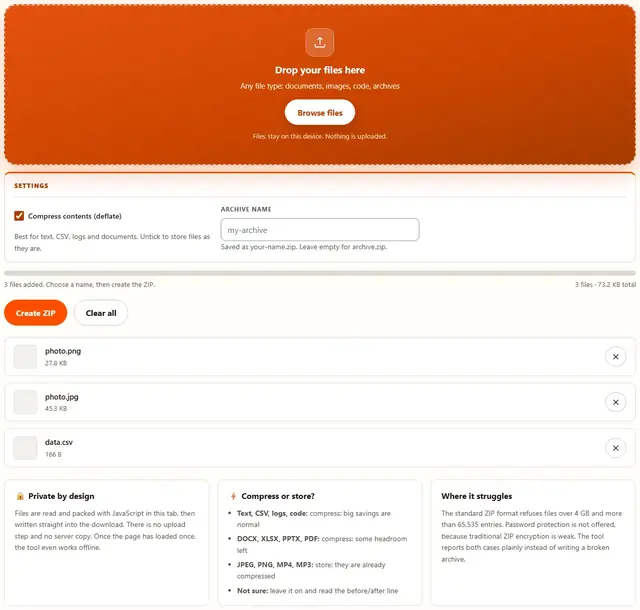
Drop your files here
Any file type: documents, images, code, archives
Files stay on this device. Nothing is uploaded.
Best for text, CSV, logs and documents. Untick to store files as they are.
Saved as your-name.zip. Leave empty for archive.zip.
ZIP Files — illustrated, step by step
How to combine multiple files into one ZIP
Three steps, a few seconds, no software to install.
Add your files
Drag files, or a whole folder in Chrome or Edge, onto the dropzone. Each one appears in the list with its size, and a running total shows exactly how much you are about to pack.
Pick compression & a name
Compression on suits text and documents; compression off (Store) suits photos and videos. Type the archive name you want the download to carry.
Create and download
Press Create ZIP and watch the progress bar. The status line closes with the total before, the total after and the compression ratio, then your archive downloads.
Why zip in the browser?
Because nothing leaves the machine, a ZIP made here is safe for payroll exports, client contracts and medical records that you would not paste into a free website. The archive is assembled in memory and handed straight to your downloads folder. It also works offline once the page has loaded. Details in our file-handling policy.
Troubleshooting
Do my files get uploaded when I zip them?
No. Your files are read in this browser tab, packed with JavaScript, and handed straight back as a download. There is no upload step and no server processing. You can verify it: open DevTools, go to the Network tab, zip a folder, and watch nothing get sent.
How much smaller will my ZIP be?
It depends entirely on what goes in. Plain text, CSV files, logs and source code often shrink to a small fraction of their size. Photos, videos and MP3 files are already compressed, so they come out about the same size. The tool shows your exact before and after, so you never have to guess.
My ZIP is bigger than the files I put in. Why?
Because those files were already compressed. ZIP cannot squeeze a JPEG or an MP4 any further, and the archive adds a little overhead for headers and the directory. Turn compression off (Store mode) in that case, or just send the files as they are.
Can I put folders inside the ZIP?
Yes. Drag a folder in from Chrome or Edge and the relative paths are kept, so photos/2024/beach.jpg stays nested inside the archive. Files you pick one at a time land at the top level of the ZIP, which extracts fine, just flat.
Is there a file size or number limit?
The standard ZIP format caps a single file at 4 GB and an archive at 65,535 entries. Browsers also cap how much memory is available, so a huge multi-gigabyte batch can fail with a clear message rather than a broken file. For everyday folders, none of this applies.
Are password-protected ZIPs supported?
No, and we would rather say so than produce an archive that only looks protected. Traditional ZIP encryption is weak anyway, so if a file is genuinely sensitive, protect the channel or the device instead of relying on a ZIP password.
Will the ZIP open on Windows, Mac and Android?
Yes. The archive uses the standard ZIP format with deflate compression, which every desktop and mobile OS reads without extra software. Stored entries are standard too: method 0 and method 8 are the two settings every unzip tool understands.
Can I create a zip file on a Chromebook without any app?
Yes. This tool runs in the browser, so a Chromebook or phone can create a zip file without WinZip, 7-Zip or any install. Select your files, choose whether to compress them, and download the finished zip. It is also handy for packing several files into one email attachment.
What a ZIP file actually does (and when it does not shrink anything)
A ZIP is a container first and a compressor second. It takes any number of files, gives each one a header with its name, date and checksum, stores the bytes, and finishes with a central directory so the receiving computer can list everything before it unpacks a single byte. That structure is why a ZIP opens instantly even when it holds thousands of files: the reader jumps to the directory at the end rather than scanning from the front.
The shrinking part comes from deflate, the same lossless algorithm behind .gz files. It looks for repeated sequences and records them once instead of many times, which is why plain text collapses so well. Nothing is thrown away: every byte comes back exactly as it went in, and the archive stores a CRC checksum per entry so a corrupt file is detected rather than silently unpacked half-wrong.
The honest part is what deflate cannot do. It finds patterns, not meaning. A JPEG has already had the patterns squeezed out by the camera's encoder, an MP4 is a wall of entropy by design, and a ZIP inside a ZIP is simply repeating work. Those files ride along uncompressed and the archive grows by a few dozen bytes of headers instead of shrinking.
| File type | What deflate finds | Typical result in a ZIP |
|---|---|---|
| Text, CSV, logs, source code | Endless repetition: words, spaces, columns | Shrinks to a small fraction of the original |
| DOCX, XLSX, PPTX | Already zip containers, one layer left | Some savings, not dramatic |
| Streams are often pre-compressed | Small savings at best | |
| JPEG, PNG, WebP | Pixels were already compressed | Size stays about the same |
| MP4, MP3, AAC, WAV? | Audio and video are entropy by design | Size stays about the same |
| An existing ZIP or RAR | Nothing left to find | Nothing to gain, tiny overhead added |
Compress or store: the toggle, explained in plain terms
The switch on this page chooses between method 8 (deflate) and method 0 (store). Store writes the file bytes verbatim: fastest, and the correct choice when the data is already packed. Compress runs deflate over every entry before writing: it costs a moment of your CPU, and it pays for itself the moment the batch contains anything textual.
A useful habit is to make the decision from the numbers rather than from intuition. Add the files, press Create, read the status line. If it says the archive is 60% smaller, compression earned its keep. If it says the archive is a rounding error away from the total you started with, untick the box and create it again in Store mode: you will save a second or two on both ends, and the sender and receiver both win.
One thing compression never changes: correctness. Store and deflate produce archives every unzip tool on earth reads, and neither touches the content of your files. This is not the lossy kind of compression you meet in an Image Compressor, where quality is traded for size. Here, byte for byte, everything comes back.
| Setting | Method | Best for | Trade-off |
|---|---|---|---|
| Compress on | 8 (deflate) | Text, CSV, logs, code, office files | Slightly slower to create |
| Compress off (Store) | 0 (store) | JPEG, PNG, MP4, MP3, existing archives | No size savings, instant creation |
Inside the archive: where your files actually live
Knowing the layout explains most ZIP oddities, including why an interrupted download never opens. The local headers and file data sit at the front, one block after another. The central directory is written after all of them, and the very last few bytes point back to that directory. Tools read from the end, which is why a truncated file cannot be listed at all: the pointer that starts everything is the part that got cut off.
Folder structure and filenames: what survives the trip
A ZIP stores paths, not folders. There is no directory object inside the archive, only filenames containing a slash: photos/2024/beach.jpg tells the extractor to create photos, then 2024, then drop the file inside it. Every unzip tool builds the tree from those strings, which is why a ZIP made on a Mac extracts with its structure intact on Windows.
Drag a folder into this tool from Chrome or Edge and those relative paths are preserved, so the archive mirrors what you had on disk. Files chosen one at a time through the browse dialog arrive with bare names, because that is all the browser reports for them. Neither is wrong: flat is often what an upload portal wants, while nested is what you want for a backup.
Two habits keep filenames portable. First, avoid characters Windows treats specially (: * ? " < > |) and keep paths under 260 characters, since older Windows tools choke on long ones. Second, remember that a filename is bytes: a ZIP made here writes the name the browser gave it, so a file named in one language extracts under the same name everywhere. If the receiver reports mojibake, the culprit is almost always their unzip tool assuming a legacy encoding, not the archive.
One asymmetry worth knowing before you send: extracting does not have to keep the tree. Browsers save each downloaded file flat into the Downloads folder, which is why our Unzip tool offers a "download as a new ZIP" option when you want the paths rebuilt in one step instead of reassembled by hand.
ZIP limits you should know before you rely on one
The format is from 1989 and its original numbers still bind every implementation, including this one. The classic header fields are 4 bytes wide, which is where the famous 4 GB ceiling comes from, and the directory counts entries in a 16-bit field, which is where 65,535 comes from. Newer extensions lift both, but not every receiver has them, so this tool refuses at the classic limits and says so instead of writing an archive your accountant cannot open in five years.
| Limit | Classic ZIP | What this tool does |
|---|---|---|
| Single file size | 4 GB (32-bit field) | Refuses with a message naming the file |
| Entries per archive | 65,535 | Refuses with a message before packing |
| Total archive size | 4 GB without ZIP64 | Capped lower, for browser download limits |
| Compression methods | 0 (store), 8 (deflate) plus many rarer ones | Writes only method 0 and method 8 |
| Encryption | Traditional password scheme (weak) or AES | Not offered, by design |
Memory is the practical limit that bites first. A browser tab holds the inputs and the half-built archive at the same time, so a batch that reads fine as a list can still fail when every file lands in memory at once. If you are packing tens of gigabytes, a desktop tool that streams to disk is the better instrument; this one is built for the everyday case, and it tells you when you have stepped past it.
Use cases: five times one ZIP file fixes the problem
- A job application that asks for "all documents in one file". Resume, cover letter and portfolio PDFs plus a scanned reference: pack them, name it
Lastname-application, and the portal's single-attachment rule stops being an obstacle. - Sending photos that a messaging app refuses. Apps cap individual attachments but not always the total. A ZIP of the night's pictures goes through where twelve separate sends would not.
- Handing a developer your site's text assets. HTML, CSS, JSON and CSV shrink hard under deflate, so the archive is both faster to upload and smaller to store, with folder paths intact.
- Backing up a project folder before you wipe a machine. Drag the folder in, keep compression on for the code and configs, and the result is one file you can copy to an external drive.
- Submitting evidence or records for a claim. Insurers and lawyers usually want one attachment. Packing the scans locally means the documents never sit on a stranger's server while you assemble it. Our guide to photo size limits for insurance claims covers the other half of that problem.
What we actually tested
This page makes specific claims, so here is how they were checked. The archive writer and reader were exercised as a pair in a Node harness before anything shipped: a ZIP built with compression on was read back entry by entry, and the decoded bytes matched the input exactly, byte for byte, with the CRC passing. A second run with compression off confirmed method 0 writes and reads correctly, and passing an empty file list was rejected with a clear error rather than an empty archive.
In the browser, we opened DevTools, went to the Network tab, and zipped a folder: the only traffic was the page's own HTML, CSS and JavaScript. Nothing uploads, because the flow is File.arrayBuffer() into the packer into a Blob download, all inside your tab. We also ran a mixed batch (a text file, a JPEG and a spreadsheet) to confirm the ratio line reports the combined total honestly instead of crediting the text file's savings to the photo.
Edge cases we deliberately triggered: a batch containing a file over the format's limit, which returned the descriptive error instead of a corrupt ZIP; a drag of a folder from Chrome, which kept its relative paths; and an archive renamed from .zip to something else, which our Unzip tool correctly refuses. What we did not do: run synthetic benchmark suites and publish numbers from them. The before and after you see on screen is the only compression statistic on this page, because it is measured on your own files.
Limits: what this ZIP maker will not do, and why
An honest list beats a surprised user:
- No passwords. Traditional ZIP encryption has been considered weak for years, and a tool that offers it implies a protection that does not hold. Keep sensitive files out of archives, or use real encryption elsewhere.
- No files over 4 GB, no more than 65,535 entries. Those are the format's own ceilings. The tool stops with a message rather than writing an archive that other machines will reject.
- No split volumes or recovery records. Those belong to RAR and 7z, not to the ZIP standard. Splitting a large file into parts is a different job with different tools.
- No preview of contents before you download. The list shows your inputs, not a reconstruction of the archive's directory. The Unzip tool performs that job on the output.
- Very large batches depend on your device's memory. The whole job is held in RAM while it runs. A phone will reach the ceiling sooner than a laptop, and the failure is reported, never silent.
- Compression gains are your data's, not ours. If a batch barely shrinks, that is the content being honest. This tool never inflates a number to look good.
Need to break a PDF apart, shrink images, or strip metadata first? Those live on the Tools page.
Got a ZIP you need to open?
The Unzip tool lists every entry with its size and method, then hands the files back: same privacy, same speed.
Open Unzip Tool