Compress a PDF for Email: Shrink PDF Files Free
Compress a PDF for email: reduce large PDFs, especially scanned documents, right in your browser. No upload, no signup, no file limits. Batch processing supported.
Compress your PDFs
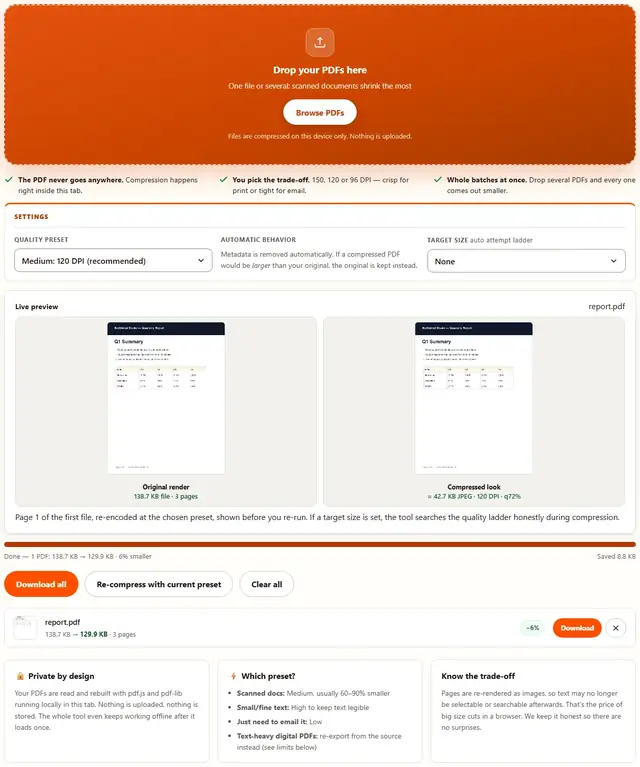
Drop your PDFs here
One file or several: scanned documents shrink the most
Files are compressed on this device only. Nothing is uploaded.
- The PDF never goes anywhere. Compression happens right inside this tab.
- You pick the trade-off. 150, 120 or 96 DPI — crisp for print or tight for email.
- Whole batches at once. Drop several PDFs and every one comes out smaller.
Metadata is removed automatically. If a compressed PDF would be larger than your original, the original is kept instead.
Page 1 of the first file, re-encoded at the chosen preset, shown before you re-run. If a target size is set, the tool searches the quality ladder honestly during compression.
PDF Compressor — illustrated, step by step
How to compress a PDF
Three steps: the heavy PDF engine (about 1.9 MB) downloads only when you compress, so the page itself loads instantly.
Add your PDFs
Drag PDF files onto the dropzone or click to browse. Multiple files compress one after another as a batch.
Pick a quality preset
Medium (120 DPI) is the sweet spot for scanned documents. High keeps fine text crisp; Low makes the smallest possible file.
Download the result
Each row shows pages processed and exact before/after size. If the file didn't shrink, you keep the original instead.
When a PDF compressor is the right tool
Great fit: scanned documents and photo-heavy PDFs, which are mostly images inside a PDF wrapper, so re-rendering at 120 DPI typically cuts 60–90% of the size.
Poor fit: digital text PDFs (exported from Word, LaTeX, browsers). Text becomes rasterized (no longer selectable or searchable), and the savings are limited. For those, re-export from your original document with lower image quality, or use "Print to PDF" with a minimum-size setting. Keeping your originals is always wise: see our file-handling policy for how the pipeline works.
Server compressors vs. this one
Most free PDF tools move your document onto their machines before touching it. We think you deserve to see exactly what that trade involves — and what changes when the whole job stays in your browser.
| Server-upload tools | BeeToolify | |
|---|---|---|
| Where your file goes | Their servers — processed remotely | Nowhere. It never leaves your browser tab |
| Account | Often required, or anonymous use capped low | None, ever — no signup of any kind |
| File size ceiling | Typically 25–200 MB before an “upgrade” prompt | Your device’s own memory and storage |
| Waiting | Upload… convert… queue… download… | Engine downloads once (≈1.9 MB), then every batch is local and immediate |
| Your data afterwards | “Deleted after N hours” — a policy you have to trust | Nothing stored anywhere, because nothing is sent anywhere — architecture, not a promise |
| What you give up | — | Server-side horsepower for enormous jobs; ordinary email-sized PDFs and scans are this page’s home turf |
How the PDF compressor actually works
Troubleshooting
The PDF didn't get smaller: why?
It's probably already optimized, or it's mostly text. In that case BeeToolify keeps your original automatically. Try the Low preset once; if that still doesn't help, re-export from the source document with reduced image quality instead.
It asked for a password / said the PDF is protected
The browser can't render an encrypted PDF without the password. Open it in any PDF reader, remove the security (or use 'Print to PDF' to create an unlocked copy), then compress that copy here.
Text looks blurry in the compressed file
Text is rendered as part of the page image, so too low a preset makes small text soft. Switch to the High preset (150 DPI): for documents with fine print, that's the right choice.
The browser ran out of memory on a big PDF
Each page is rendered at full resolution, so very large PDFs (hundreds of pages) need RAM. Use a desktop browser, process the file in smaller parts (many readers can split PDFs), or close other heavy tabs first.
Can I compress PDFs on my phone?
Yes for typical documents. Very large scans may hit mobile memory limits: if a file fails on your phone, the same file usually works on a laptop.
Are my PDFs uploaded anywhere?
No. The entire pipeline (reading, rendering, re-encoding, download) happens in your browser tab. You can verify it: open DevTools → Network, compress a file, and watch nothing get sent. Privacy policy.
Which quality preset should I use?
Medium (120 DPI) is the best default for scanned documents. Use High (150 DPI) for documents with small text or detail, and Low (96 DPI) when you just need the smallest possible file to email.
Learn more
Which preset to pick, why text PDFs resist compression, and email size targets: How to Compress a PDF Without Losing Quality. Send fewer pages instead: Split a PDF Into Separate Pages.
Compress a PDF for email so the attachment actually sends
Attachment failures are arithmetic, not judgment. Gmail stops a message at about 25 MB once attachments and body are counted together, Outlook.com sits closer to 20 MB, and your server may be stricter: 10 MB is common on corporate hosts. Replies quote the file forward, so a thread under the limit can end over it.
- Drop the PDF above, leave Medium (120 DPI) selected, and read the before/after size printed on your row.
- Under the cap with headroom? Download and attach: replies carry the file forward.
- Still over? Set Low (96 DPI) and press Re-compress with current preset; your original file is never modified.
- Over because of page count, not pixels? No setting beats fewer pages: split the PDF and send the part that matters.
Batch mode carries the rest: drop ten PDFs for one thread, they run one after another, and Download all collects them. Why the presets work: how to compress a PDF without losing quality.
How to reduce PDF file size without losing quality
Quality loss in a PDF is resolution, not magic: each page is re-rendered lower and re-encoded as JPEG, and it still looks like the page as long as you stay above the screen you read it on.
| Preset | Pages rendered at | Typical result | Reach for it when |
|---|---|---|---|
| High: 150 DPI (quality 0.82) | finest detail | least shrink, type stays crisp | small text, dense tables, fine print, handwriting |
| Medium: 120 DPI (0.72), recommended | balanced | scans usually come out 60–90% smaller | ordinary scans, forms and mixed documents |
| Low: 96 DPI (0.60) | coarsest | smallest file; small text softens | screen-only reading, attachments due now |
Trust the before/after figure on your own row, and step down a preset when you need more room. Every run restarts from your original.
Shrink a PDF file online free, without handing it to a server
No signup, no quota, no watermark, and free doesn't mean the file leaves your machine: reading, rendering, encoding and download all happen in this tab. The engine (about 1.9 MB) loads on your first compression, and the tool works offline after that.
Why is my PDF file so large?
Because most of its bytes are pictures. A page scanned at 300 DPI is a 2550×3300 pixel image before it is anything else, and a ten-page scan carries ten of them. Also common: a whole typeface embedded instead of the subset used, images left at maximum quality by a 'print ready' export, and a year of scans merged into one file.
The mirror image is a digital text PDF from Word or a browser: already lean compressed text, so the number barely moves while the text turns into pixels.
Reduce PDF size to 1 MB, 500 KB, or whatever the portal demands
Forms rarely say 'smaller is better'; they hand you a ceiling and reject anything above it. These three targets show up most often on US portals:
| Target | Where you'll meet it | What usually works |
|---|---|---|
| 5 MB | Everyday email attachments, most claims and HR portals | Medium (120 DPI) on a scan usually clears first try; a digital text PDF may already fit |
| 1 MB | Common App and university uploads, many court e-filing systems, job portals | Medium first, then Low (96 DPI); still over means split it and send two files |
| 500 KB | Agency and insurance forms that count in hundreds of kilobytes | Low (96 DPI) plus fewer pages: halving the page count halves the weight in a way no preset can |
Exact sizes depend on your file, so read the printed after-size, and when the cap is unreachable, page count is the one lever that always works. Our walkthrough of splitting a PDF into pages covers the fix.
Compress a scanned PDF without losing the signature
A scan is a photograph of paper: your scanner or phone app captures each page at 300 DPI or higher, and the PDF is those bitmaps in a wrapper. That's why a twelve-page lease can outweigh a three-hundred-page novel, and why scans are this tool's best case: no text layer to lose.
- Fine handwriting, stamps and small print: start at High (150 DPI) and check the result: a signature that still reads clearly is the whole point.
- A whole stack: drop every file at once: they queue one after another and Download all collects the results, with a page-one thumbnail as each runs.
- Searchable text: rasterizing removes it, so keep your original if you'll need Ctrl+F later, or switch on your scanner's OCR option first.
Six US situations where the size limit decides the upload
Gmail and Outlook attachments
The everyday case: a 40 MB scan won't leave the outbox. Compress at Medium and leave headroom: replies carry the file forward.
Court e-filing
County and circuit portals cap exhibits (commonly around 10 to 35 MB) and rarely explain a rejection. Scanned exhibits shrink most, so run yours the day before a deadline.
Common App and university document portals
Transcripts, recommendations and portfolios upload one at a time behind caps of a few megabytes. Compress to leave room, and re-read the school's requirements. They change between cycles.
Insurance and claims portals
Proof-of-loss packets are photo-heavy and usually uploaded from a phone with weak signal. Smaller files finish instead of timing out.
IRS and government form uploads
Filing instructions print a size ceiling. When it sits in the hundreds of kilobytes, compress at Low and split the package so each part passes.
Sending a scanned contract
Sign, scan, compress at Medium, send: it gets read once on a phone. Keep your searchable original for the day you need clause 7.2.
Photos riding along? The Image Compressor trims JPEGs with a quality slider and the same local-only handling.
What we actually tested: the pipeline, DevTools and real files
We wrote this tool, so these claims come from its source or from files we ran through it:
- The pipeline. pdf.js walks the file page by page, drawing each at your DPI ÷ 72 and exporting it as JPEG, then pdf-lib assembles a new PDF with one image per page.
- DevTools → Network is the proof. Filtered to your file, the only requests are this page's own assets and the engine's first download: no POST, no upload body, no PDF bytes.
- Why a text PDF barely moves. Each rendered JPEG lands close in weight to the text objects it replaces, so a text-heavy export comes out within a few percent either way.
- It never hands back a bigger file. Byte counts are compared after the rebuild: the same size or larger returns your original, marked 'kept original' instead of a percentage.
- Metadata is dropped on a rebuild (no title, author, software string or timestamps) while a kept original arrives untouched, metadata included.
- Progress is per page. On a 100-page file the status reads 'File 1 of 1, rendering page 47 of 100…' and the bar advances with every page.
- Oversized pages are capped at 2600 px on the long side, so a huge scan can't blow up the canvas.
Limits: what this compressor will not do
The honest list, so nothing surprises you after the download:
- Text becomes a picture: rebuilt pages are images, so the result isn't selectable, searchable or Ctrl+F-able. For documents you'll search later, shrink at the source: re-export with lower image quality.
- Already-optimized files don't shrink: a file written at maximum compression has no slack left, so you get your original back, marked 'kept original'.
- Encrypted PDFs must be unlocked first: pages can't be drawn without the password, so you get a plain error and unlock the file in any reader.
- Very large files need device memory: hundreds of pages can exhaust a phone, so close heavy tabs, use a desktop browser, or split the document.
- Time scales with page count: a 100-page file takes roughly twenty times a five-page one at the same preset.
- Only PDFs go in: anything else is skipped with a clear message instead of a broken output.
Splitting, merging, image and format work live in the full tools directory, and all of it runs on your device.
Also shrinking images?
The Image Compressor handles JPEG, PNG and WebP with a live quality slider: same privacy, same speed.
Open Image Compressor