PDF to Text Free Online, No Signup
Drop a PDF and pull out its text: page by page, in reading order, with paragraph breaks preserved. Copy it to the clipboard or download a clean UTF-8 TXT file. The parsing happens in this tab.
Extract text from your PDF
Drop a PDF here
One document at a time, parsed right in this tab
Files are processed on this device only. Nothing is uploaded.
Leave empty to extract every page, or list the pages you need.
Clean works for almost everything. Raw is the escape hatch for odd layouts.
PDF To Text — illustrated, step by step
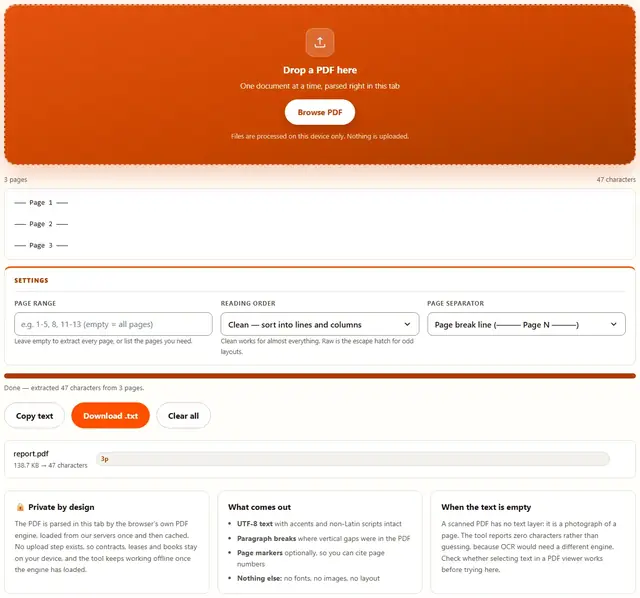
How to convert a PDF to text
Three steps, no accounts, no watermarks on the output.
Drop the PDF
Drop a file on the box, or click Browse. The page count appears as soon as the document is parsed.
Choose the pages
Leave the range empty for the whole document, or type 1-5, 8 for a selection. Pick Clean reading order unless a layout comes out garbled.
Copy or download
The extracted text appears below the preview instantly. Copy it to the clipboard or download a TXT file; nothing is uploaded anywhere.
Why extract text in the browser?
Because PDFs often contain exactly the documents you would not paste into a web converter: contracts, medical letters, unreleased manuscripts. Parsing locally means the file never touches a server, there is no account and no queue, and the text is ready the moment the file loads. Details are in our file-handling policy.
Troubleshooting
Is my PDF uploaded when I extract its text?
No. The file is parsed in this tab by the same PDF engine that renders PDFs in browsers, and the extracted text stays in memory until you copy or download it. There is no upload endpoint, so contracts, books and reports never leave your device.
Why is the extracted text jumbled in some PDFs?
Because the PDF stores text as positioned fragments, not as a paragraph. Most pages put fragments in reading order and come out clean; a few, especially multi-column layouts or design-heavy pages, place them in paint order instead. The tool sorts fragments by line and column to compensate, which fixes the majority of pages.
Will it extract text from a scanned PDF?
A scan is a picture of text, and pictures have no letters to extract. If the result comes back empty, that is what happened: the PDF contains images, not a text layer. OCR is a different kind of software and is not part of this tool.
Can I extract only part of the PDF?
Yes. The page range field takes forms like 1-5, 8, 11-13, and only those pages are parsed. The counter under the preview shows the total page count of the file so you know the valid range before you commit.
How do I keep the paragraph breaks?
They are kept by default: text that sits on the same baseline is joined into one line, and a vertical gap between lines becomes a paragraph break. The raw mode disables that sorting, which is occasionally useful for PDFs whose layout the sorter misreads.
Does extracting text modify the PDF?
No. The source file is only read, never rewritten, and the output is a plain UTF-8 TXT file with no formatting, fonts or images. If you need the layout preserved, convert the PDF to images instead with the PDF to Image tool.
What text extraction can and cannot see
A PDF is a drawing instructions file, and text is one kind of instruction it can carry. When it does, extraction is exact: every glyph comes out as the character the document declared, including accents, currency symbols and non-Latin scripts, because nothing is recognized or guessed. That fidelity is why this method beats OCR for born-digital documents: there is no error rate, only the layout question.
The layout question is the one honest limitation. Text in a PDF is stored as fragments with coordinates, and a paragraph is only a convention the reader infers. The Clean mode groups fragments that sit on the same baseline into lines and stacks lines into paragraphs, which matches how almost all documents are built. Occasionally a two-column page or an unusual design puts fragments in an order the grouping misreads, and the Raw mode then preserves the original paint order so you can see what the file actually contains.
| PDF type | Extraction result | What to do |
|---|---|---|
| Born-digital document | Exact text, clean order | Use Clean mode |
| Multi-column layout | Usually clean; rarely garbled | Try Raw mode |
| Form with field values | Labels extract; typed values may not | Use the PDF Form Filler to save values first |
| Scanned document | Empty — no text layer | Needs OCR, which this tool does not do |
| Password-protected | Won't open | Remove the password in a viewer first |
Extract text, images or pages
Text extraction pulls out only the characters, which is what you want for search, translation, quotes or feeding a document into another program. When the value of a PDF is in its pictures instead, the Extract PDF Images tool pulls those out, and PDF to Image renders whole pages as PNG or JPEG files.
If the goal is editing rather than reading, PDF to Word keeps the paragraphs in a DOCX you can revise, while this tool deliberately throws the formatting away. Each one shows the exact output before you download, so there is no guessing which fits the job.
Need the whole document in an editor?
PDF to Word keeps paragraphs and structure in a DOCX file: same privacy, same speed.
Open PDF to Word