Convert Markdown to PDF Online Free
Turn a README, release note, blog draft or syllabus written in Markdown into a clean, print-ready PDF. Drop a .md file or paste your text, pick a theme, check the live preview, then download. Everything happens on your device: no upload, no signup.
Convert your markdown to PDF
Drop your .md file here
Or paste your markdown into the editor below
The file is read on this device only. Nothing is uploaded.
Markdown To PDF — illustrated, step by step
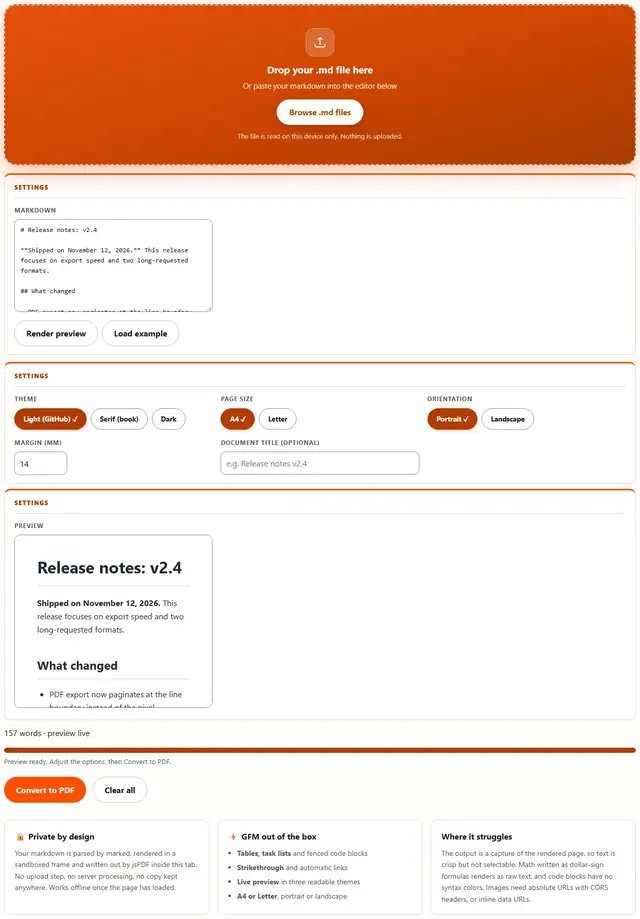
How to convert Markdown to PDF
Three steps, about ten seconds, no technical skills needed.
Add your markdown
Drag a .md or .markdown file onto the dropzone, or paste your text into the editor. Hit Render preview to see exactly what the PDF will look like, or load the example to try the tool with real content first.
Pick theme and page setup
Light is the GitHub look, Serif reads like a book, Dark prints high-contrast for slides. Choose A4 or Letter, portrait or landscape, and set the margin in millimeters. The preview updates on every change.
Download the PDF
One click renders the preview, slices it into pages of the paper size you picked and downloads the result. The file name comes from the document title, or from your file name when you leave the title blank.
Why convert in the browser?
Drafts of unreleased features, an investor memo, a private journal: this kind of markdown should never sit on someone else's server. Because there is no upload step, the document never leaves the machine you are sitting at. It also works with the network cable unplugged, once the page has loaded. Details in our file-handling policy.
Troubleshooting
Are my Markdown files uploaded?
No. Your markdown is parsed by marked inside this tab, the preview renders in a sandboxed frame on this device, and jsPDF writes the PDF locally. There is no upload step and no server processing. Open DevTools, go to the Network tab, convert a file, and watch: the only requests are the page itself and the converter engine fetched on first use.
Does the PDF keep my formatting?
Yes. Headings, bold and italic text, ordered and unordered lists, tables, fenced code blocks, blockquotes, strikethrough and task lists all render in the PDF exactly as they appear in the preview. Line and paragraph breaks are preserved, and links keep their URLs.
Is the text in the PDF selectable?
No. This converter captures the rendered preview as an image and slices that image across pages, so the text looks identical to a printout but cannot be selected or searched. If you need a selectable, text-based PDF, convert plain text with the TXT to PDF tool instead.
Can my PDF include images and links?
Links render as links. Images are trickier: the converter never reads your folders, so an image written as a relative path like ./diagram.png has nothing to load. Use an absolute https URL (the host must allow cross-origin loading) or paste the image as a data URL inside the markdown.
Are math and code highlighting supported?
No. A block written as dollar-sign math renders as raw text, and fenced code blocks render in a plain monospace font with no syntax colors and no theming. If you need formulas or highlighted code, render them in your own editor first, then paste the HTML into the HTML to PDF tool.
What about the YAML front matter at the top of my file?
A leading block delimited by three dashes is treated as YAML front matter and hidden from the PDF. The word-count hint under the editor notes when front matter was skipped. Everything after the closing dashes renders normally.
Markdown to PDF: what actually happens to your document
Markdown is a plain-text convention: hashes for headings, asterisks for emphasis, pipes for tables. A PDF is the opposite kind of file: a fixed page grid where every glyph sits at an absolute position. Converting between them means running the convention through a real renderer, then deciding how the rendered result is cut into pages. This tool does both honestly and locally.
marked parses your text into HTML using GitHub Flavored Markdown rules, the same dialect you see on GitHub: tables, task lists, strikethrough and autolinks included. That HTML is dropped into a sandboxed iframe with one of three self-contained stylesheets, which is the page you see in the preview and the exact page the PDF is made from. When you click Convert, the iframe is captured by html2canvas and the capture is sliced top to bottom onto A4 or Letter pages by jsPDF.
| Setting | What it changes | Default |
|---|---|---|
| Theme | Light is the GitHub look, Serif is a book-style Georgia layout, Dark is high contrast for dark displays | Light (GitHub) |
| Page size | A4 (210 x 297 mm) or US Letter (8.5 x 11 in) | A4 |
| Orientation | Portrait for documents, landscape for wide tables | Portrait |
| Margin | 0 to 40 mm of white space on every edge; the content area shrinks to fit | 14 mm |
Two honest details. Front matter between a pair of three-dash lines at the very top is skipped, because it is configuration, not content. And raw HTML inside the markdown is rendered as written, which is how you get a colored badge or an embedded video poster image, since Markdown itself has no such elements.
How your markdown becomes paginated pages
The whole conversion is a four-stage pipeline that runs inside the tab you are looking at.
Use cases: five times a markdown PDF is the right file
- Shipping a release or change log. Release notes live in a .md file next to the code. Convert them before attaching to a store submission or an internal email, and the tables and task lists stay exactly as written.
- Submitting a report for review. A committee wants a printed-looking document, and your draft is in markdown. Pick Serif, convert, and hand over something that reads as a finished document instead of a raw text dump.
- Freezing a blog draft. Keep the source in markdown where git can diff it, and export a PDF snapshot for editors or legal review at each milestone, without leaving the editor or the repo.
- Handing over documentation. A README or ADR becomes a PDF for a client who will never open a git client. Tables, fenced code and checklists survive the trip intact.
- Printing a study or recipe file. A notes file with headings and lists converts to a printer-friendly sheet on A4 in one click, with your chosen margins, and any YAML config at the top quietly disappears.
Need selectable text instead of a capture, or plain HTML instead? Those live on the Tools page, including TXT to PDF and HTML to PDF.
What renders, and what doesn't
| Markdown element | In the PDF | Notes |
|---|---|---|
| Headings, bold, italic, lists | Renders | Sized and weighted per the theme you chose |
| GFM tables | Renders | Bordered, with a shaded header row |
| Fenced code blocks | Renders | Monospace on a tinted card; no syntax colors |
| Strikethrough and task lists | Renders | Lines through text; checkbox glyphs at list starts |
| Blockquotes and horizontal rules | Renders | Themed accent border and divider |
| Math (dollar-sign formulas) | Raw text | Not parsed by marked; use rendered HTML instead |
| Images by relative path | Missing | Use absolute https URLs or data URLs |
| YAML front matter | Hidden | Only when the dashes open and close at the very top |
What we actually tested (and what the Network tab showed)
This page makes specific claims, so here is how they were checked. Open DevTools, go to the Network tab, convert a document: the only requests are the page's own HTML, CSS and JavaScript, plus the marked, html2canvas and jsPDF engines fetched on first use. Nothing uploads, because the markdown is read, rendered and written inside your tab.
On GFM support: a test document with a table, a task list, a fenced code block, strikethrough text and an autolinked URL produced a PDF where all five rendered, with the table borders and the code card exactly as shown in the preview. On front matter: a file opening with a three-dash YAML block produced a hint under the editor noting the block was skipped, and the PDF began at the first real heading. On themes: the same document was converted in Light, Serif and Dark, and the PDF background switched between white, warm paper and dark charcoal while the text stayed readable in each.
Two honest details. A very long document is one very tall canvas capture, so past a few dozen pages the converter warns rather than risking a blank render, and splitting the source into two files is the reliable fix. And because the capture is an image, Ctrl+F finds nothing in the output; the table above says so rather than letting you discover it on deadline.
Limits: what this converter won't do, and why
An honest list beats a surprised user:
- The text is not selectable. The PDF is a high-resolution capture of the rendered preview, so it prints and looks perfect but Ctrl+F and copy-paste do nothing. Use TXT to PDF when you need a text-based file.
- No math rendering. marked has no LaTeX support, so dollar-sign formulas print as literal text. Render the formulas in your editor and convert the HTML with HTML to PDF for that job.
- No syntax highlighting. Fenced code is monospace on a tinted card. Color-highlighted code needs an external highlighter and an HTML pipeline.
- Relative images are not read. The converter never touches your file system. Reference images by absolute https URL (with CORS headers) or paste them as data URLs inside the markdown.
- Image-heavy files get big. Each page is a full-page raster image, so a document with photos is larger than a native text PDF. That is the trade for perfect layout fidelity.
- No passwords or signatures. The output is a normal open PDF. Protection lives in dedicated tools and readers.
Need to merge this PDF with others, or compress it afterwards? Those live on the Tools page, including PDF Merger and PDF Compressor.
Got raw HTML instead of Markdown?
The HTML to PDF converter renders pasted or complete HTML pages with the same live-preview workflow.
Open HTML to PDF