Convert SVG to PNG Free, No Signup
Turn vector SVG files into crisp PNG or JPEG images without installing anything. Scale up to 4×, set an exact width in pixels, choose the background, convert a whole batch at once, and download everything as a ZIP. No upload, no signup, no watermarks.
Convert your SVG files
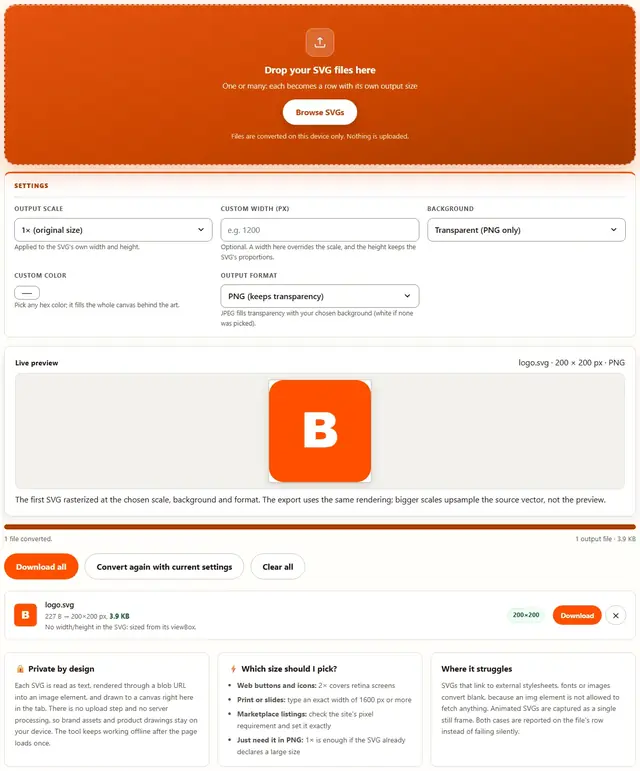
Drop your SVG files here
One or many: each becomes a row with its own output size
Files are converted on this device only. Nothing is uploaded.
Applied to the SVG's own width and height.
Optional. A width here overrides the scale, and the height keeps the SVG's proportions.
Pick any hex color; it fills the whole canvas behind the art.
JPEG fills transparency with your chosen background (white if none was picked).
The first SVG rasterized at the chosen scale, background and format. The export uses the same rendering; bigger scales upsample the source vector, not the preview.
SVG To PNG — illustrated, step by step
How to convert an SVG to PNG
Three steps, a few seconds per file, no technical skills needed.
Add your SVG files
Drop one or more .svg files on the dropzone or click Browse. Each file becomes a row with a thumbnail of the original, and the tool reads the declared size (or the viewBox) before converting.
Choose scale, format and background: SVG to PNG with a transparent background
Pick 1× to 4×, or type an exact width in pixels. Choose a transparent, white or custom background, then PNG or JPEG. Conversion starts automatically and the rows update as each file finishes.
Download the results
Each row shows the output size in pixels and the exact before/after file weight. Grab files one at a time, or use Download all to get a single ZIP with everything in it.
Why convert in the browser?
Because there is no upload step, conversion here is safe for logos, product drawings and unreleased brand assets. The files never leave the device you're sitting at, a whole folder of SVGs converts as one batch, and the tool works offline once the page has loaded. Details in our file-handling policy.
Troubleshooting
Why does my SVG look blurry when I use it as a JPG?
Because it was rasterized at the wrong size. An SVG has no fixed pixels until something draws it, so exporting at the size the destination needs is the whole trick. Set the custom width here to the exact pixel width the site or form asks for, convert once, and the result is crisp because it was drawn at that size to begin with.
My SVG converted but came out blank
Blank output usually means the SVG relies on something an img tag is not allowed to use: a linked stylesheet, an external image, or a script. Everything the file needs must be inside the SVG itself. Open it in a browser tab first: if it renders there, it will convert here.
The tool warns that my SVG has no width or height
Plenty of hand-written SVGs only carry a viewBox, which describes the drawing's coordinate space but not its printed size. The tool reads the viewBox and uses those proportions, then applies your scale or custom width. That warning is a courtesy, not a failure: the output size is always shown on the row.
PNG or JPEG: which should I pick for an SVG?
PNG, unless you have a specific reason not to. PNG keeps transparency and stores flat colors sharply, which is what vector art becomes. JPEG flattens transparency onto a background and softens hard edges around text and shapes, and it only wins when a site or form insists on .jpg.
Are my SVG files uploaded?
No. The files are read as text, rendered through a blob URL into an image element, and drawn to a canvas in this browser tab. Nothing is sent to a server, and the DevTools Network tab stays quiet while you convert. Details are in our file-handling policy.
How big can the output be?
The scale selector goes to 4×, the custom width box accepts any number, and the tool caps each side at 8000 pixels because that is where browsers start refusing to allocate canvases. If you need more than that, the SVG is still vector: open it in a vector editor and export at the size you need.
Can I convert an animated SVG?
Not really. SMIL and CSS animations may play in a browser tab, but the moment an img element is drawn to a canvas only the current frame is captured, and this tool never shows you a frame picker. Treat animated SVGs as web assets, not as raster sources.
Can I convert an SVG to PNG with a transparent background?
Yes. Keep transparency enabled and the PNG exports with an alpha channel, so it sits cleanly over any background in slides or web pages. You can also pick a white or custom background color when a solid image is required, and scale the output up to 4x for high-resolution use.
Why an SVG ever needs to become a PNG
SVG is the best format for artwork that scales: a logo drawn as vectors is sharp on a business card and on a billboard from the same file, and it weighs almost nothing. The catch is that plenty of places refuse to accept it. Email signatures want a .png. Some marketplace listing boxes take JPG only. Older design tools, PowerPoint versions and print portals treat SVG as an exotic guest. When that happens you do not need a better SVG, you need a SVG to PNG raster of it, drawn at the right size.
Rasterizing fixes one thing and costs one thing. What you gain is universal compatibility: every device, every app and every upload box on earth reads PNG and JPEG. What you give up is infinite scaling, so the size you export at becomes the size you have. That is why the size controls here matter more than the format controls: a 200-pixel logo that later needs to sit in a 1200-pixel hero banner will look soft, while a 1200-pixel export can always be displayed smaller with no visible loss.
There is also the transparency question. PNG carries an alpha channel, so a logo with no background keeps it. JPEG does not: every transparent pixel is flattened onto the background you chose, which is exactly what you want for a marketplace photo and exactly what you do not want for a cut-out sticker. The tool handles the flattening on the canvas and tells you on the file's row when it happened.
| Where the SVG is going | Format | Sizing advice |
|---|---|---|
| Website or blog inline image | PNG | 2× the display width for retina screens |
| Email signature | PNG | 300 to 600 px wide; big signatures get blocked |
| Marketplace listing (eBay, Etsy, Amazon) | JPEG or PNG | Whatever pixel width the listing demands, set exactly |
| Slides and documents | PNG | 1200 px or wider so projectors do not blur it |
| Print shop or press kit | PNG | Set the width from the physical size at 300 dpi |
How the conversion actually happens in your tab
The pipeline is deliberately boring, which is why it is reliable. The tool reads the SVG file as text, wraps it in a blob URL of type image/svg+xml, and hands that URL to an image element. When the browser has parsed and drawn the vector art, the image is painted onto a canvas sized to your output dimensions, and the canvas encoder writes the pixels out as PNG or JPEG. No server, no queue, no third-party renderer: the same engine that draws images on the web page draws them here.
Sizing comes from the SVG itself. The tool looks for width and height attributes first, then falls back to the viewBox, which is the coordinate space hand-written SVGs usually carry. If your file declares neither, the row says so instead of guessing. A custom width overrides everything and the height follows the file's own proportions, so you can hit a site's exact pixel requirement without distorting the art. Each side is capped at 8000 pixels because that is where browsers start refusing to allocate canvases, and the row tells you when the cap kicked in.
Two practical details make batch work pleasant. Transparency is only filled when you asked for it (white, or a custom color), and JPEG always fills, because JPEG has no alpha channel to hold a transparent background. And Download all packs the finished files into a ZIP through the same engine the rest of BeeToolify uses, so one click yields one file instead of ten save dialogs.
Scale, exact width, or viewBox: getting the output size right the first time
There are two honest ways to pick a size, and the tool exposes both. Scale multiplies whatever the SVG declares: a 300-pixel logo at 2× becomes 600 pixels, at 4× becomes 1200. That is the right control when you do not know the destination's exact requirement and simply want more pixels than you had. Exact width throws the declared size away and draws the art at the number you typed, keeping the file's own proportions for the height. That is the right control when a site, form or print shop demands a specific pixel width, because "close enough" is how listings get rejected.
Watch for SVGs that carry no width or height at all. Hand-written and icon-library SVGs often declare only a viewBox, and a few declare percentages, which mean nothing outside a web page. The tool detects both cases, sizes the output from the viewBox proportions, and marks the row with a warning so you know the number came from there. Files with no usable geometry at all are refused with an explanation rather than a blank image.
| Your input | Control used | Result |
|---|---|---|
| SVG with width="300" | Scale 2× | 600 px wide, height proportional |
| SVG with width="300" | Custom width 1200 | 1200 px wide, scale ignored |
| SVG with only viewBox="0 0 512 512" | Scale 3× | 1536 px square, with a warning about the missing size |
| SVG with width="50%" | Custom width 800 | 800 px wide, the percentage is ignored |
| Any file, huge numbers typed | Cap | Capped at 8000 px per side, and the row says so |
If the destination also caps file weight rather than pixel size, the conversion here gets you close and the Image Compressor (which handles PNG and JPEG) takes you the rest of the way. Turning JPEGs into WebP afterwards is covered in converting JPG to PNG and WebP.
Use cases: five jobs people actually hire this converter for
- A logo for an email signature. The designer sent an SVG and the mail client shows a broken-image icon. Export at 400 px wide as PNG with a transparent background, and the signature works in Outlook on the first try.
- Icon set for a slide deck. Twelve SVG icons become twelve PNGs at 3×, downloaded as one ZIP, and every slide renders identically for colleagues on older machines that choke on SVG in PowerPoint.
- Marketplace listing photo. The upload box demands JPEG at a fixed pixel width. Custom width, JPEG background white, done: the listing goes through and the file is exactly the size the form wanted.
- Print shop submission. A banner printer asked for 300 dpi raster files. Set the custom width to the physical width in inches times 300, convert, and hand over PNGs that match the spec exactly.
- Older design software that won't import vectors. Some CAD and embroidery tools read rasters only. Convert once at a high scale, import the PNG, and keep the SVG as the master for the future.
The reverse trip is common too: once you have rasters, formats like WebP often shrink them for the web, and the wider picture is in our WebP vs JPEG vs PNG comparison. More walkthroughs live on the blog.
What we actually tested
This page makes specific claims, so here is how they were checked. Open DevTools, go to the Network tab, drop an SVG and convert it: the only requests you see are the page's own HTML, CSS and JavaScript. The SVG itself never leaves the tab, because it travels through a blob URL into an image element and out through the canvas encoder, all locally. The ZIP engine is fetched once when you click Download all, from this site's own assets folder.
On output sizes: an SVG declaring 300×200 produced 300×200 at 1×, 600×400 at 2×, and exactly 1200×800 when a custom width of 1200 was typed, with the height following the file's proportions every time. On transparency: PNG output kept it (verified by converting a transparent logo and checking the alpha channel), and JPEG output filled it with the chosen background, white included. On the viewBox fallback: a file with only viewBox="0 0 512 512" sized correctly at every scale and carried the warning on its row, as promised.
Two honest details from testing. First, SVGs that reference external stylesheets or images converted to blank canvases in every browser we tried, which is a rule of the img element rather than a bug, so the tool reports it per file. Second, a batch of twenty files converted sequentially with the progress bar tracking each one; Download all produced a single valid ZIP, and the per-file rows stayed clickable the whole time. We also confirmed the 8000-pixel cap triggers the warning instead of a silent truncation.
Limits: what this converter won't do, and why
An honest list beats a surprised user:
- External references convert blank. An img element is not allowed to fetch linked stylesheets, external fonts or remote images, so an SVG that depends on them rasterizes to nothing. Inline everything into the SVG first; the row reports the problem rather than handing you an empty file.
- Animations are not captured as animations. SMIL or CSS animation may play in a tab, but drawing to a canvas grabs one still frame, and this tool has no frame picker. Export animated art from an animation tool instead.
- No SVG editing. The tool rasterizes what is there: it will not recolor, crop or simplify paths. That is a job for a vector editor, and the SVG stays your master file for exactly that reason.
- 8000 pixels per side, hard. Browsers stop allocating large canvases around that range, so the cap protects you from a silent failure. If you need more, the SVG is still vector and a desktop exporter will go further.
- Fonts render as the browser sees them. Text inside the SVG uses whatever fonts are available locally, exactly as when you view the file in a browser tab. Convert text to outlines in your editor if the exact letterforms matter.
- One output format at a time. PNG and JPEG are offered, and that is the useful set. Exotic formats belong to dedicated exporters, and adding them here would mean shipping encoders that rarely work in browsers.
Need to resize, compress or convert the rasters afterwards? Those live on the Tools page, and every one of them runs locally in the same way this one does.
Got raster images to fix next?
The Image Converter moves PNG, JPEG and WebP between formats with a quality slider: same privacy, same speed.
Open Image Converter