Word to PDF Free Online, No Signup
Drop a .docx file and get a clean PDF back: headings, bold and italic runs, lists, tables and embedded images all carried over. The document is unpacked and re-rendered right in this tab.
Convert your Word document
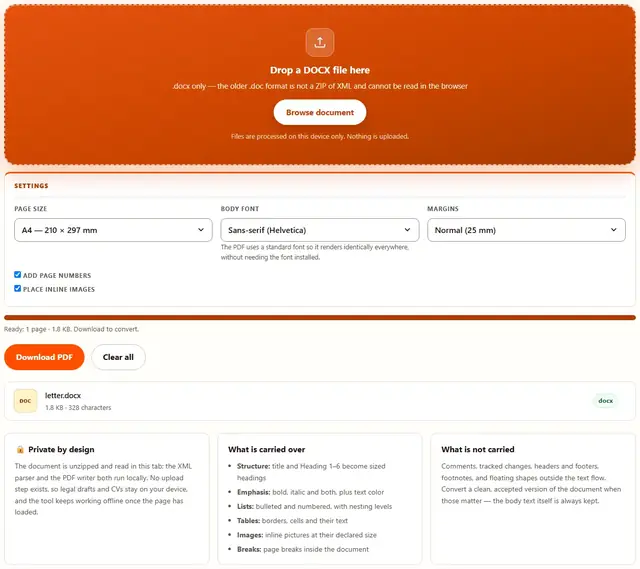
Drop a DOCX file here
.docx only — the older .doc format is not a ZIP of XML and cannot be read in the browser
Files are processed on this device only. Nothing is uploaded.
The PDF uses a standard font so it renders identically everywhere, without needing the font installed.
Word To PDF — illustrated, step by step
How to convert Word to PDF
Three steps, no accounts, no watermarks on the output.
Drop the DOCX
Drop a .docx file on the box, or click Browse. The page count appears once the document has been laid out.
Pick the paper
A4 or Letter, the body font and the margins. Page numbers are added at the bottom by default.
Download
The PDF downloads with its exact file weight shown. Nothing is uploaded anywhere.
Why convert in the browser?
Because Word documents are usually works in progress: salaries, medical letters, unreleased plans. Converting locally means the file never touches a server, there is no account and no queue, and the PDF is ready the moment the document loads. Details are in our file-handling policy.
Troubleshooting
Is my document uploaded when I convert it?
No. The DOCX is a ZIP of XML files; this page unzips it, reads the document XML and re-renders the content to a PDF with an in-browser PDF library. There is no upload endpoint, so drafts, contracts and CVs stay on your device.
Will the PDF look exactly like in Word?
Very close, not identical. Headings, bold, italics, lists, tables, colors, alignment and page breaks are preserved, and body text keeps its size. Word's own layout engine, custom fonts you have installed but the file does not embed, and floating images anchored outside the text flow may differ slightly.
Which page size should I pick?
A4 for anywhere outside North America and for most official submissions; Letter for US and Canada offices. The margins follow the document where it declares them, otherwise a sensible 2 cm default is used. Both sizes render the same content, only the paper differs.
Can it handle tables and lists?
Yes. Numbered and bulleted lists keep their items and nesting, and tables are drawn with borders and their cell text. Very wide tables are scaled down to fit the page rather than cut off.
The document is password protected
Password-protected DOCX files store their content encrypted, so the text cannot be read without the password. Open the file in Word, remove protection, save, and convert the new copy.
Images are missing from my PDF
Images embedded in the document flow are placed at their size between paragraphs. If an image seems missing, it may be a header, footer or a floating shape anchored to a page area this converter does not render; the text around it is always kept.
What a DOCX file actually is
A .docx file is a small archive: a ZIP containing XML documents that describe the text, its formatting and its media. That is why this converter can work entirely in your browser — unzipping is trivial, the document XML is plain text, and rendering paragraphs into a PDF needs no server. It is also why the older .doc format, a binary blob from the 1997 era, cannot be handled the same way: there is no structured text inside to read.
The conversion is really a re-layout. The document's paragraphs, runs and their properties are read in order, then placed onto A4 or Letter pages with standard PDF fonts. Because the fonts are the ones every PDF reader ships with, the result opens identically on a phone, an old office PC and a print shop's machine — which is usually exactly the point of converting to PDF in the first place.
| DOCX feature | In the PDF |
|---|---|
| Title, Heading 1–6 | Sized bold headings with spacing |
| Bold / italic runs | Matching font styles |
| Bulleted and numbered lists | Bullets and numbers with indentation |
| Tables | Grid with borders and cell text |
| Inline images | Placed at declared size |
| Manual page breaks | Breaks respected |
Convert, compress and sign the result
Once the PDF exists it joins every other tool on this site: shrink it with the PDF Compressor when a form enforces a size limit, split it with the PDF Splitter when only certain chapters are needed, or pull the text back out with PDF to Text for quoting.
The reverse direction works too: PDF to Word turns a PDF back into an editable document when the source DOCX is gone, and every step in the chain happens in the same tab without the file ever leaving your device.
Need the reverse conversion?
PDF to Word rebuilds an editable DOCX from any PDF: same privacy, same speed.
Open PDF to Word