Add Page Numbers to a PDF Free
Stamp page numbers onto every page of a PDF without installing anything. No upload, no signup: pick the corner, the format and the number to start from, and download. Everything happens on your device.
Add page numbers to your PDF
Drop your PDF here
Every page appears below with its number, ready to stamp
The PDF is read on this device only. Nothing is uploaded.
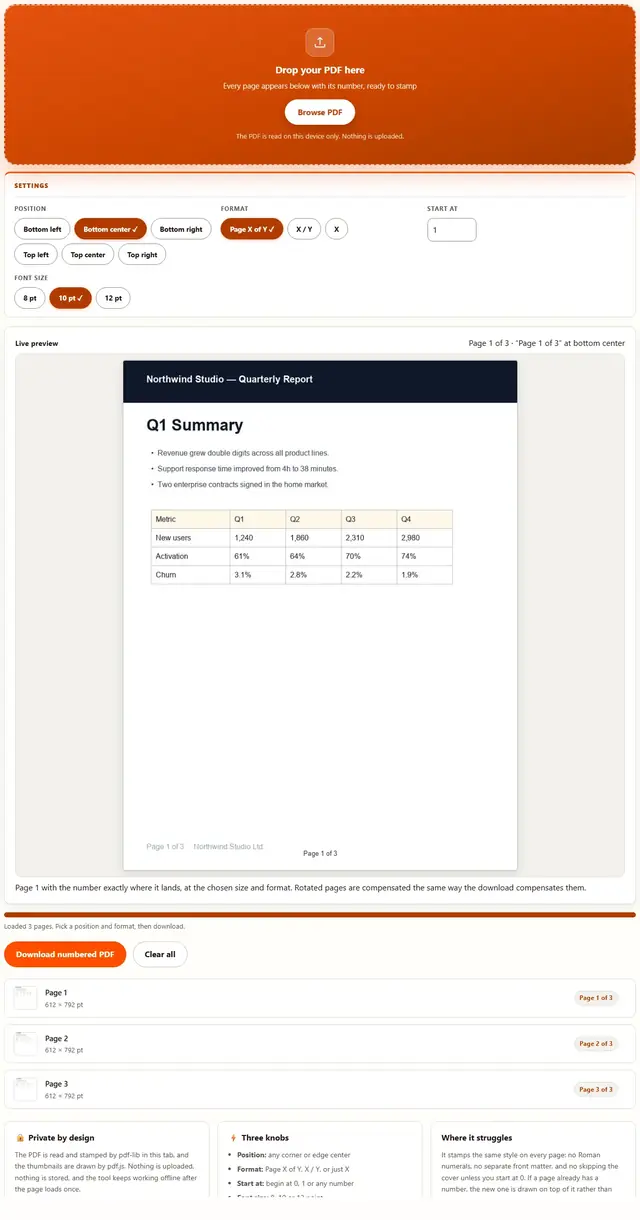
Page 1 with the number exactly where it lands, at the chosen size and format. Rotated pages are compensated the same way the download compensates them.
Number Pages — illustrated, step by step
How to add page numbers to a PDF
Three steps, about ten seconds, no technical skills needed.
Add your PDF
Drag a single PDF onto the dropzone, or click to browse. Every page loads with a thumbnail and its number, so you can confirm you have the right file before stamping anything.
Pick the position and format
Choose any corner or edge center, a format (Page X of Y, X / Y or a bare number), the font size, and the number to start from. The preview row on each page shows the number it will get.
Download the numbered PDF
One click stamps the numbers and downloads the file. The rest of each page is copied untouched, so text stays selectable and quality never changes.
Why number pages in the browser?
Because there is no upload step, this is safe for contracts, court filings, tender packets, thesis drafts and anything under NDA: the document never leaves the device you are sitting at. It also works offline once the page has loaded, and stamping a 200-page packet takes one click. Details in our file-handling policy.
Troubleshooting
Are my PDFs uploaded?
No. The document is read and stamped by pdf-lib in this tab, with pdf.js drawing the thumbnails you see. There is no upload step and no server processing. Verify it: open DevTools, go to the Network tab, number the file, and watch nothing get sent.
Are the page numbers searchable text?
Yes. The number is drawn with a real PDF font, so it is selectable text, not an image. The rest of the page is copied untouched, so existing text and images keep their quality.
Can I start numbering from a number other than 1?
Yes. The Start at field sets the number stamped on the first page. Set it to 0 to include a cover page as page 0, or to 10 when this document continues an earlier one.
What format can the number use?
Three: "Page X of Y" for full context, "X / Y" for a compact look, and just "X" for a bare number. The position, font size and start number combine with any of them.
Will the number land in the right corner on rotated pages?
Yes. Pages that store a rotation (a sideways scan, for example) are handled so the number still reads upright in the corner you chose, matching how the page actually displays.
My PDF asks for a password
Password-protected files cannot be opened by any tool that does not have the password. Remove the password in your PDF reader first (opening it and choosing Print to PDF usually works), then number the unlocked file here.
Number pages: what actually changes in the file
A page number is not a special object in a PDF. It is simply text placed near an edge, and a reader shows it along with everything else on the page. This tool stamps that text onto each page at the position you chose, using a real PDF font, which is why the number is selectable and searchable rather than a picture. The rest of the page is copied untouched, so nothing else shifts or re-encodes.
The one genuinely tricky part is rotation. A PDF page can carry a /Rotate flag that tells readers to turn it sideways, which is common in scans. If you ignore that flag, the number lands in the wrong corner and reads sideways. This tool reads each page's rotation and compensates, so a page that displays in landscape still gets an upright number in the corner that looks like the bottom right to the reader.
| Setting | What it changes | Default |
|---|---|---|
| Position | Any corner or edge center of the displayed page | Bottom center |
| Format | Page X of Y, X / Y, or a bare number | Page X of Y |
| Start at | The number stamped on the first page | 1 |
| Font size | 8, 10 or 12 point | 10 pt |
Two honest notes. If a page already has a number, the new one is drawn on top of it rather than replacing it, so pick a corner that is clear. And the number counts pages in file order: it does not read any existing numbering scheme, Roman numerals or section breaks.
Six corners, three formats, one start number
Where the number lands and how it reads. Everything combines.
Use cases: five times an unnumbered packet causes problems
- A tender or court filing that requires folio numbers. The submission rules say every page must be numbered in the bottom outer corner. Stamp them all in one click instead of numbering 80 pages by hand.
- A thesis draft with front matter. Number the whole document from 1, then use Start at 0 so the cover page reads as page 0 while the body still counts from 1.
- A scanned contract with no text layer. The pages are images, so there is nothing to number in a reader. Stamping real text on top gives a selectable number the reviewer can cite.
- Merged packets from several sources. After combining files, the page order is fixed but nothing is numbered. Add numbers last so the final order is what gets counted.
- A rotated landscape exhibit inside a portrait report. Because the tool compensates for each page's rotation, the one sideways chart still gets an upright number in the same corner as its neighbors.
Need the whole document stamped with a watermark too, or the order changed? Those live on the Tools page, including the PDF Watermark.
What we actually tested (and what the DevTools Network tab showed)
This page makes specific claims, so here is how they were checked. Open DevTools, go to the Network tab, number a file: the only requests are the page's own HTML, CSS and JavaScript, plus the pdf.js and pdf-lib engines fetched on first use. Nothing uploads, because the document is read and written inside your tab by those two libraries.
On the numbers being real text: a numbered PDF had its number selected and copied out of a reader, and Ctrl+F found "Page 3 of 12" in the file, which is what selectable text should do. On rotation: a file with one page stored at 90 degrees still showed an upright number in the bottom right corner when displayed, matching the corner a reader sees rather than the raw coordinates. On the untouched pages: the extracted text of a numbered file matched the original everywhere except the added number, and embedded images compared byte for byte.
Two honest details. The number is placed with a small fixed margin from the page edge, so a page with content running right to the edge may have the number overlap that content: pick a different corner or a smaller font. And the stamping loop reports progress every ten pages, so a very long packet shows a moving bar rather than freezing silently.
Limits: what this tool won't do, and why
An honest list beats a surprised user:
- One style for the whole document. Every page gets the same format, size and edge. Numbering the front matter in Roman numerals and the body in Arabic needs section breaks, which is a word processor's job, not a stamper's.
- It does not skip the cover automatically. If you want the cover unnumbered, either accept the number on it or use Start at 0 so the cover reads as page 0 and the body starts at 1. The tool cannot know which page is a cover.
- It draws over existing numbers. If a page already has a number, the new one is stamped on top rather than replacing it, which looks messy. Pick a corner that is clear, or remove the old numbers with an editor first.
- It does not update a table of contents or bookmarks. The numbers are visual text. A linked table of contents still points at the same pages it always did, because the page count and order never changed.
- Password-protected PDFs are refused. Without the password no library can open the document, so the tool says that plainly instead of returning a broken file. Print the unlocked version to PDF in a reader, then number it here.
- It does not compress the file. Stamping text barely changes the size. Squeezing the result is the PDF Compressor's job.
Need the numbered file smaller, or the pages as images? Those live on the Tools page.
After numbering, need the file smaller?
The PDF Compressor keeps the page numbers and shrinks the document: same privacy, same browser-only pipeline.
Open PDF Compressor