Add Watermark to Photos Online Free
Add a text watermark to your images in the browser: pick the words, font size, color, opacity and position, preview the result, then download. Everything happens on your device - no upload, no signup.
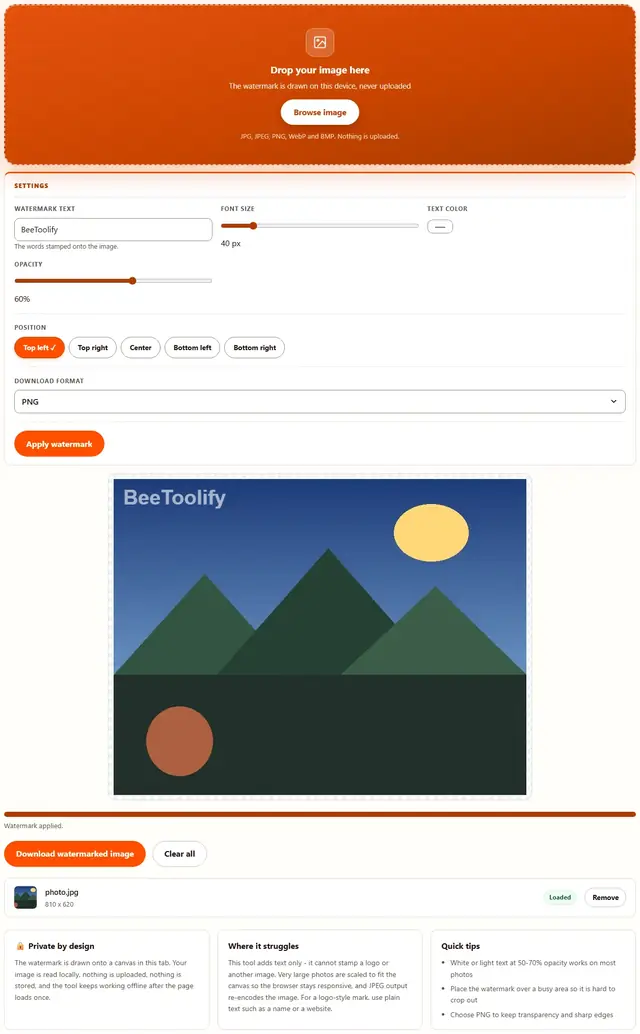
Add a watermark to your image
Drop your image here
The watermark is drawn on this device, never uploaded
JPG, JPEG, PNG, WebP and BMP. Nothing is uploaded.
The words stamped onto the image.
Preview appears here after you apply the watermark
Image Watermark — illustrated, step by step
How to add a watermark to an image
Three steps, no upload: add the image, set the watermark, download.
Add your image
Drag an image onto the dropzone, or click to browse. JPG, JPEG, PNG, WebP and BMP all work; the file is read in this tab only.
Set the watermark
Type your watermark text, then choose font size, color, opacity and position. Press Apply watermark to draw it onto the preview canvas.
Download the result
Click Download watermarked image to save the result as PNG or JPEG. Your original image is never changed, and nothing is uploaded.
Baked in, not tagged on
This watermark is painted into the pixels on a canvas — not metadata, not an XMP comment in the file. That distinction matters: EXIF and XMP watermarks vanish the moment someone re-saves, crops or screenshots the image. A baked-in mark survives all three, which is exactly why it is irreversible — there is no legitimate "remove" step afterwards. Our export passes through one honest constraint: photos are downscaled to fit a 1600 px canvas — for a 24 MP phone shot, that is a real cap, not a footnote — so your download is not a full-resolution original. Nothing is stamped until you press Apply, and the preview canvas shows exactly what ships.
And a note on scope: this tool stamps text only — no logo upload, no tiled/repeating pattern, one image per pass. Positions are the four corners plus center; JPEG output re-encodes at quality 0.92 (fine, but a real generation loss against your original); PNG output stays lossless. If you needed a scattered all-over pattern, this is not that tool.
- Opacity sweet spot — 60–70%: readable enough to attribute, light enough that the photo still works. Below 30% the mark is decoration; at 100% it insults the viewer.
- Tiled vs corner — corner marks claim provenance; a center stamp at 60–70% is what actually deters cropping. There is no built-in repeat mode here.
- Contrast beats size — white text vanishes on white skies; choose the color against the busiest background region you expect.
- PNG vs JPEG — PNG for sharp text edges and transparency; JPEG only when file size matters.
- Honest limit — a determined scraper crops or clones any visible watermark. It is attribution and friction, not DRM.
Why add a watermark in the browser?
Because there is no upload step, this is safe for photos you do not want to send anywhere: the image never leaves the device you are sitting at. It also works offline once the page has loaded, and stamping a draft copy before sharing takes seconds. Details in our file-handling policy.
Frequently asked questions
Is my image uploaded?
No. The watermark is drawn onto a canvas in this tab. Your image never leaves your device, and nothing is sent to a server. Verify it: open DevTools, go to the Network tab, apply a watermark, and watch nothing get sent.
What file types work?
JPG, JPEG, PNG, WebP and BMP. Choose PNG or JPEG for the download, matching your original or the format you prefer.
Can I pick the watermark position?
Yes. Choose from top left, top right, center, bottom left or bottom right, then set font size, color and opacity before you apply.
Will the original image change?
No. The tool draws on a copy in memory and your original file stays untouched. Download the watermarked copy separately.
How big can the image be?
Very large images are scaled to fit the canvas so the browser stays responsive. Text stays crisp at the size you choose.
Need the watermarked image smaller?
The Image Compressor shrinks the result with the same privacy, same browser-only pipeline.
Open Image Compressor