Merge Images Free Online, No Signup
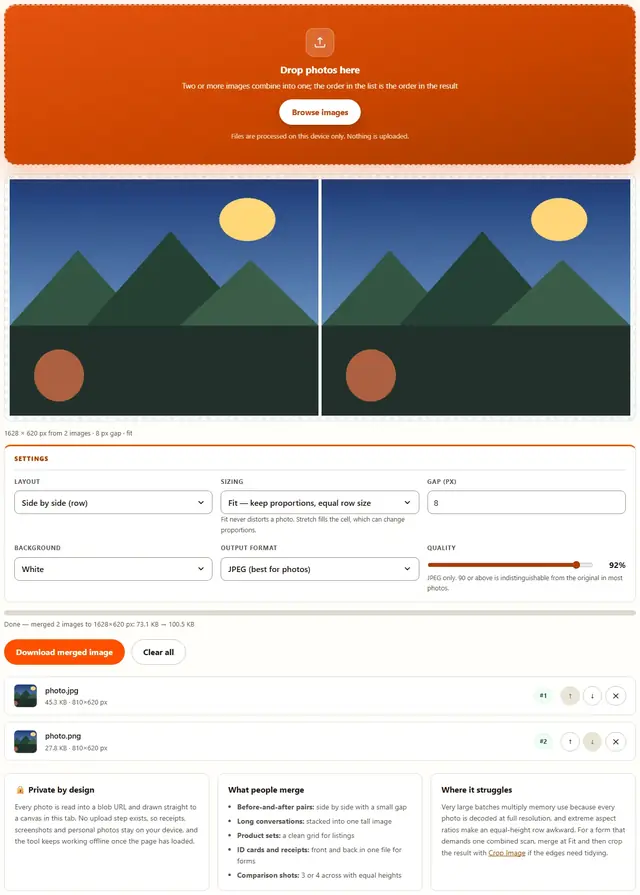
Drop several photos, arrange the order, and combine them into a single image: side by side for before-and-after shots, stacked for long screenshots, or a grid for product sets. The merge happens in this tab and the result downloads as one file.
Merge your images
Drop photos here
Two or more images combine into one; the order in the list is the order in the result
Files are processed on this device only. Nothing is uploaded.
Fit never distorts a photo. Stretch fills the cell, which can change proportions.
JPEG only. 90 or above is indistinguishable from the original in most photos.
Image Merger — illustrated, step by step
How to merge images
Three steps, no accounts, no watermarks on the output.
Drop the photos
Drop two or more JPG, PNG or WebP files on the box, or click Browse. Each one appears in the list with a thumbnail.
Set the order and layout
Use the arrows on each row to reorder, then pick side by side, stacked or a grid, along with the gap and background.
Download
The preview shows the combined image and its exact pixel size. One click saves it as a single PNG or JPEG; nothing is uploaded anywhere.
Why merge in the browser?
Because merged images often contain exactly the documents you would not email to a converter site: IDs, receipts, conversations. Keeping the combine step in the tab means the files never touch a server, there is no queue and no account. Details are in our file-handling policy.
Troubleshooting
Are my photos uploaded when I merge them?
No. Every file is read into the page with a blob URL, drawn to one canvas and encoded right here in this tab. There is no upload endpoint, so the merged collage never leaves your device.
How are the photos arranged?
Side by side places them in a row left to right, Stack places them one under the other, and Grid fills a row-major grid with the number of columns you pick. The order is the order in the file list, and the arrows on each row reorder it before you merge.
Why do some photos look smaller than others?
In Fit mode every image is scaled to share the same row height or column width, so proportions stay honest and nothing is distorted. In Stretch mode each cell is filled exactly, which equalizes the layout but can distort photos whose ratios differ a lot. Fit is the right default for almost everything.
What do the gap and background settings do?
Gap is the spacing between the merged photos, in pixels. Background fills the gaps and any empty area left by Fit mode. White suits documents and product grids, a custom color matches a brand, and transparent requires PNG and disappears entirely on white websites.
Is there a limit on how many photos I can merge?
Only your device's memory. Each photo is decoded at full resolution, so merging twenty 12-megapixel files means holding all twenty in memory at once. If the merge stalls, merge in smaller batches: merge pairs into single files, then merge the results.
Does merging remove the photo metadata?
Yes. The output is re-encoded from canvas pixels, so EXIF data such as GPS coordinates and camera serial numbers is not carried over. That is usually what you want when the result will be posted publicly.
Getting a clean combined image
The layout choice matters more than the settings. Side by side is the right shape for comparisons because eyes travel horizontally between two things, while stacking suits anything read top to bottom, such as a long chat or a set of pages. Grids are for collections where no single image leads, and the column count should follow how many photos you have: three photos in two columns leaves an awkward gap, so pick three and let one row fill completely.
Two settings keep the result tidy. The gap gives each photo breathing room and prevents edges from touching, which matters when adjacent photos have similar colors and would otherwise smear into one another. And Fit mode keeps proportions honest: photos in the same row share a height, so a portrait and a landscape sit together without either looking stretched. The empty space Fit leaves is filled by the background color, which is why a matching background makes an uneven grid look deliberate rather than accidental.
| Purpose | Layout | Good gap |
|---|---|---|
| Before and after | Side by side | 4–8 px |
| Long conversation or page | Stacked | 0 px |
| Product set of four | Grid, 2 columns | 8–12 px |
| ID front and back for a form | Side by side | 8 px |
| Photo strip for a listing | Side by side, 3 up | 4 px |
Merge, crop and compress: which tool does what
Merge combines several files into one canvas. Crop trims a single image to the framing you want, which is useful after a merge leaves uneven edges. Compress keeps the dimensions exactly as they are and reduces the file weight, which is the step that matters when a form or listing enforces a kilobyte limit.
A common sequence is merge first, then Crop Image to tidy the edges, then the Image Compressor to get under a file-size limit. Each tool shows the exact before and after in bytes, so there is no guessing whether the upload will be accepted.
Merged it, now make it smaller?
The Image Compressor shrinks photos with a quality slider and shows you the exact bytes saved: same privacy, same speed.
Open Image Compressor