Extract Zip File Online Free
Open any ZIP, list every entry with its folder path, size and method, then take the files out one at a time or as a rebuilt archive. Nothing uploads.
Extract your ZIP file
Drop a ZIP file here
Standard .zip archives, any size the browser can hold
The archive is read on this device only. Nothing is uploaded.
Unzip — illustrated, step by step
How to open a zip file without WinRAR
Three steps, about ten seconds, no app required.
Add your ZIP
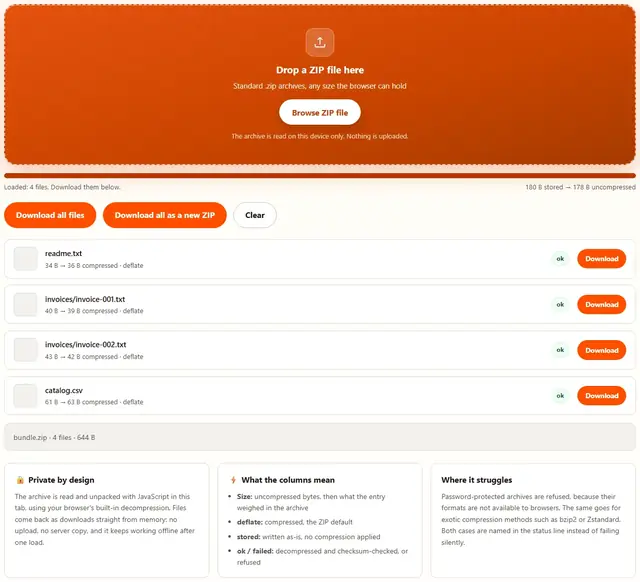
Drag the archive onto the dropzone or click to browse. The tool reads the directory at the end of the file, so listing starts immediately even for a large archive.
Check the entries
Every row shows the full folder path, the original size, the compressed size and the method used. Rows marked ok decompressed cleanly and passed their checksum.
Download what you need
Take a single file, grab everything at once, or rebuild a clean ZIP that keeps all the paths. The choice of folder or flat download is yours.
Why extract in the browser?
Because an archive from a client, a court or a clinic often should not sit on a random server while you look inside it. Here the file is parsed on your device and the contents come straight back as downloads. It also works offline once the page has loaded, and nothing is logged. Details in our file-handling policy.
Troubleshooting
Why does it say my file is not a valid ZIP?
Either the download is incomplete or the file was never a ZIP to begin with. Some email systems and chat apps rename attachments, and some downloads stop early. The tool checks the end-of-archive record first, so a broken file fails fast with a clear message instead of a half-listed archive.
What does the method column mean?
Method 0 means the entry was stored with no compression, and method 8 means it was compressed with deflate, the standard ZIP algorithm. Other methods, for example bzip2, LZMA or Zstandard, need software browsers do not ship, so this tool reports them instead of returning broken data.
Will my folder structure be preserved?
Inside the archive, yes: paths like photos/2024/beach.jpg are shown exactly as stored. When you download files one by one, browsers save them flat into your Downloads folder, so structure collapses. Choose Download all as a new ZIP to rebuild an archive that keeps every path intact.
Are my files uploaded when I unzip?
No. The archive is parsed and decompressed in this tab with your browser's own decompression streams, and the files come straight back as downloads. Nothing is uploaded and nothing is stored. Open DevTools, watch the Network tab during an extraction, and you will see no requests leave.
The ZIP opens in Windows but fails here. Why?
Usually one of two things: the archive uses a compression method browsers cannot decode, or it is protected with a password. This tool reports both cases by name. Re-create the archive with default settings, which means deflate and no password, and it will open here.
Can I extract a password-protected ZIP?
No. Encrypted archives need their password decoded before any data can be read, and the formats used for that are not supported in browsers. The tool says so plainly rather than showing empty entries. Open the archive with your password in a desktop app instead.
Does extracting change my files?
No. Decompression is the exact reverse of compression: every entry's bytes are rebuilt and checked against the checksum stored in the archive, so what you download is byte for byte what was packed. A failed check is flagged as corrupt instead of being handed over silently.
Can I open a zip file without WinRAR or 7-Zip?
Yes. Select the zip here and the tool lists every entry with its path, size and compression method, so you can check the contents before extracting. Download one file or the whole set, and nothing is uploaded because the archive is read in your browser.
How a ZIP is read: the directory at the end of the file
Opening a ZIP is mostly bookkeeping. The archive ends with a small record called the end of central directory, and that record points to the central directory just before it. The central directory holds one row per entry: filename, folder path, timestamp, compressed and uncompressed sizes, the method used, and the offset where the actual bytes begin. An unzip tool reads those last few hundred bytes first, then knows the entire contents without touching a single payload.
That layout is also why ZIPs behave the way they do when things go wrong. An interrupted download loses the tail of the file, the pointer disappears, and the archive cannot be listed at all, which is the failure this tool reports most often. Files written over a flaky network connection are the usual cause, and re-downloading fixes it in one try. The reader checks for that record before it does anything else, precisely so a broken file fails fast instead of producing a confusing partial listing.
Only after the directory is understood does the data get unpacked. Each entry's compressed bytes are run back through the algorithm named in its row, and the result is compared against the CRC checksum that was stored when the archive was written. Match, and the file is handed to you. Mismatch, and the entry is marked corrupt rather than delivered silently with damage inside.
Compression methods: which ZIPs open in a browser, and which do not
"ZIP" sounds like one format, but the specification allows a menu of compression methods per entry. Two of them are universal, and the rest are the reason a perfectly good archive sometimes refuses to open anywhere except the machine that made it.
| Method | Name | Supported here | Who writes it |
|---|---|---|---|
| 0 | Stored (no compression) | Yes | Everyone, for already-compressed files |
| 8 | Deflate | Yes | The ZIP default, every tool on earth |
| 9 | Deflate64 | No | Older commercial archivers |
| 12 | bzip2 | No | Linux tools that opted into it |
| 14 | LZMA | No | 7-Zip writing ZIP compatibility mode |
| 93 | Zstandard | No | Modern archivers, newer receivers |
| 99 | AES encryption marker | No | WinZip and 7-Zip with encryption on |
The practical takeaway: if an archive was made with default settings, it opens here. If someone chose an exotic method or a password for extra compression or safety, the archive stops being portable. This tool names the method it refuses to decode, so you know whether to ask for a re-zip rather than guessing at a generic error.
Folder structure: what happens to paths when you download
Paths live in filenames inside the archive, as strings such as photos/2024/beach.jpg. The extractor creates each folder as it walks the string. That is the whole mechanism, and it is why a ZIP made on any operating system unpacks with its structure intact anywhere else.
The structure is preserved on the way out, too, with one important caveat about how browsers handle downloads. Saving a single file puts its name into your Downloads folder and drops everything before the last slash. Saving twenty files does that twenty times, and files that shared a folder name compete for it. The reliable way to keep a tree whole is to rebuild the archive, which is what the second download button does: every path goes back in exactly as stored.
| Download option | Folder paths | Best for |
|---|---|---|
| Download (single row) | Flattened to the file name | Grabbing one document from an archive |
| Download all files | Flattened, files arrive one by one | Loose files you will sort yourself |
| Download all as a new ZIP | Kept exactly as stored | Whole folders, client handoffs, backups |
There is a second reason to prefer the rebuilt archive: a re-zip re-compresses with deflate, so an archive that was stored uncompressed often comes back smaller, with the same contents inside. Check the status line for the new size before and after.
Corrupt, split and password-protected archives: what gets refused
Three categories of file will not extract here, and each fails differently. A truncated download has no end-of-archive record, so the tool says the file is not a valid ZIP before listing anything. An archive using an exotic method lists its directory fine but reports the unsupported method by name when a payload would need decoding. An encrypted archive advertises the encryption marker in every protected entry, and the tool reports that the entries are encrypted instead of showing rows full of nothing.
Split archives are a fourth case worth naming. Some tools cut a large ZIP into .z01, .z02 and .zip parts, and only the final piece carries the directory. Drop the parts on a desktop app in order, or ask for a single-file export. Nothing in the browser can stitch them back without the earlier pieces, so the honest answer is that the format requires them.
For everything else, the rule is simple: if the tool reports a problem, the problem is in the file, not your browser. Re-download the archive once, and if it still fails, it will fail the same way on any machine using a modern extractor, because the check that rejected it is the same CRC and method logic every implementation performs.
What extraction really does: byte-for-byte, or not at all
Decompression is the exact inverse of compression, not an approximation. When deflate ran at pack time, reversible patterns were written once instead of repeatedly; unpacking replays those instructions and rebuilds the original bytes. There is no generation loss, no re-encoding, and no quality decision. The picture that comes out of a ZIP is bit for bit the picture that went in, and so is the PDF, the spreadsheet and the signed contract.
The checksum is what turns "probably fine" into "certainly fine". Every entry carries a CRC32 value computed when the archive was created, and extraction recomputes it on the rebuilt bytes. Two different byte sequences producing the same CRC is astronomically unlikely in normal use, so a passing check is as close to a guarantee as file transfer gets.
Use cases: five reasons people open a ZIP on this page
- A tax folder sent as one attachment. Receipts, statements and a worksheet arrive in a single ZIP from your accountant. Open it here, take the one statement you need, and never install an extractor on a borrowed machine.
- Client deliverables you only want to spot-check. Before accepting a handoff, list the entries with their sizes: a folder that should hold forty files and lists five tells you something is missing, without unpacking anything.
- Photos from a shared drive, in a rush. The rebuilt-archive button keeps the event's folder structure, ready to copy to an external drive as-is. Our photo compression guide covers the other direction.
- An archive with a folder path you cannot remember. The list shows every path exactly as stored, so you can find
invoices/2024/in seconds and pull one file instead of unpacking the lot. - A ZIP that failed somewhere else. If it opens here but not in the app you were using, you learn the archive is fine and the app is the problem. If it fails here too, the status line tells you which of the three reasons applies.
What we actually tested
This page makes specific claims, so here is how they were checked. The reader was exercised as a pair with the writer in a Node harness: an archive built by our ZIP maker was read back entry by entry, and the decoded bytes matched the inputs exactly, with compressed sizes, method numbers and uncompressed sizes reported correctly. A stored (uncompressed) archive round-tripped the same way, which covers method 0 independently of method 8.
On the failure side, we deliberately fed the reader non-archive bytes and an incomplete tail. Both were rejected with a descriptive error naming the missing end-of-archive record, which is the message the page surfaces verbatim rather than inventing a friendlier fiction. Passing an empty file list to the rebuild button was rejected too, because there is nothing honest to write into an archive with no entries.
In the browser, we opened DevTools, went to the Network tab, and extracted a ZIP: the only requests were the page's own HTML, CSS and JavaScript. The path runs from File.arrayBuffer() through the reader into Blob downloads, all inside the tab. We also checked the rebuild path with a folder-heavy archive to confirm paths survive the second trip byte for byte, and confirmed that an unsupported method surfaces its number in the status line instead of a generic failure. What we did not do: publish benchmark timings from synthetic suites. The numbers on this page are the ones your own archive reports.
Limits: what this unzipper will not do, and why
An honest list beats a surprised user:
- No password-protected archives. The encryption formats used by WinZip and 7-Zip are not available to web pages, and the ZIP legacy scheme is weak anyway. The tool reports encrypted entries by name rather than pretending to read them.
- No exotic compression methods. Deflate and stored cover what every mainstream tool writes by default. bzip2, LZMA, Deflate64 and Zstandard entries are named and skipped, because silently returning wrong bytes would be worse than refusing.
- No RAR, 7z or tar files. Those are different containers with their own formats. Adding a half-working reader for them would mean unreliable output; this page is for ZIP, and the dropzone says so.
- No split archive reassembly. Multi-part archives need their earlier pieces, which do not travel with the final file. Ask the sender for a single-file export.
- Individual downloads flatten folders. That is browser behavior, not a defect. Use the rebuilt ZIP button when the tree matters.
- Very large archives depend on your device's memory. Entries are held in RAM while they decompress, so a phone reaches the ceiling sooner than a laptop. The failure is reported when it happens, never silently.
Packing files the other way? The ZIP Files tool builds archives here, with the same rules. More options live on the Tools page.
Need to make a ZIP instead?
The ZIP Files tool packs any files into one archive in your browser: compression toggle, folder paths, exact before and after sizes.
Open ZIP Files Tool