Extract Pages From a PDF: Tick the Thumbnails
See every page of your PDF as a picture, tick the ones you want, and download one new file with just those pages. No ranges to type, no upload, no account, and the pages stay exactly as they were.
Pick pages to extract
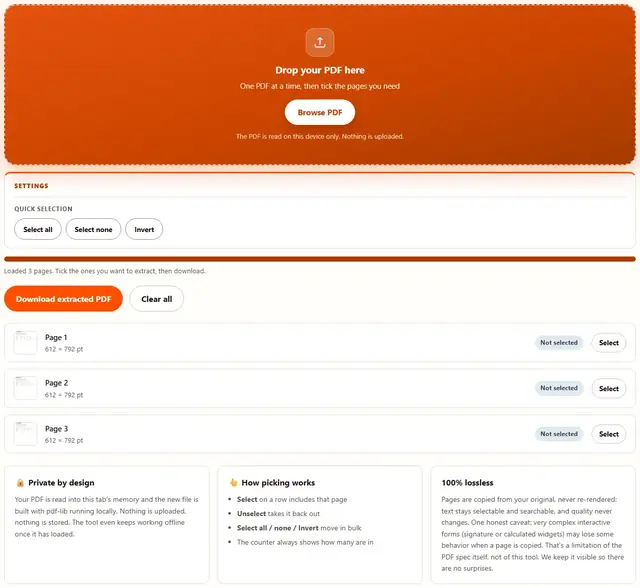
Drop your PDF here
One PDF at a time, then tick the pages you need
The PDF is read on this device only. Nothing is uploaded.
Extract PDF Pages — illustrated, step by step
How to extract pages from a PDF
Three steps. The PDF engine downloads only when you add a file, so the page itself loads instantly.
Add your PDF
Drag one PDF onto the dropzone or click to browse. A thumbnail of every page appears, in order.
Tick the pages you want
Click Select on any page to include it, or use Select all, Select none and Invert to move faster. The counter shows how many are picked.
Extract & download
Press Download extracted PDF. The picked pages are copied from your original into one new file, losslessly.
What people extract pages for
Send only what's asked: a lawyer wants the indemnity section, not the whole agreement. Tick the pages, reply with the extract.
Pull the pages you signed: a fifty-page contract came back with your signatures on two pages. Extract those two for your records.
Separate mixed scans: scanned a stack of receipts in one go? Tick each receipt's pages and file them where they belong.
Grab a single form: the package has twelve forms but you need one. Tick it, download it, print only that.
Troubleshooting
How is this different from the PDF Splitter?
The Splitter works from typed ranges such as 1-3, 5, 7-9: fast when you already know the numbers. This tool is visual: every page is drawn as a thumbnail, you tick the ones you want, and one file comes out. Same lossless engine underneath, different way of choosing.
Can I extract non-consecutive pages?
Yes, that is the point. Tick page 2, page 7 and page 9 from a twelve-page file and the output contains exactly those three pages, in the order they appear in the original. The counter under the field shows how many you have picked.
Are my PDFs uploaded anywhere?
No. The file is read into this tab, thumbnails are drawn on local canvases and the new PDF is built by pdf-lib running in your browser. Nothing is transmitted. You can verify it: open DevTools to the Network tab, extract pages, and watch nothing get sent. Privacy policy.
It asked for a password / said the PDF is protected
Encrypted PDFs can't be read without their password. Open the file in any PDF reader and use 'Print to PDF' to make an unlocked copy, then extract from that copy here.
My form fields stopped working in the extracted pages
Pages are copied exactly, so normal text and links are untouched, but complex interactive widgets (signature or calculated fields) may lose behavior when a page is copied. That's a limitation of the PDF format itself; fill and flatten such forms before extracting.
Is extracting pages free?
Yes. Every option on this page is free with no account and no watermark: visual selection, the three select buttons and unlimited runs. The status line names the output file before it downloads.
Do the extracted pages keep their quality?
Yes. Pages are copied from your original, never re-rendered: text stays selectable and searchable, fonts and scan quality are unchanged, and the file size is close to a proportional share of the original. One honest caveat: very complex interactive forms may lose some behavior when a page is copied.
Learn more
Chapter extracts, contract pages and per-page splits: Extract Pages From a PDF: Chapter or Contract Pages, plus Split a PDF Into Separate Pages or Files.
How to extract pages from a PDF without typing ranges
Most PDF websites want the file on their server first, then ask you to type page numbers and hope you got them right. Here the document is read into your browser tab, every page is drawn as a thumbnail you can actually look at, and the pages you tick are copied from the original into a new file for download. Nothing is transmitted, no account needed. Whether you searched for extract pages from pdf or for how to pick pages out of a pdf, the steps are the same: add one file, tick the pages, press Download extracted PDF.
The green tick on each selected thumbnail is the whole interface: tick what stays, leave the rest, download. The counter under the quick buttons always matches the ticks on screen.
Extract pages from a PDF free: no account, no watermark
Free here means the whole tool, not a preview: every thumbnail, the three select buttons and unlimited runs, no signup, no watermark, no page cap. The status line names the output file and its size before the download starts, and Clear all empties the list. The PDF engine is fetched only the first time you use the tool, from this site's own folder, so the page opens instantly.
If the pages you extracted are too big to send, run them through the PDF Compressor. If you need the same pages in a different order first, line them up in PDF Reorder. Other free browser tools live on the tools hub.
Visual picking or typed ranges: which tool to use
BeeToolify offers both ways because they shine in different situations. Tick pages when you can see them and know them by sight; type ranges when you know the numbers already. Both produce lossless output from the same engine.
| Situation | Use this tool (visual) | Use the Splitter (ranges) |
|---|---|---|
| You know the pages by their look | Tick the thumbnails | Would need the numbers first |
| You were told "pages 3 to 7" | Tick 3, 4, 5, 6, 7 by hand | Type 3-7 directly |
| Scattered picks (2, 9, 11) | Three ticks, done | Type 2,9,11 |
| Every page but one | Select all, then unselect the one | Type two ranges around it |
| One file per page | Not this tool | Tick the per-page box |
| Pages in a custom order | Not this tool (output follows the original order) | Type 7,1-3 and the input order wins |
Honest note: this tool always keeps the original page order, because that is what "these pages from my document" means to most people. When you need a custom order, the PDF Splitter range field or PDF Reorder is the better fit.
Where page extraction earns its keep in the US
Six real jobs and what each one ticks:
- Reply to a records request. A bank or landlord asks for specific pages of an agreement: tick exactly those, keep the rest private.
- File exhibits separately. Court portals want Exhibit A, B and C as their own uploads: one extraction run per exhibit.
- Keep your signed pages. A fifty-page contract came back with two signature pages: extract those two for your own file.
- Clear an attachment cap. A scanned packet is over the portal's 10 MB limit: send the pages they asked for first.
- Split a mixed scan pile. Receipts, forms and notes went through the scanner together: tick each group's pages and file them apart.
- Hand a reviewer one section. Give an advisor the ten pages that matter instead of a download nobody opens.
When the job runs the other way and pages need to go back together, the PDF Merger joins them again.
What we actually tested in the browser
Five checks we ran while building this page, and what came back:
Ticks match the output, every time
We loaded a twelve-page PDF, ticked pages 2, 7 and 9, and the result opened with exactly 3 pages whose content matched the originals page for page (compared the rendered thumbnails side by side).
The three select buttons
Select all ticks every row and the counter reads 12 of 12 selected; Select none clears it back to 0 of 12; Invert flips it, so from "all" one click leaves the single page you wanted out. Each click updates the badges on the rows instantly.
Pages are copied, not re-rendered
Extract from a text-heavy PDF, then hit Ctrl+F in the result: words are still found and the cursor still selects text, proof the pages were copied from the original instead of drawn again.
What DevTools shows while you extract
Keep the Network tab open and run an extraction: the only request after page load is the PDF engine itself, from this site's own folder. Your file's bytes never appear in a request body. There is no upload code path.
Memory on a few hundred pages
Everything stays in the tab's memory until you download or clear it. A few hundred scanned pages is fine on a laptop; a phone may fail when memory runs out. Closing heavy tabs usually gives it headroom.
Honest limits: what this extractor won't do
- Output follows the original order. Tick pages 9 and 2 and they still come out as 2 then 9, because that is their order in the document. Custom orders belong to the Splitter's range field or PDF Reorder.
- One output file per run. Every ticked page goes into a single new PDF. If you need each page as its own file, use the Splitter with its per-page box.
- Interactive form widgets and annotations may not survive. Signature and calculated fields rely on definitions stored outside the page, so a copied page can lose that behavior. Fill and flatten the form first (Print to PDF does it), then extract that copy.
- Encrypted PDFs must be unlocked first. An encrypted file can't be read without its password: open it in any PDF reader, use Print to PDF to make an unlocked copy, then extract from that.
- Extremely large files depend on device memory. One thumbnail is drawn per page, so a several-hundred-page scan pile is a desktop job: mobile browsers reach their memory ceiling sooner.
None of this is buried in fine print: the card beside the tool repeats the form caveat, and the troubleshooting answers cover the password and order cases.
Need one file per page instead?
PDF Splitter turns a range into separate files, one PDF per page: same privacy, same speed.
Open PDF Splitter