Compress Image to 200KB, 100KB or 50KB: Free, No Upload
Compress an image to 200KB, 100KB or 50KB (100% in your browser): no upload, no signup, no watermarks. Drop images, pick a quality, download smaller files in seconds.
Compress your images
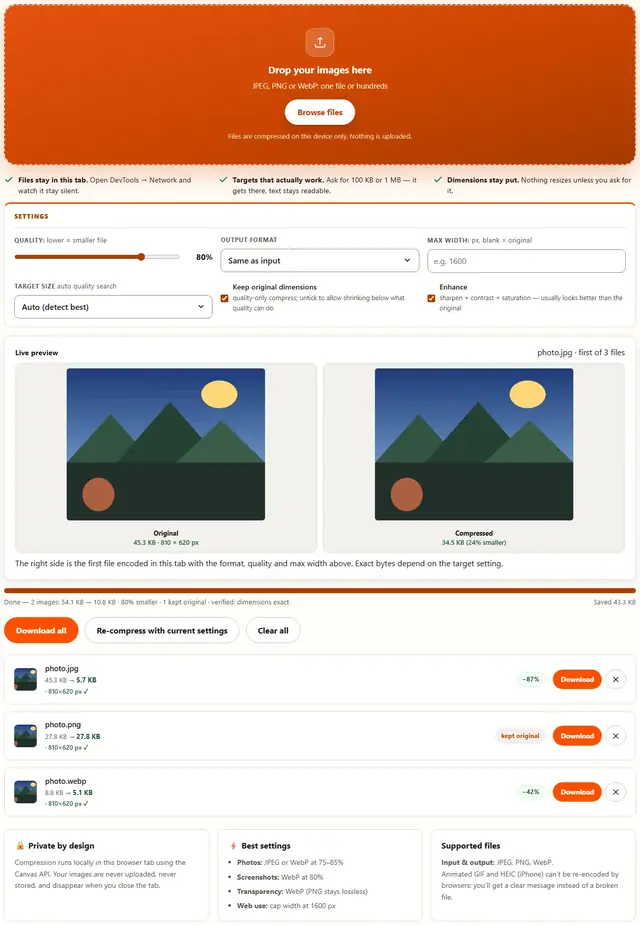
Drop your images here
JPEG, PNG or WebP: one file or hundreds
Files are compressed on this device only. Nothing is uploaded.
- Files stay in this tab. Open DevTools → Network and watch it stay silent.
- Targets that actually work. Ask for 100 KB or 1 MB — it gets there, text stays readable.
- Dimensions stay put. Nothing resizes unless you ask for it.
The right side is the first file encoded in this tab with the format, quality and max width above. Exact bytes depend on the target setting.
Image Compressor — illustrated, step by step
How to compress an image
Three steps, about ten seconds, no technical skills needed.
Add your images
Drag JPEG, PNG or WebP files onto the dropzone or click to browse. Drop as many as you want: they compress as a batch.
Choose quality & size
75–85% quality is the sweet spot for photos. Optionally cap the width (1600 px is ideal for websites) or convert to WebP for the smallest files.
Download instantly
Each row shows the exact before/after size and percent saved. Download one image or grab all of them with a single click.
How the compressor actually works
Your images never leave this device
Everything happens inside your browser tab. There is no upload step, no server processing and no file logging: the tool works even after you go offline. That makes it safe for confidential documents, client work and personal photos. Details in our file-handling policy.
Image compression: FAQ
Does this compressor upload my photos?
No. Compression happens locally in your browser with the Canvas API. Images are never uploaded, stored or visible to anyone else.
What quality setting should I use for images?
For photos, 70–85% gives the best balance: usually 50–80% smaller with no visible difference. For screenshots and text-heavy images, convert to WebP at 80%, or keep PNG for perfectly crisp text.
How do I compress an image to 100 KB?
Resize first: set Max width to the pixels the form asks for (1200 px is a safe default when it doesn't say), then compress at 80% and read the after-size on that row. Still over 100 KB? Lower the quality in 5% steps and press Re-compress with current settings; every run starts from your original file.
Can I compress a PNG without losing quality?
PNG is already lossless, so the quality slider doesn't shrink it. Use Max width to resize without losing quality, or convert to WebP or JPEG for real reductions: WebP is almost always the smallest option.
Can I compress multiple images at once?
Yes. Drop any number of images and they're processed as a batch. Use Download all to save every compressed file in one go.
Is there a file size or number limit?
No file-count limits. For very large images (over ~25 MB), processing can be slow on phones or low-memory devices: a desktop browser works best.
Can I compress images offline?
Yes. Once this page has loaded, the compressor keeps working without an internet connection, because nothing is ever sent anywhere.
How to compress an image to 200 KB in your browser
Compressing an image to 200 KB takes about thirty seconds: drop the file on the tool above, leave the quality slider at 80%, and read the before-and-after size printed on each row. There's no signup and no upload: the file is decoded and re-encoded inside this tab.
Photos don't compress the same way twice, so run the same order every time: pixels first, quality second, verify.
- Resize first. Type a width into Max width: 1600 px for web and email, or the exact pixels a form specifies. Dimensions remove most of the weight; the slider finishes the job.
- Compress second. 80% is the default for a reason: at normal viewing size the photo looks unchanged, while the file gets dramatically smaller.
- Re-run if you're over. Still above 200 KB? Drop the slider five points and press Re-compress with current settings: every run restarts from your original file.
Compress an image to 100 KB, 50 KB or 20 KB
Forms rarely say 'smaller is better': they hand you a ceiling, sometimes a floor as well, and reject anything outside the range. These are the four targets that show up most often on US portals.
| Target | Where you'll meet it | Settings that land there |
|---|---|---|
| 200 KB | US passport photo upload (square JPG, 600×600–1200×1200 px, max 240 KB), certificate scans | Resize to required pixels, compress at 80%, read the after-size |
| 100 KB | College application documents, ID photo fields, employee portals | Max width 800–1200 px, quality 75–80% |
| 50 KB | Signature scans, avatars and thumbnail fields | Crop tight, resize to exact size, quality 70–75% |
| 20 KB | Legacy portals with a hard 20 KB ceiling | Resize below 400 px wide, quality 60–70%, accept some softness |
Match all three properties a form lists (size, dimensions, format) because a photo at the right KB with the wrong dimensions still fails. Watch the floor too: a file crushed to 12 KB when the minimum is 20 KB has been shrunk past legibility. Our step-by-step compress a photo to 20KB, 50KB or 100KB for online forms covers the dimension traps field by field.
Reduce image size in KB without losing quality
'Without losing quality' means without losing anything you can see at the size you actually display the image. JPEG and WebP are lossy formats: they quietly drop texture detail your eye rarely notices, and that discarded detail is where the savings come from.
Typical results for a 4000×3000 camera photo re-encoded as JPEG (ranges rather than promises, since a crowded tree line costs more bytes than an empty sky):
| Quality | Typical size after re-encoding | What you notice at full screen |
|---|---|---|
| 100% | 3–6 MB | Nothing (essentially the original bytes) |
| 90% | 1.2–2.5 MB | No visible difference |
| 80% | 600 KB–1.3 MB | No visible difference on most photos |
| 70% | 350–750 KB | Clean at web size, good for email |
| 60% | 220–450 KB | Flat areas start to look smooth |
| 50% | 150–300 KB | Blocky artifacts appear when you zoom |
| 30% | 80–160 KB | Clearly degraded (only for a hard size cap) |
Between 70% and 85% photographs stay visually identical while the file shrinks hard; below 50% you're trading detail you can see for kilobytes you may not need. If the portal accepts WebP, switch format: the same photo usually lands smaller as WebP than as JPEG.
Compress JPEG online free: no signup, no watermark
Camera and phone files are almost always JPEG, and most people want to compress a JPEG online for free and then leave without handing over an email address. That's how this page works: no account wall, no daily quota, no watermark across the result, nothing to install.
Free for personal and work use
There's no trial tier and no upgrade prompt behind the download button. One photo and a batch of fifty take the same path, and a rejected upload just means re-compressing instead of paying for another tool.
Runs on the device you already have
Windows, Mac, Chromebook, iPhone or Android: anything with a current browser works, because the heavy lifting happens on your own machine, even offline. Need to swap formats instead? The Image Converter handles JPEG, PNG and WebP.
Compress an image for an email attachment (Gmail's 25 MB cap)
Gmail refuses a message once the attachments and the message text together pass 25 MB. A single modern phone photo can weigh 3–6 MB, so three or four originals from a weekend already push you over the line before anyone replies and quotes every image back to you.
- Cap the width at 1600 px. Attachments are viewed on a screen, and 1600 px fills a phone or laptop display comfortably.
- Compress at 80%. At that setting and width a photo typically lands in the hundreds of kilobytes, so a dozen fit in one message with room to spare.
- Leave headroom for replies. Corporate and school mail servers often allow far less than Gmail, and every reply carries the attachments forward again.
- Batch the whole folder. Drop everything at once, press Download all, then attach the compressed copies instead of the originals in your gallery.
Sending a scan instead? Same recipe: 1000–1600 px wide at 75–85% brings a text page down to the low hundreds of kilobytes while staying sharp enough to print.
Five US situations where the KB limit decides the upload
Passport and USCIS photo uploads
US passport photos must be a square JPG between 600×600 and 1200×1200 pixels and 240 KB or smaller, and immigration uploads carry ranges of their own. Resize to a square, compress at 80%, then re-check the official instructions before you submit: requirements change.
Common App and college portals
Recommendation letters, transcripts and portfolio pieces upload one at a time, each behind its own cap, and many portals refuse HEIC outright. A few hundred KB per file keeps a long application moving on a dorm connection.
Insurance claims and repair portals
Damage photos upload from a phone, often on bad reception at the scene. Capping each at 1600 px and 80% quality means the claim goes through in seconds rather than stalling halfway.
USAJOBS and employer career portals
Federal and corporate applications enforce strict per-file limits, and a silent failure costs you the slot. Check the cap, compress well below it, and confirm the after-size before you attach.
Real estate and rental listing photos
Listing platforms want sharp images (at least 1600 px wide) but a dozen multi-megabyte files stall the upload. Batch-compressing a shoot keeps every photo sharp while cutting the transfer to a fraction.
For the pixel side of any of these, the Image Resizer produces exact dimensions first, then this page trims the kilobytes.
What we actually tested: encoding, DevTools and real numbers
We wrote this tool, so this is what we checked first-hand:
- The encode path. Each file is decoded in the browser, drawn onto a canvas at the target width, then written out by the canvas encoder at your quality setting: no server step in that chain.
- DevTools → Network proves it. Open DevTools, filter the Network tab and compress a photo: the only requests listed are this page's own HTML, CSS and JavaScript. No POST, no multipart upload, no image bytes.
- Typical 80% results. A 4000×3000 photo at 80% quality usually lands around 600 KB to 1.3 MB; with the 1600 px width cap it drops to a few hundred KB.
- It never inflates a file. With 'Same as input' selected, a re-encode that comes back the same size or larger is discarded and your original is delivered instead.
- PNG ignores the quality slider. It's lossless, so savings there come from changing the width or switching output format.
- EXIF is stripped on every re-encode: GPS coordinates, camera model and timestamps aren't carried over. If the tool kept your original instead, its metadata is still intact, so run sensitive shots through our guide to removing location data from photos first.
Limits: what this compressor can't do
Being upfront about the edges saves you a rejected upload later:
- Screenshots and logos fade before photos do. JPEG is tuned for continuous tone, so sharp text and flat brand colors show artifacts first: stay at 80% or higher, or resize instead.
- PNG output won't shrink from the quality slider. The format is lossless by design; change Max width or switch to WebP or JPEG for real savings.
- Animated GIF and HEIC aren't supported. Browsers can't re-encode animation and most can't decode HEIC, so you get a clear message rather than a broken file. On iPhone, set Settings → Camera → Formats to Most Compatible first.
- Very large batches depend on your device's memory. Files are held in the tab while they process, so an enormous image or huge run can slow a phone: split it into a few passes.
- Max width only shrinks. It never upscales, and no quality setting reaches an impossible KB target on a full-size photo: that's what resizing is for.
Anything this page doesn't cover lives in the full tools directory: PDFs, QR codes and format conversions, all browser-based like this one.
Learn more
Size limits, KB targets and form rejections: Compress a Photo to 20KB, 50KB or 100KB for Online Forms. Working the other way (bigger files, not smaller): Image Resizer.