Signature and Photo Resize Free Online, No Signup
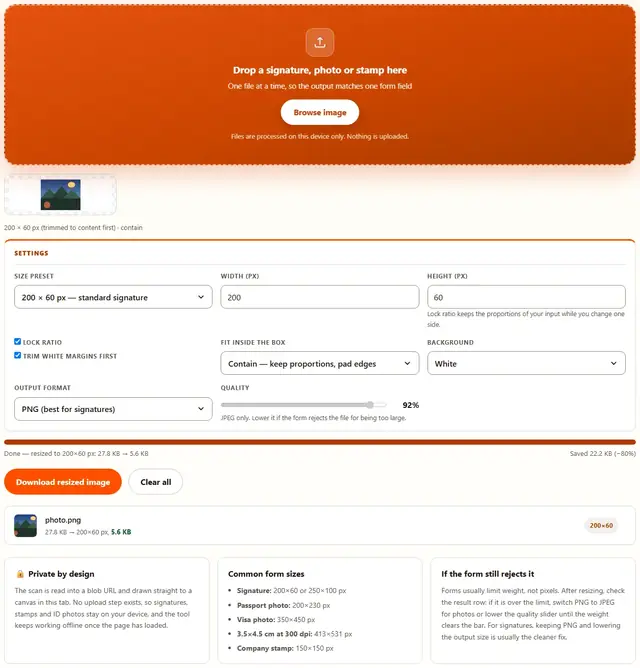
Drop a scanned signature, photo or company stamp, pick the standard size your form demands, and download it at exactly those pixels. White or transparent background, and the result row shows the file weight before you submit anything.
Resize your signature or photo
Drop a signature, photo or stamp here
One file at a time, so the output matches one form field
Files are processed on this device only. Nothing is uploaded.
Lock ratio keeps the proportions of your input while you change one side.
JPEG only. Lower it if the form rejects the file for being too large.
Signature Resize — illustrated, step by step
How to resize a signature or photo
Three steps, no accounts, no watermarks on the output.
Drop the scan
Drop a JPG or PNG of the signature, photo or stamp on the box, or click Browse. Trimming removes the white paper margin around it automatically.
Pick the size the form asks for
Choose a preset such as 200×60 for a signature or 350×450 for a visa photo, or type exact pixels. Contain keeps proportions inside the box.
Download
The result row shows the output pixels and the exact file weight. One click saves it; nothing is uploaded anywhere.
Why resize in the browser?
Because a signature scan is one of the most personal files on your device. Keeping the resize in the tab means it never touches a server, there is no queue and no account, and you can check the exact file weight before the form ever sees it. Details are in our file-handling policy.
Troubleshooting
Are my files uploaded when I resize them?
No. The signature or photo is read into the page with a blob URL, drawn to a canvas at the chosen size and encoded right here in this tab. There is no upload endpoint, so scans of your signature and passport photos stay on your device.
Which preset size should I pick?
Match the form. Online forms usually state the limit in kilobytes and sometimes in pixels: signature 200×60 or 250×100, photo 200×230 or 35×45 ratio, stamp around 150×150. If the form gives only a KB limit, pick a preset, download, and check the weight in the result row before submitting.
My signature has a background I do not want
Use the background option. White replaces whatever was behind the signature with clean white, which is what most forms expect. Transparent keeps only the ink if your scan has a clean enough background for the alpha cut to work, and it needs PNG output.
How do I scan a signature for forms?
Sign on plain white paper, photograph or scan it with even light, and crop tightly with the trim option here. Then pick the preset the form asks for. A signature that fills its box reads better than one floating in a sea of white, so trim first, then resize.
The resized photo looks blurry
Scaling up cannot add detail. If the form wants 350×450 pixels and your scan is 200×260, the result will be soft no matter which tool does it. Scan at twice the target size and scale down instead: the result is always sharper than the reverse, because downsampling keeps every bit of real detail.
Does resizing remove the file metadata?
Yes. The output is re-encoded from canvas pixels, so EXIF data is not carried over. For signature and photo uploads that is usually a small privacy win on top of the resize.
Fitting a form's exact requirements
Form rejections are almost always about two numbers: pixels and kilobytes. The pixel requirement is easy to satisfy with the presets here, because they are the sizes Indian and international forms actually ask for. The kilobyte limit is the one people trip over, and it has a simple answer: the result row shows the exact weight of the output before you download it, so you can lower the quality slider or shrink the dimensions until the number clears the bar, without a guessing game of upload, reject, repeat.
Trimming deserves special attention for signatures. A scan that includes a margin of white paper makes the signature itself look tiny inside the box the form provides, because the form scales the whole image to fit. The trim option removes that margin first, so the ink fills the frame and stays legible even when the form displays it at 200 pixels wide. For photos, leave trim off: there is usually no uniform margin to remove.
Resize, crop and compress: which tool does what
Resize scales a whole image to a target size, which is what forms want. Crop cuts a region out first, which is useful when the scan includes more than the signature. Compress reduces the file weight without changing the pixel dimensions, which is the fix when a form enforces a KB limit but not a pixel one.
Most form uploads combine two steps: this tool for the exact pixel size, then the Image Compressor if the weight is still over the limit. If the scan needs straightening before the resize, run it through Rotate Image first.
Right size, but over the weight limit?
The Image Compressor shrinks photos with a quality slider and shows you the exact bytes saved: same privacy, same speed.
Open Image Compressor