Circle Crop Image Free Online, No Signup
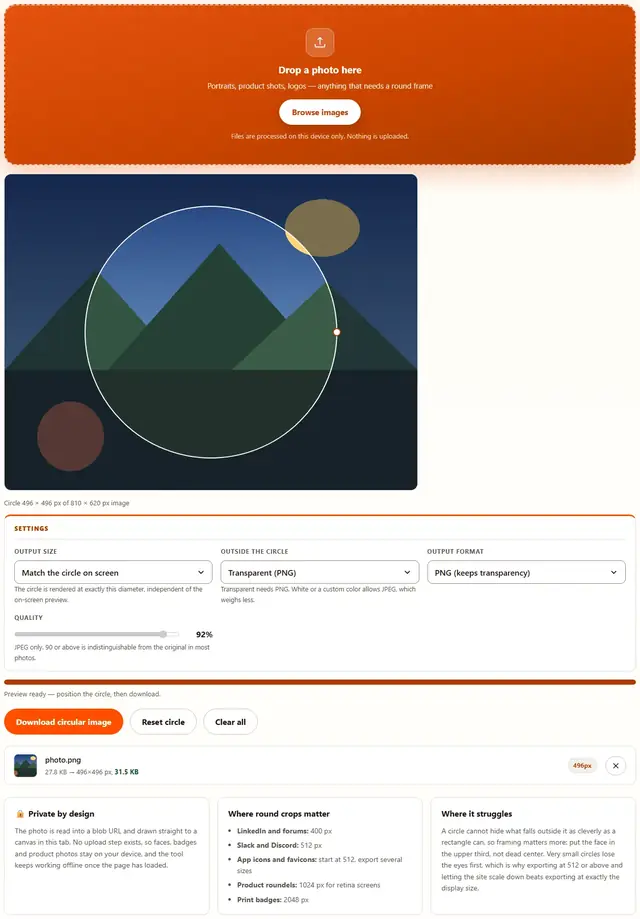
Drop a photo, drag the circle to frame the face or subject, and download a transparent PNG at the exact pixel size your avatar needs. The corners outside the circle become fully transparent, so it sits cleanly on any background.
Circle-crop your image
Drop a photo here
Portraits, product shots, logos — anything that needs a round frame
Files are processed on this device only. Nothing is uploaded.
The circle is rendered at exactly this diameter, independent of the on-screen preview.
Transparent needs PNG. White or a custom color allows JPEG, which weighs less.
JPEG only. 90 or above is indistinguishable from the original in most photos.
Image Crop Circle — illustrated, step by step
How to circle crop an image
Three steps, no accounts, no watermarks on the output.
Drop your photo
Drop a JPG, PNG or WebP on the box, or click Browse. A circle appears over the image straight away.
Drag the circle
Move the circle to frame the face or subject, and drag the small handle on its edge to change the diameter. Arrow keys move it and Shift plus arrows resize it.
Download
Pick the output diameter and format, then download. The result is a clean circular image with transparent or colored corners, ready for any avatar slot.
Why circle crop in the browser?
Because a round photo is usually a profile photo: the most personal image you have. Keeping the edit in the tab means the original never touches a server, there is no queue and no account, and the result is ready the moment you release the mouse. Details are in our file-handling policy.
Troubleshooting
Are my photos uploaded when I circle-crop them?
No. The image is read into the page with a blob URL, drawn to a canvas and clipped with a circular path, all inside this tab. There is no upload endpoint, so profile photos and product shots never leave the device.
Why is the output a PNG?
Because outside the circle is transparency, and only PNG stores an alpha channel. A JPEG would have to fill those corners with a solid color, usually white, which looks wrong on any background that is not white. The tool still offers a white-background option if you specifically need a JPEG.
What output size should I pick?
Match the site that will display it. LinkedIn and most forums display 400 pixels, Slack and Discord avatars are typically 512, and 1024 covers high-density screens. Bigger is safer than smaller: a 1024 pixel circle can be displayed at any size below that without softening.
Can I make an oval instead of a circle?
Not directly, and there is a good reason: an oval looks like a mistake unless the destination specifically demands one. The circle is what almost every avatar, badge and product roundel expects. If you need an oval, circle-crop it and squeeze the PNG in an image editor.
The photo has a border I want inside the circle
Position the circle so the border sits just inside its edge, then export. If you want a visible ring around the photo, the tool's background color option adds one: pick a color, and the transparent area outside the circle is filled with it, giving a clean colored disc behind the photo.
Does circle-cropping remove the photo metadata?
Yes. The output is re-encoded from canvas pixels, so EXIF data including GPS location and camera details is not carried over. That is usually what you want for a public profile photo.
Framing a face inside a circle
The circle is a unforgiving shape: it centers attention and cuts everything else. The rule that works for portraits is to place the eyes on the upper third line rather than in the middle, and to leave a little air above the head. Centering the face geometrically usually produces a crop that feels bottom-heavy, because faces read from the eyes up, not from the chin down.
Zoom is your friend when the subject is small in the frame. Instead of shrinking the circle until it fits the whole photo, enlarge the image behind the circle: the tool scales the picture inside the frame as you drag, so a face that occupied a tenth of a holiday photo can still fill a crisp circular avatar. What you lose in background is exactly what the circle would have cut anyway.
| Destination | Diameter | Format |
|---|---|---|
| Forum signature | 256 px | PNG |
| LinkedIn, most websites | 400 px | PNG |
| Slack, Discord, WhatsApp | 512 px | PNG |
| Retina app icon | 1024 px | PNG |
| Print badge | 2048 px | PNG |
Circle crop, rectangle crop and resize
Circle crop clips to a round mask and outputs transparency, which is what avatar slots expect. Rectangle crop keeps the whole frame minus what you cut, which is what posts and thumbnails expect. Resize changes only the pixel dimensions, keeping the shape exactly as it is.
A typical avatar workflow is circle crop first at a generous size, then compress with the Image Compressor if a site enforces a kilobyte limit. If the photo needs straightening before the circle, run it through Rotate Image first, since a tilted face inside a perfect circle is very noticeable.
Round photo, now make it smaller?
The Image Compressor shrinks photos with a quality slider and shows you the exact bytes saved: same privacy, same speed.
Open Image Compressor