PDF to JPG Free: Every Page as a JPEG Image
Convert a PDF to JPG images right in your browser: each page renders as a sharp JPEG you can download singly or as a ZIP. No upload, no signup, no watermark.
Convert your PDF pages to JPG
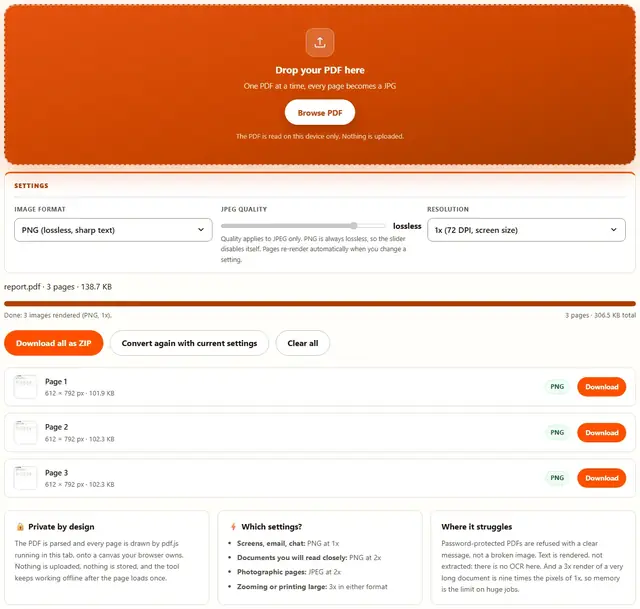
Drop your PDF here
One PDF at a time, every page becomes a JPG
The PDF is read on this device only. Nothing is uploaded.
Quality applies to JPEG only. PNG is always lossless, so the slider disables itself. Pages re-render automatically when you change a setting.
PDF To JPG — illustrated, step by step
How to convert PDF to JPG
Three steps, about ten seconds, no technical skills needed.
Add your PDF
Drag a PDF onto the dropzone, or click to browse. The page count and file size appear as soon as the document opens.
Pick the resolution
JPG output is preselected. 1x suits screens, 2x close reading, 3x printing and zooming. Pages render one after another with live progress.
Download the JPGs
Each page shows its pixel size and file size. Download one page, or grab the whole set as a ZIP with one click.
96 vs 300 DPI: the pixel math
A PDF page is vector — no native pixel size, only points (Letter is 612×792 pt). Rasterizing means choosing a density: at 96 DPI (what browsers assume), Letter renders 816×1056 px; at 150, 1275×1650 px; at 300, 2550×3300 px — nearly ten times the pixels of 96 DPI, which is why print shops ask and chat windows don't. This tool maps 1x = 72, 2x = 144, 3x = 216 DPI — 3x approaches but never reaches the 300 a commercial shop may demand; treat it as print-proof, or raster finer.
JPEG has no alpha channel, so the canvas flattens onto white — the universal paper tone. Consequences: source transparency goes opaque, and sharp 1-bit-ish text edges get the full 8×8 DCT treatment, grey-fringing black glyphs at low quality. Text-heavy page? PNG wins. Photo-heavy? JPEG at the default 82%.
- Screen and chat: 1x / 96–144 DPI — sharp enough, smallest files
- Inkjet and close reading: 2x (144 DPI) — comfortably legible on a phone zoom
- Print shop: 3x (216 DPI); ask about true 300 for glossy commercial runs
- White background is forced by JPEG — transparency survives only in PNG
- Rasterizing destroys the text layer forever — no search, no copy; use PDF to Text for the words
One thing no slider fixes: flattened to pixels, the glyphs are gone as data. Raster for display, never to archive the words.
Why render in the browser?
Because there is no upload step, this is safe for contracts, medical records, financial statements and anything under NDA: the pages never leave the device you're sitting at. It also works offline once the page has loaded, and a 200-page document becomes 200 images in a single pass. Details in our file-handling policy.
PDF to JPG: FAQ
Are my PDF pages uploaded?
No. The PDF is opened and rendered by pdf.js inside this tab, and JPEGs are encoded by the browser's own encoder. Nothing is sent to any server.
JPG or PNG for PDF pages?
JPG produces much smaller files, ideal for photo-heavy pages. If a page is text and line drawings, PNG keeps edges slightly crisper: switch the format control if that matters more than size.
How sharp will the JPG images be?
Text is vector in a PDF, so it is drawn fresh at whatever resolution you pick. 2x (about 144 DPI) reads cleanly on screen; 3x (about 216 DPI) is print-grade and zooms without mush.
Why is a 3x JPG so much bigger than 1x?
Pixels multiply: 3x means three times the width and three times the height, so nine times the pixel data. Use 3x only when the image will be zoomed or printed.
PDF to JPG: picking resolution and quality
Resolution decides the pixel dimensions of each JPG: 1x renders the page at its nominal 72 DPI screen size, 2x doubles both dimensions, 3x triples them. Because PDF text is vector, higher resolution means genuinely sharper glyphs rather than an upscaled blur: the renderer draws the page fresh each time.
The quality slider only applies to JPG output and sits at 90% by default, which keeps photographs smooth while text stays readable. If pages must be small (email, messaging), drop to 75-80% and 1x: the whole set usually shrinks dramatically with no visible loss at screen size.
Only need part of the PDF?
The PDF Splitter pulls single pages out losslessly, so you render less and wait less: same privacy, same browser-only pipeline.
Open PDF Splitter