Fill PDF Forms Free: Type, Tick and Choose in Your Browser
Fill a PDF form right here: the tool detects every field, lists it beside a live preview that redraws your values on the page as you type, and writes them back into the file. Undo, redo, reset and per-field clear come built in. Text boxes, checkboxes, dropdowns and radios. No printing, no upload, no account, no watermark.
Fill your PDF form
Drop your PDF form here
One form at a time — every field is detected and drawn on a live preview
The PDF is read on this device only. Nothing is uploaded.
Your form appears here, ready to fill
Add a PDF and the page renders with every detected field outlined — typed, ticked and chosen values redraw on the page instantly, and the file never leaves this device.
- Real-time preview
- Undo · redo · reset
- 100% on-device
Form fields
No fields match “”.
PDF Form Filler — illustrated, step by step
How to fill a PDF form
Three steps. The PDF engine downloads only when you load a form, so the page itself loads instantly.
Add your form
Drag the PDF form onto the dropzone or click to browse. The tool reads every field and lists them beside the live page preview.
Fill the fields
Type into text boxes, tick checkboxes, pick dropdown options and choose radio buttons. Every change is redrawn on the page preview in real time, and Ctrl+Z undoes anything you didn't mean. Hovering a field outlines it on the preview so you always know which box you are filling.
Download the filled form
Press Download filled PDF (or Ctrl+Enter). pdf-lib writes your values into the original file inside the browser and the new file downloads right away. Changed your mind after a run? Undo, adjust and download again.
What people fill PDF forms for
Tax and government forms: the IRS and state agencies ship fillable PDFs. Type the values in, save, and file without printing a single sheet.
Job applications: tick the boxes, pick the dropdown options, type the references, and return the same day the posting closes.
School and medical intake forms: practices send the PDF by email; fill it on the laptop and send it back before the appointment.
Contract details before signing: fill the dates, names and amounts first, then stamp the signature line with the Sign PDF tool.
Troubleshooting
Can I undo a change or clear one field?
Yes. Ctrl+Z undoes your last change and Ctrl+Y (or Ctrl+Shift+Z) redoes it — typing, ticks, dropdown choices, resets, everything. Each field row has its own × button to clear just that field, Reset loaded values restores the values as the PDF opened, and Clear all values empties every field while staying undoable. Ctrl+K filters the list by field name and Ctrl+Enter downloads the filled file.
Is filling a PDF form here free?
Yes, the whole filler is free: every field type the tool detects, unlimited fields, unlimited runs, no signup and no watermark on the result. The status line shows the original and new file sizes after every download.
What kind of PDF forms can it fill?
Forms with real AcroForm fields: text boxes, multi-line text areas, checkboxes, dropdown lists and radio buttons. That covers most tax forms, applications and government PDFs. A scanned image with no clickable fields has nothing to fill, and the tool says so instead of pretending.
Does it work on a scanned PDF?
Only if the scan carries real form fields on top of the image, which some agencies ship. A plain flat scan has no fields: the tool reports that no fillable fields were found. For that case, print the file, fill it by hand, or sign it visually with the Sign PDF tool.
Is my PDF uploaded anywhere?
No. The file is read into this tab, the field list is built locally from the document's own annotations, and pdf-lib writes the values back in your browser. Nothing is transmitted. You can verify it: open DevTools to the Network tab, fill a form, and watch nothing get sent. Privacy policy.
Will my typed values show up in other PDF readers?
Yes. The save step regenerates the field appearances, which is what other readers render, so the values are visible in Adobe Reader, Preview, browsers and mobile viewers, not just here. The original text of the document is untouched because only the field values change.
Can I fill the same form twice?
Yes. Load the original file again, change whatever you need and download a new copy. Each run starts from the original bytes, so nothing accumulates and no previous run leaks into the next one.
A field in my list is greyed out
Read-only fields arrive disabled, because the document itself marks them that way. Hidden fields are skipped entirely. If a field you expect is missing, it may be a button the form uses for actions rather than a value field, which the filler deliberately ignores.
Learn more
Forms arrive inside bigger packets: How to combine tax documents into one PDF covers the assembly step, and every other browser guide lives on the blog.
How to fill a PDF form without printing it
The old way is print, pen, scan, email. Here the form is read into your browser tab, every AcroForm field is detected and listed beside a live preview of its page, you type and tick into the list, and pdf-lib writes the values back into a fresh copy of the original file. Nothing is transmitted, no account needed. Whether you searched for fill pdf form or for how to fill out a PDF without printing, the steps are the same: add the form, fill the fields, press Download filled PDF.
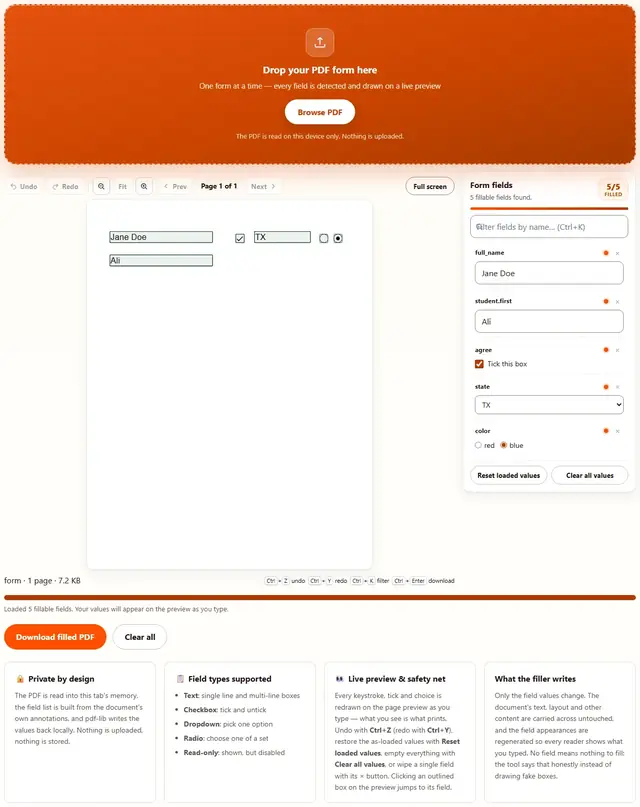
The orange outline marks the field you are on, green-tinted boxes hold a value, and the chip above the field list counts how many fields are filled. What you type is what lands in the file.
Fill a PDF form free: no account, no watermark
Free here means the whole tool, not a trial: every detected field, all four value types, the live preview repaints, undo and redo, per-field clear, unlimited runs, no signup, no watermark, no page cap. The status line tells you the exact result size after each run, and Clear all resets the document and the field list. The PDF engine is fetched only the first time you load a form, from this site's own folder, so the page opens instantly.
After filling, the size is roughly the same because only the field values changed. When the form is part of a bigger packet, assemble it first with the PDF Merger, and other free browser tools live on the tools hub.
The four field types and how each one is written
The filler reads the document's annotations to build the list, then maps your input back to the right field kind on save:
| Field | What you see in the list | What is written |
|---|---|---|
| Text box | A single-line input, with the document's current value loaded | The text you type, with the field's own appearance regenerated |
| Text area | A small multi-line box for addresses and comments | Your multi-line text, wrapped the way the form intends |
| Checkbox | A tick box next to the field name | Checked or unchecked, using the document's own on-state |
| Dropdown | A select list with the form's real options | The option you chose, matched by its export value |
| Radio buttons | One choice per option, grouped under the field name | The option you picked, mapped to the form's internal naming |
Fields the document marks as read-only arrive greyed out, and signature boxes are skipped on purpose: they belong to the Sign PDF tool.
Why the values show up everywhere
A PDF form field is a value plus an appearance stream: the little picture of the text that readers draw. Write the value without the appearance and some viewers show a blank box. This tool saves with field appearances updated, so the picture is regenerated from your value at save time. That is why the filled file looks right in Adobe Reader, in Preview on a Mac, in a browser tab and on a phone, not only in the tool that filled it.
| Reader | What it shows |
|---|---|
| Adobe Acrobat Reader | Your values in the fields, printable and searchable |
| Browser built-in viewer | The same values, since the appearances are inside the file |
| Preview on macOS | The same values, editable if you reopen the form |
| Phone PDF apps | The same values, because nothing depends on the writer |
The document's own text never moves: only the field values change, which is why searching the result still finds the original wording.
Where a browser form filler earns its keep in the US
Six real jobs and the field types each one leans on:
- File a state tax form. The agency ships a fillable PDF: type the figures, tick the filing status, save and e-file.
- Complete a job application. Dropdowns for the dates, checkboxes for the authorizations, text boxes for the references.
- Return a school permission slip. Fill the child's name and the emergency contact on the laptop, email it back before pickup.
- Fill a medical intake form. Practices email the PDF; complete the history fields at home instead of on a clipboard in the waiting room.
- Prepare a vendor W-9 packet. Type the entities into the form once, keep a filled copy for the file, send another to accounting.
- Complete a lease addendum. Fill the dates and names first, then stamp the signature line with the Sign PDF tool.
When the form arrives as several separate files, the PDF Merger joins them first so everything can be filled in one pass.
What we actually tested in the browser
Seven checks we ran while building this page, and what came back:
All four field types round-trip
We built a test form with a text field, a dotted-name text field, a checkbox, a dropdown and a radio pair, filled every one of them through the sidebar, downloaded, and reopened the result with pdf-lib: the text read back exactly as typed, the checkbox came back checked, the dropdown reported the chosen option and the radio group reported the picked value.
Values are visible to other readers
The saved file was opened in a headless Chrome PDF viewer: every value rendered in its field. The save step runs with field appearances updated, which is what those viewers draw.
Radio buttons map correctly even when the form names them oddly
Some forms label radio options by export name, others by appearance index. We tested both: the filler tries the export name first, falls back to the raw value, and the selection lands on the right button either way.
Read-only fields cannot be edited
A field flagged read-only arrives greyed out in the list, and typing into it is impossible. Hidden fields never appear at all. The count in the panel heading counts only what you can actually fill.
The preview repaints your values as you type
We filled the test form while watching the canvas: each keystroke re-drew the page with the text inside the field outline instead of waiting for a download. Ticking the checkbox drew the checkmark on the box, and the filled counter above the list moved with every change.
Undo and reset survive a whole session
After typing a new name, Ctrl+Z returned the field and the preview to the previous value, Ctrl+Y brought the edit back, and Reset loaded values restored the file to exactly the state it had at open — the same state we verified on re-open.
What DevTools shows while you fill
Keep the Network tab open and run a filling session: the only requests after page load are the PDF engine files, from this site's own folder. Your file's bytes never appear in a request body. There is no upload code path.
Honest limits: what this filler won't do
- It fills fields, it does not add them. A PDF with no AcroForm fields has nothing to write into, and the tool reports that instead of drawing fake boxes over a scan.
- It does not edit document text. Paragraphs, tables and labels are carried across untouched. Changing the wording of a contract needs an editor, not a filler.
- Scanned forms need fields. A flat scan is an image: print and fill by hand, or use Sign PDF to stamp a signature onto it.
- Encrypted PDFs must be unlocked first. An encrypted file can't be read without its password: open it in any PDF reader, use Print to PDF to make an unlocked copy, then fill that.
- XFA forms are not supported. The old Adobe XFA format, common in some government packets, is not an AcroForm and is not filled here. The tool says what it found.
None of this is buried in fine print: the card beside the tool repeats the fill-not-add caveat, and the troubleshooting answers cover the scanned and greyed-out cases.
The filled form needs your signature?
Sign PDF stamps a drawn, typed or uploaded signature onto the page: same privacy, same speed, one more click.
Open Sign PDF