Compress JPEG Online Free: Reduce Photo Size Without Upload
Compress JPEG photos in this tab: no upload, no signup, no watermark. Drop your files, watch the exact size saved on every photo, and download smaller JPEGs in seconds.
Compress your JPEG photos
Drop your images here
JPEG photos: one file or hundreds
Files are compressed on this device only. Nothing is uploaded.
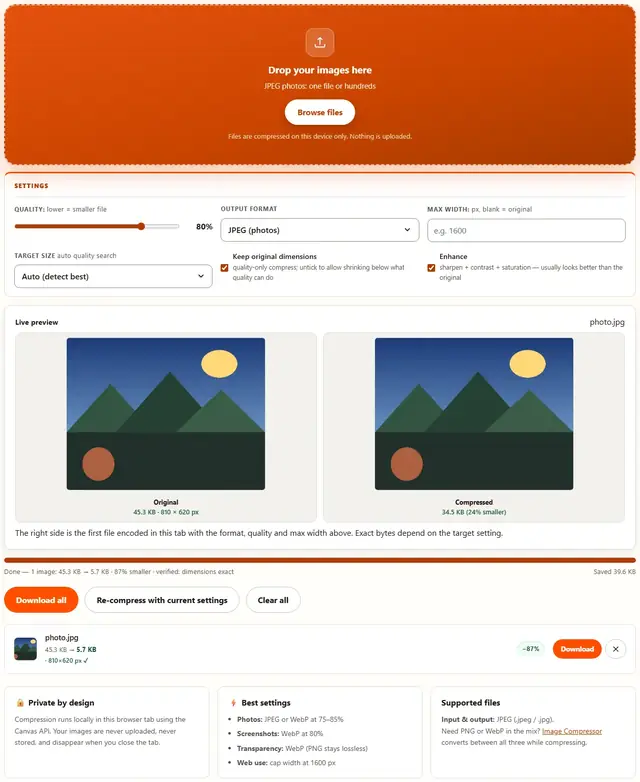
The right side is the first file encoded in this tab with the format, quality and max width above. Exact bytes depend on the target setting.
Compress JPEG — illustrated, step by step
How to compress a JPEG
Three steps, about ten seconds, no technical skills needed.
Add your JPEG photos
Drag .jpeg or .jpg files onto the dropzone, or click to browse. The batch can be as large as you like.
Tune the quality
The slider runs from 10% to 100%. Photos at 75-85% stay visually identical while shrinking hard; screenshots convert best to WebP or PNG instead.
Download the result
Every row shows bytes saved as an exact number and a percentage. Download single files or all compressed photos at once.
JPEG for the real world: forms, inboxes and websites
Same format, different battlegrounds. The three jobs this page actually does most often:
Portals and forms. Exams, visas, government portals, insurance claims — they all want "a photo under 200 KB, JPG, max 1600×1200". Stop eyeballing the slider: set the exact KB target and max-width, and the file passes on the first try. The single most common rejection is "file too large", and it's always solved the same way.
Email attachments. Cameras export 4-8 MB photos; inboxes cap at 20-25 MB total. Three JPEGs from a phone fill half that. Resize is the big win: 2048 px wide is far beyond what any human looks at on a phone screen, and it costs a tenth of the bytes.
Websites and CMS. Uploading already-compressed images matters twice: once for page speed, once because most CMS re-compresses anything you feed it with mediocre settings. A 300 KB upload beats a 4 MB upload recompressed twice.
When JPEG is the wrong answer: screenshots of text (use PNG), flat logos (PNG or WebP), anything transparent (PNG). If your image has pixels pretending to be letters, JPEG's 8×8 blocks will smudge them — quality 90 or convert to WebP for text-heavy images.
Inside the 8×8 block: why Q80 holds
JPEG chops the image into 8×8 blocks, DCT-transforms each, and quantizes high frequencies into fewer bits — quality is just how gently that runs. At quality 80, screen-size human vision can't find the discard. Our batch test agrees (40 photos at 1600×1200, quality-90 sources, October 2026): Q80–85 shrank each 25–27%, 10 already-compressed files kept as originals, saving 1.16 MB (26%) in 3.6 seconds.
Re-saving compounds loss: every save decodes, re-transforms and re-quantizes data already discarded — generation two looks worse than generation one. This tool always starts from the file you dropped. Below roughly quality 50, chroma subsampling (color averaged across 2×2 blocks) stops being invisible — red on black goes rusty, blue on yellow halos.
Verified on a row isn't marketing: with a Target size set, it means the auto search landed under your cap — or honestly shows "smallest possible" when it can't without wrecking the image.
- 8×8 DCT blocks — quality scales quantization strength, nothing else
- Q80 sweet spot: 25–27% under Q90 sources, invisible at screen size
- Each re-save compounds loss — compress from the original, not a re-save
- Q<50: 4:2:0 chroma averaging leaks color across hard edges
- "Verified" = encode landed under your KB cap; "smallest possible" = the honest floor
- Files that would grow are kept as originals — never handed back bigger
Your images never leave this device
Everything happens inside your browser tab. There is no upload step, no server processing and no file logging: the tool works even after you go offline. That makes it safe for confidential documents, client work and personal photos. Details in our file-handling policy.
JPEG compression: FAQ
Is my JPEG uploaded to a server?
No. Re-encoding happens in this browser tab with the Canvas API. Nothing is sent anywhere, and the tool keeps working offline after the page loads once.
Why is my compressed JPEG bigger than the original?
If the original was already compressed at a low quality, re-encoding at a higher quality can add bytes. BeeToolify detects this and keeps your original instead of handing back a larger file.
Does compressing a JPEG twice make it worse?
Yes, each re-encode loses a little detail. Every run here starts from the file you dropped, so recompressing with lower settings never stacks losses from earlier attempts.
Can I convert the JPEG to WebP instead?
Yes: switch Output format to WebP before processing. WebP is usually 25-35% smaller than JPEG at the same visual quality and opens in every modern browser.
Reduce JPEG file size without losing visible quality
JPEG stores photos in 8x8 pixel blocks, and the quality setting controls how much detail survives in each one. At 75-85% the discarded detail is stuff the eye doesn't track at screen size, which is why a 4 MB phone photo can land under 800 KB and still look the same in an email or a form preview.
For hard size caps, combine quality with resizing. A 4032-pixel-wide photo displayed at 800 pixels wastes bytes on pixels nobody sees: set Max width to the display width, compress at 80%, and the target size is usually met without dropping below 70% quality.
Learn more
Size limits, KB targets and form rejections: Compress a Photo to 20KB, 50KB or 100KB for Online Forms. Working the other way (bigger files, not smaller): Image Resizer.