HTML to PDF: Paste Markup, Get a Free PDF
Convert HTML to PDF right here: paste the markup, watch the live preview, choose A4 or Letter and the margin, then download. Tall pages paginate automatically. No upload, no account, no watermark.
Convert your HTML
The preview renders your markup with the browser's own engine. A URL cannot be fetched here: copy the page's HTML with View source and paste it.
HTML To PDF — illustrated, step by step
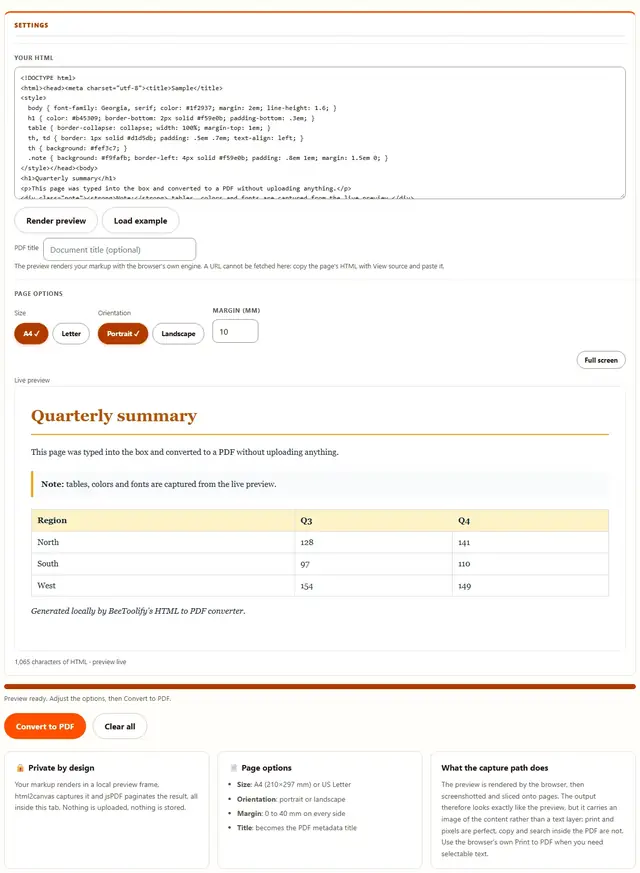
How to convert HTML to PDF
Three steps. The converter engine downloads only when you convert, so the page itself loads instantly.
Paste your HTML
Type or paste the markup into the box, or press Load example to start from a working page. The preview renders as you go.
Set the page options
Choose A4 or Letter, portrait or landscape, and the margin in millimetres. The document title field becomes the PDF metadata title.
Convert & download
Press Convert to PDF. The rendered preview is captured and paginated onto pages of the chosen size, then the file downloads right away.
What people convert HTML to PDF for
Email templates and receipts: a templated HTML receipt becomes a attachable PDF without a server-side print pipeline.
Documentation snapshots: keep a dated PDF of a wiki page or README alongside the live version for audits and archives.
Reports from data tools: dashboards that render HTML can hand their output over as a file instead of a screenshot chain.
Assignment and article hand-ins: paste the finished markup, convert, and upload one clean file to the portal that only accepts PDF.
Troubleshooting
Is converting HTML to PDF here free?
Yes, the whole converter is free: unlimited conversions, all page sizes and orientations, the margin control and multi-page output, no signup and no watermark on the result. The status line shows the page count and file size after every run.
Can I convert a web page by entering its URL?
Not from this tool. A browser tab cannot read another site's HTML because of the same-origin policy: the request would be blocked before it left your machine. Paste the page's HTML instead. View source in the browser, copy it, and paste it here.
Is my HTML uploaded anywhere?
No. The markup is rendered in a local preview frame, captured by html2canvas and paginated by jsPDF, all inside this tab. Nothing is transmitted. You can verify it: open DevTools to the Network tab, convert a file, and watch nothing get sent. Privacy policy.
Will the PDF contain selectable text?
No, and it is worth knowing before you convert: the capture path rasterizes the rendered page, so the PDF carries an image of your content rather than a text layer. It looks exactly like the preview and prints perfectly, but copy and search inside the PDF will not find words. For text that must stay selectable, print the page to PDF from the browser instead.
Why are my images missing from the result?
Images hosted on other domains must send CORS headers for a page to read them, and many do not. When that happens the capture is blocked and the tool says so. Inline the images as base64 data URIs, or host them next to your content, and they will come through.
How is a long page split into pages?
The rendered preview is scaled to the content width between the margins, then sliced vertically at the content height of each page. A tall page therefore continues onto page two, three and so on with no content lost between the slices. The status line reports how many pages the run produced.
Which page sizes and margins are supported?
A4 (210 by 297 mm) and US Letter (8.5 by 11 inches), each in portrait or landscape, with a margin from 0 to 40 mm on every side. The margin is subtracted from the page before slicing, so the content box always fits the sheet you chose.
Learn more
Getting formats right before the conversion saves a re-run: Why your SVG looks blurry as a PNG explains resolution the same way DPI does here, and every other browser guide lives on the blog.
How HTML to PDF works without a server
Most converters ship your markup to a queue and email a link back. Here the HTML is pasted into a local preview frame, the browser lays it out with its own engine, html2canvas screenshots the rendered result, and jsPDF slices that capture onto A4 or Letter pages between your margins. Tall content continues onto the next page instead of being cut off. Nothing is transmitted, no account needed. Whether you searched for html to pdf or for convert webpage to PDF offline, the steps are the same: paste the markup, set the page options, press Convert to PDF.
The preview is not a mock: it is the same layout engine that produces the capture, so what you see in the frame is what lands on the page, margins included.
Convert HTML to PDF free: no account, no watermark
Free here means the whole converter, not a trial: unlimited conversions, both page sizes, both orientations, the margin control, multi-page output and the title field, no signup, no watermark, no page cap. The status line tells you the exact page count and result size after each run, and Clear all resets the markup and the preview. The converter engine is fetched only the first time you convert, from this site's own folder, so the page opens instantly.
When the output needs to be smaller, send it to the PDF Compressor, and other free browser tools live on the tools hub.
A4 or Letter, portrait or landscape, and what the margin does
The page options decide the sheet. The margin is subtracted on all four sides before the capture is sliced, so the content box always fits inside the paper you chose:
| Option | Size | Typical use |
|---|---|---|
| A4 portrait | 210 × 297 mm | Reports, articles and most of the world's default paper |
| Letter portrait | 8.5 × 11 in | US school, government and office hand-ins |
| Either landscape | swapped axes | Wide tables, slides exported as HTML, dashboards |
| Margin 0 | full bleed | Content that already carries its own padding |
| Margin 10 to 25 | normal print | The default keeps text off the sheet edge |
A tall page does not get cut off: the capture continues on the next sheet at the same content width, so column layouts stay aligned across the break.
Why the output is an image, and when that matters
There are two ways to turn HTML into a PDF: re-implement the layout in a PDF writer, or screenshot what the browser already rendered. This tool does the second, which is why the output matches the preview exactly, quirks and all. The trade is the text layer:
| Need | This tool | Browser Print to PDF |
|---|---|---|
| Pixels that match the preview | Yes, that is the capture | Yes, the print engine re-renders |
| Selectable, searchable text | No, the page is an image | Yes, text stays text |
| Runs with no dialog | Yes, one click and a download | No, the print dialog opens |
| Chosen margin and size in one click | Yes, the controls above | Depends on the print settings |
| Works from pasted markup only | Yes, that is the input | Needs a rendered page to print |
For invoices and archives where people will search the text, print to PDF from the browser. For reports and hand-ins where the layout must survive intact, this tool is the faster path.
Where an HTML to PDF converter earns its keep in the US
Six real jobs and the option each one leans on:
- Archive a dashboard report. Paste the rendered HTML, convert to A4, and keep a dated snapshot next to the live tool.
- Attach a styled receipt. Email templates render in HTML; convert the receipt to Letter before attaching it to the expense claim.
- Submit an assignment that only takes PDF. Paste the finished markup, convert, and upload one file instead of screenshots.
- Keep a documentation snapshot. A wiki page becomes a PDF for the audit folder without waiting on an export service.
- Print a wide comparison table. Switch to landscape and raise the margin so the columns land on the sheet cleanly.
- Ship a newsletter issue. The month's HTML goes out as a PDF companion for readers who file their mail.
When the result needs to shrink before sending, the PDF Compressor handles the capture pages, and the PDF Merger joins several converted files into one packet.
What we actually tested in the browser
Five checks we ran while building this page, and what came back:
The example converts to a valid PDF
We pressed Load example, then Convert to PDF on the default A4 portrait settings. The download opened in a PDF reader, and reopening it with pdf-lib confirmed one page with the example's heading and table rendered from the capture.
Tall content paginates instead of clipping
We pasted a long document with dozens of paragraphs: the run reported multiple pages, and every page of the output carried its slice of the content. No paragraph was lost at the break between pages.
The page options reach the output
We converted the same markup as A4 portrait and as Letter landscape: the two files had different page dimensions, matching the chosen format exactly, and the 10 mm margin kept content off the edge in both.
The title lands in the metadata
We typed a document title before converting and read the output's properties back with pdf-lib: the title field matched what was typed, so file managers and PDF readers show it in their info panels.
What DevTools shows while you convert
Keep the Network tab open and run a conversion: the only requests after page load are the converter engine files, from this site's own folder. Your markup never appears in a request body. There is no upload code path.
Honest limits: what this converter won't do
- No URL input. A browser tab cannot fetch another site's HTML because of the same-origin policy. Copy the page with View source and paste it, or save the page first.
- The output carries an image, not a text layer. Search and copy inside the resulting PDF will not find words. When selectable text matters, print the page to PDF from the browser instead.
- Cross-origin images need CORS headers. Images on domains that do not send them are blocked from the capture: inline them as data URIs or host them yourself.
- It is not a layout auditor. The preview uses the browser engine, so media queries respond to this frame's width, not to a print sheet. Check the preview before converting.
- Interactive content does not carry over. Videos, canvas animations and live data are captured as they appear in the preview at conversion time.
None of this is buried in fine print: the card beside the tool repeats the image-not-text caveat, and the troubleshooting answers cover the URL and image cases.
The markup is plain text instead?
TXT to PDF turns plain text files into paginated PDFs without the markup: same privacy, same speed, for the simplest input of all.
Open TXT to PDF