Convert PDF Pages to PNG or JPG Free
Turn any PDF into images without installing anything. No upload, no signup: pick PNG or JPEG, choose 1x, 2x or 3x resolution, then download one page or the whole set as a ZIP. Everything happens on your device.
Convert your PDF to images
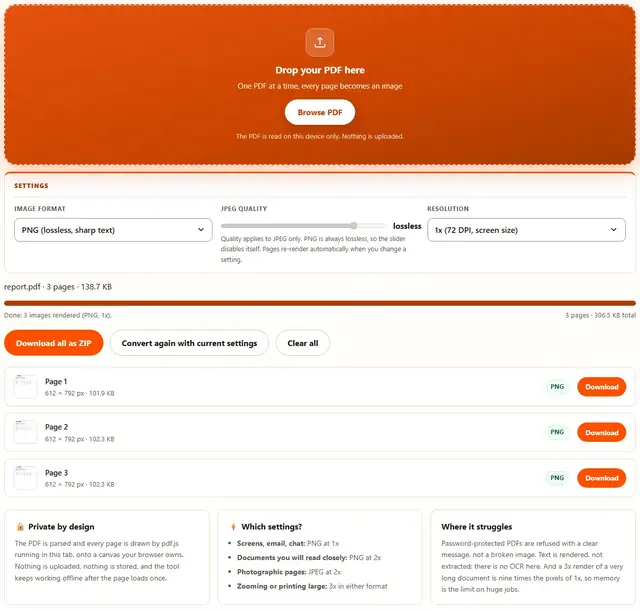
Drop your PDF here
One PDF at a time, every page becomes an image
The PDF is read on this device only. Nothing is uploaded.
Quality applies to JPEG only. PNG is always lossless, so the slider disables itself. Pages re-render automatically when you change a setting.
PDF To Image — illustrated, step by step
How to convert a PDF to images
Three steps, about ten seconds, no technical skills needed.
Add your PDF
Drag a single PDF onto the dropzone, or click to browse. The page count and file size appear the moment the document opens, and rendering starts right away.
Pick format & resolution
PNG keeps text and lines pixel-exact, JPEG keeps files small. 1x matches the screen size the PDF describes, 2x and 3x redraw everything bigger and sharper. Changing a setting re-renders every page.
Download the images
Every page shows its pixel dimensions and exact file size. Save a single page from its row, or take the whole document as one ZIP with a click.
Why render in the browser?
Because there is no upload step, this is safe for contracts, medical records, financial statements and anything under NDA: the pages never leave the device you're sitting at. It also works offline once the page has loaded, and a 200-page document becomes 200 images in a single pass. Details in our file-handling policy.
Troubleshooting
Are my PDF pages uploaded?
No. The PDF is opened and rendered by pdf.js inside this tab, and the images are encoded by the browser's own PNG and JPEG encoders. There is no upload step and no server processing. You can verify it: open DevTools, go to the Network tab, convert a file, and watch nothing get sent. Our Privacy policy has the details.
Will the images keep the text quality?
Text stays as sharp as the resolution you pick. PDF text is vector, so the renderer draws it fresh at your chosen scale: at 2x a paragraph looks clean even zoomed, and PNG keeps small type crisper than JPEG around the edges. If the file will be read closely, choose PNG or at least 2x.
What is the difference between PNG and JPEG here?
PNG stores every rendered pixel exactly, which keeps text and line drawings crisp and makes the files larger. JPEG compresses and typically produces much smaller images for photographic pages, at the cost of slight softening around sharp edges. Screenshots and forms want PNG; photo pages want JPEG.
Why is my 3x ZIP so big?
Pixels multiply. A 3x image has three times the width and three times the height of a 1x image, so it carries nine times the pixels, and PNG does not compress photographs well. Use 3x when the image will be zoomed or printed, and 1x or 2x for screen use.
Can I extract the text from the PDF?
Not with this tool. It renders pages into pixels; it does not run OCR or copy the text layer out. If the PDF already has selectable text, copy it in any PDF reader instead of rendering it as pictures.
My PDF asks for a password
Password-protected files cannot be opened by any tool that does not have the password, and browsers add their own restrictions on top. Remove the password in your PDF reader first (opening it and choosing Print to PDF usually works), then convert the unlocked file.
How big can the rendered images get?
Each page side is capped at 5,000 pixels while rendering, so a huge page cannot crash the tab. A 3x render of a Letter page is about 1,836 by 2,376 pixels, comfortably under the cap, so everyday documents are never affected. Oversized pages render at the largest size that is safe.
Is the PNG or JPG output high quality?
Yes. Each page is rendered from the PDF at the resolution you pick, so 3x is roughly 300 DPI and is sharp enough for printing. PNG keeps the cleanest text and edges, while JPG gives smaller files for photos and scans.
PDF to image: what actually happens when you convert
A PDF is not a pile of pictures. It is a set of drawing instructions: place this font glyph here, stroke this line to there, drop this embedded image at that spot. A PDF reader follows those instructions every time you zoom, which is why text stays sharp at any size. Turning the pages into images means following the same instructions exactly once, at a fixed size, and writing down the result as pixels.
That job is done here by pdf.js, the renderer behind Firefox's own PDF view, running in this tab. Each page is drawn onto a canvas at your chosen scale, then encoded by the browser as PNG or JPEG. Because the page is drawn fresh, the output reflects the resolution you pick, not the resolution someone used twenty years ago when the file was made. A page with vector text comes out crisp at every scale; a page that already contains a photo comes out as good as that photo ever was, never better.
| Format | How it stores the page | Text sharpness | Typical file size | Best for |
|---|---|---|---|---|
| PNG | Lossless, every pixel kept | Pixel-perfect, no halos | Larger for photos | Forms, screenshots, documents to read |
| JPEG | Lossy, quality slider | Good, slight softening | Smaller for photos | Photographic pages, quick sharing |
Why the images look different from a screenshot
A screenshot captures whatever size the window happened to be. Rendering a PDF captures the page at the size the document defines (a Letter page is 612 by 792 points) multiplied by your scale, so the same file produces the same pixel dimensions on every machine. That predictability is what makes rendered pages safe to hand to a designer, a printer or a form that expects a fixed image size.
Scale, DPI and the size of your images
PDF measures pages in points, 72 to the inch, and the scale control multiplies those points into pixels. At 1x, one point becomes one pixel, which is exactly the screen size the document describes. At 2x and 3x every page is redrawn twice and three times larger, with all text re-rendered at the new size instead of stretched.
| Original page | At 1x (72 DPI) | At 2x (144 DPI) | At 3x (216 DPI) |
|---|---|---|---|
| Letter (8.5 × 11 in) | 612 × 792 px | 1,224 × 1,584 px | 1,836 × 2,376 px |
| A4 (210 × 297 mm) | 595 × 842 px | 1,190 × 1,684 px | 1,786 × 2,526 px |
The DPI labels are there because printers and forms use that word. A 3x render is 216 pixels per original inch, close to the 300 DPI that print shops like and far beyond what a screen shows. If a portal asks for a document image "at least 1,200 pixels tall", 2x on a Letter page clears that bar at 1,584 pixels.
Memory is the honest limit of scale
Pixels multiply in both directions: 3x carries nine times the pixels of 1x, and the browser holds each page while it encodes. Everyday documents never notice. A three-hundred-page catalog at 3x in PNG is a different story, so render long documents at 1x or 2x, or work through them in a PDF splitter first.
Extract a page as an image, or the whole document as a ZIP
Both exits are always open. Every rendered page gets its own row with a Download button, which is what you want when the meeting invite only needs page 4 of the deck. The row also shows the pixel size and the file size, so there is no guessing which page is which before you save it.
Download all as ZIP wraps every page into a single archive, named after the PDF (report-pages.zip), with the pages in document order. The ZIP is built in the browser with the same engine the rest of BeeToolify uses, and it stores PNG pages without re-compressing them, so the files inside match the files you see listed. One download, one attachment, no twenty separate save dialogs.
Ordering deserves a mention: pages keep their document numbering in the file names (report-page-3.png), so a ZIP unzipped into a file manager sorts correctly no matter how long the list gets. If you only need a few pages out of a large PDF to begin with, take them out first with the PDF Splitter and render less.
Which settings should you pick? A one-glance decision matrix
Start from what happens to the image next, then choose format and scale together. Four situations cover almost every conversion.
Use cases: five situations where PDF pages need to become images
- A portal that refuses PDFs. Some application systems accept images but not documents, usually with a size cap. Render the pages at 1x or 2x as PNG and upload the files the form asks for.
- A quote from a contract for a slide. The lawyer sent a PDF, the deck needs a PNG. Render at 2x, crop the clause in any editor, and the small type stays readable on the slide.
- A slide deck to share as pictures. Not everyone opens PDFs from unknown senders. Turn the deck into 2x JPEGs and post them where the audience already looks.
- A scanned medical result to send by phone. The clinic's PDF opens nowhere on the recipient's old phone. Render it here on your own device: the pages never travel through a server.
- A page to zoom past what a PDF reader allows. Readers cap their zoom; a 3x render inspected in an image viewer has pixels to spare, which matters on maps, schematics and fine print.
Going the other way, images that need to become a single document are handled by the Image to PDF converter, and shrinking a PDF itself is the compressing a PDF without losing quality guide.
What we actually tested (and what the DevTools Network tab showed)
This page makes specific claims, so here is how they were checked. Open DevTools, go to the Network tab, drop a PDF: the only requests are the page's own HTML, CSS and JavaScript, plus the pdf.js renderer fetched once on first use. Nothing uploads, because the render happens through pdf.js and a canvas inside your tab, and the ZIP (when you ask for one) is packed by a script that also never leaves the page.
On dimensions: a Letter page at 1x renders 612 × 792 pixels and at 3x renders 1,836 × 2,376, the exact numbers the scale math predicts, verified by reading the PNG headers of the output rather than trusting the UI. On sharpness: the same page rendered as PNG at 1x and 2x shows clean small type at both sizes, while a JPEG of the same text page at the default 82% shows the usual slight softening around letter edges; pushing the slider toward 95 closes most of that gap and grows the file.
On the ZIP: every page in the archive matched the individually downloaded file byte for byte, and page order survived a full unzip. Two honest details: pages with transparency in the PDF come out with a white background, because the canvas is cleared white on purpose for predictable results, and rendering is capped at 5,000 pixels per side so an extreme page size degrades to "as large as is safe" instead of crashing the tab.
Limits: what this converter won't do, and why
An honest list beats a surprised user:
- No OCR, no text extraction. The tool draws pixels, it does not read words. A scanned page becomes a picture of a scanned page, exactly as it looked, with no searchable text added. Copying text out of a text-based PDF is faster in any PDF reader anyway.
- Password-protected PDFs are refused. Browsers block scripts from rendering protected documents, so the attempt fails at the source. The tool reports that clearly instead of emitting blank images. Remove the password in a reader, then convert.
- Scale is capped at 5,000 pixels per side. A PDF page can legally be enormous, and rendering one at full size would exhaust the tab's memory. Oversized pages render at the largest safe size, which is still far more than any screen shows.
- Transparency becomes white. PDF pages can have transparent backgrounds; PNG and JPEG output here does not, so the canvas is filled white first. The content is identical, the checkerboard is not preserved.
- The slider does nothing in PNG mode. PNG is lossless by definition, so the control disables itself rather than pretending to compress. Switch to JPEG when the file has to be small.
- Very long documents at 3x can exhaust memory. Nine times the pixels of 1x, held page by page, adds up on a phone. Split the document first with the PDF Splitter, or render at 1x.
Need the images lighter for a website, or resized before upload? Those live on the Tools page.
Only need part of the PDF?
The PDF Splitter pulls single pages out losslessly, so you render less and wait less: same privacy, same browser-only pipeline.
Open PDF Splitter