Combine Images into One PDF Free
Turn photos, screenshots and scans into one PDF without installing anything. No upload, no signup: pick a page size, drop your images, and download the finished file. Everything happens on your device.
Convert your images to PDF
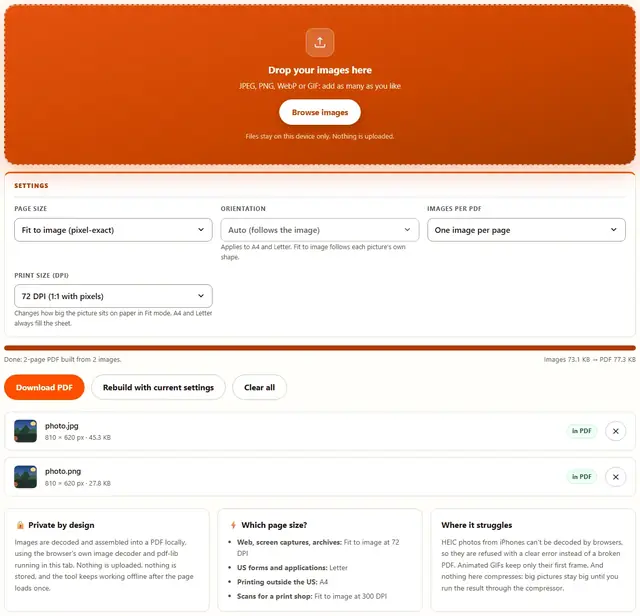
Drop your images here
JPEG, PNG, WebP or GIF: add as many as you like
Files stay on this device only. Nothing is uploaded.
Applies to A4 and Letter. Fit to image follows each picture's own shape.
Changes how big the picture sits on paper in Fit mode. A4 and Letter always fill the sheet.
Image To PDF — illustrated, step by step
How to convert images to PDF
Three steps, about ten seconds, no technical skills needed.
Add your images
Drag JPEG, PNG, WebP or GIF files onto the dropzone, or click to browse. Drop as many as you want: they are added to the same PDF, in the order you gave them.
Pick the page size
Fit to image keeps the picture's own pixels as the page, A4 and Letter give you a standard sheet, and the DPI control decides how big the picture sits on paper. The PDF rebuilds as soon as you change a setting.
Download the PDF
The before and after sizes appear under the progress bar, so you can see exactly what your images turned into. One click downloads the finished file.
Why convert in the browser?
Because there is no upload step, this is safe for confidential documents, medical scans, client work and personal photos: the files never leave the device you're sitting at. It also works offline once the page has loaded, and a whole folder of images becomes one PDF in a single pass. Details in our file-handling policy.
Troubleshooting
Are my images uploaded?
No. Your images are decoded and placed into a PDF by JavaScript running in this tab, with the browser's own image decoder and pdf-lib doing the work. There is no upload step and no server processing. You can verify it: open DevTools, go to the Network tab, build a PDF, and watch nothing get sent. Our Privacy policy has the details.
What happens to animated GIFs?
Browsers can decode only the first frame of an animated GIF, so the PDF keeps that single frame and the animation does not survive. BeeToolify accepts the GIF anyway, because the first frame is usually what you meant, and says so here rather than quietly producing a surprise. Keep the original file if the animation matters.
Does the PDF shrink my pictures?
No, and it is honest about that: JPEG and PNG pages are embedded exactly as they are, so a 6 MB photo stays a 6 MB photo inside the PDF. This tool packages images, it does not compress them. If the result needs to be smaller, run the finished file through the PDF Compressor first.
Why is the PDF larger than the folder of images?
Two reasons: PNG screenshots are stored losslessly inside the PDF just like they were on disk, and every page adds structure (page tree, content stream, cross-reference table) on top of the image bytes. JPEG-heavy sets usually come out close to the original total; screenshot-heavy sets can come out larger. Neither is a bug: bytes are preserved, not invented.
Can I choose the paper size?
Yes. Fit to image makes each page exactly as tall and wide as the picture (scaled by the DPI setting), while A4 and Letter give you standard sheets with the picture centered and scaled to fit. Orientation is automatic: in Fit mode each page follows its own image, and for A4 or Letter you can force portrait or landscape.
Will it work without an internet connection?
Yes, once the page has loaded. The images are decoded and the PDF is assembled in this tab, so nothing needs the network while you work. The pdf-lib engine is fetched once on first use and then sits in the browser cache like the rest of the page.
My scan printed tiny: what did I do wrong?
In Fit mode one pixel becomes one PDF point, and a PDF point is 1/72 of an inch. A 2,100-pixel-wide scan therefore maps to about 29 inches of paper, and a print shop shrinks it to fit the sheet. Set the DPI control to 300 before building: the same 2,100 pixels then map to 7 inches, which is the size printers expect.
Can I make a PDF from photos on my phone?
Yes. The tool runs in your phone's browser, so you can select photos from your camera roll and combine them into one PDF without installing an app. Large photo sets use the most memory, so process fewer images at a time on older phones.
Image to PDF: what actually happens when you convert
A PDF is a container: pages described in a small drawing language, with files (usually images) embedded inside them. That is why converting a photo to a PDF is not a "conversion" in the way JPEG-to-PNG is. The pixels do not change. The tool wraps each picture in a page, and the page becomes the file you download.
Here is the exact path in this tool. Each image is decoded by the browser's own decoder, which is how JPEG, PNG, WebP and the first frame of a GIF all work with one button. A JPEG is then embedded byte for byte: the same bytes your camera wrote, not a re-encode, so quality is untouched. PNG files are embedded losslessly too. WebP and GIF pictures (formats PDF readers do not know) are redrawn once on a canvas and stored as PNG or JPEG inside the PDF, whichever keeps transparency intact.
| Page size mode | Page dimensions | Best for | Watch out for |
|---|---|---|---|
| Fit to image | Exactly the picture, scaled by the DPI setting | Screenshots, receipts, web archives, social images | Print shops shrink it to fit the sheet |
| A4 | 210 × 297 mm (595 × 842 pt) | Documents outside the US, school and office printing | Wide pictures get letterboxed with white space |
| Letter | 8.5 × 11 in (612 × 792 pt) | US forms, applications, insurance and tax packets | Tall phone photos get white bars top and bottom |
Nothing is thrown away on the way in. Your originals keep their names on disk, the output arrives as name.pdf, and if a file cannot be decoded (a HEIC photo, a corrupt download) that row gets a clear error while the rest of the batch still builds.
Pixels, points and DPI: the math behind Fit to image
PDF measures pages in points, and one point is 1/72 of an inch. In Fit mode at 72 DPI the tool uses one point per pixel, so a 1,200 × 1,600 photo becomes a 1,200 × 1,600 point page: pixel-exact on screen, about 16.7 inches wide on paper. That is the right answer for anything that will be viewed on a screen or resized later, and the wrong answer for a print shop that expects a 4-inch print.
The DPI control changes only the math, never the pixels: divide the pixel count by the DPI and you get the printed width in inches. Print shops work at 300 DPI, decent inkjet printers handle 150 DPI, and screens sit near 96 DPI. Pick the number that matches where the file is going, and the page grows or shrinks to match while the image inside stays identical.
| Image width | Printed at 72 DPI | Printed at 150 DPI | Printed at 300 DPI |
|---|---|---|---|
| 1,200 px | 16.7 in | 8 in | 4 in |
| 2,100 px | 29.2 in | 14 in | 7 in |
| 3,000 px | 41.7 in | 20 in | 10 in |
The same rule explains the classic "my scan printed tiny" moment. A scanner produces pixels, not inches, so a 2,100-pixel page sent to a printer that assumes 300 DPI lands at 7 inches instead of filling the sheet. Set the control to 300 before building and the size is right the first time.
A4 and Letter ignore DPI on purpose
Standard sheets have a fixed size, so in those modes the tool scales each picture to fit the page and centers it. The DPI control goes quiet because there is nothing left to decide: the page is the paper. Orientation follows the picture automatically (landscape images get landscape sheets) unless you force it.
One image per page or all on one page: which to pick
The two layouts solve different problems, and the choice matters more than most people expect.
One image per page is the default and the right answer whenever the PDF will be printed, signed, annotated or split later. Each picture gets a full sheet, page numbers stay meaningful, and tools like the PDF Splitter can pull a single page back out without touching the rest. Scans of receipts, signed forms and ID photos all belong here.
All images on one page builds a contact sheet: a grid with roughly as many columns as the square root of your image count, every picture centered in its cell. That is for eyeballing a set at once (did I photograph all twelve pages?), for a single printable overview, or for handing someone one page instead of twenty. It also keeps the page count at exactly one, which some upload boxes insist on.
Mixed sets behave sensibly in both modes: a portrait phone photo and a landscape screenshot side by side still center correctly, because each image is scaled to fit its own cell rather than stretched.
Which mode should you pick? A one-glance decision matrix
Match the output to the job the file has next, not to where it came from. Four situations cover almost every conversion.
How to make a PDF from photos for a form or application
Almost every US portal that asks for a "PDF of your document" is really asking for one file that opens the same way on every machine. Photos on a phone are JPEGs, and a folder of JPEGs is not a PDF, so the upload box rejects them one by one. Turning the set into a single PDF is the whole fix.
The reliable recipe: photograph or scan the pages in order, transfer them to the computer (or stay on the phone, this runs in the phone browser too), choose Letter if the form is American and A4 otherwise, leave orientation on Auto, and use one image per page so each page can be signed and printed separately. If the portal also caps the file size, the pixel sizes and KB ranges US forms actually ask for are covered in the guide to compressing a photo for an online form, and the finished PDF can be squeezed with the PDF Compressor.
Keep the pages in order
Files are added in the order they are dropped, which is not always the order you want: IMG_9998 sorts after IMG_1001 in some folders and before it in others. Drop them one at a time when the sequence matters, or check the page order in a PDF reader before sending. Once pages are out of order, the PDF Merger and PDF Splitter can rearrange them without rebuilding the images.
Use cases: five jobs this tool is actually good at
- Receipts at tax time. A shoebox of thermal-paper photos becomes one PDF with one page per receipt, in the order you photographed them, ready for an accountant who wants a single attachment.
- A signed form that came back as pictures. The client photographed the signed pages. Put them on Letter sheets, one per page, and the packet prints with the signature at the right size.
- A phone screenshot that must become a document. Upload boxes that only accept
.pdfreject PNGs. Fit to image keeps the capture pixel-exact, and the file passes the check. - A set of photos to review in one look. All on one page turns twenty images into a single contact sheet, so a client can glance once instead of opening twenty attachments.
- A scanned chapter to annotate. Fit to image at 300 DPI gives a print shop the physical size it expects while keeping the original pixels untouched for on-screen reading.
Working with a multi-page document that already is a PDF? Splitting it into single pages is covered by splitting a PDF into pages, and combining finished files by merging PDFs in order.
What we actually tested (and what the DevTools Network tab showed)
This page makes specific claims, so here is how they were checked. Open DevTools, go to the Network tab, drop a few photos: the only requests you see are the page's own HTML, CSS and JavaScript (plus the pdf-lib script on the very first build). Nothing uploads, because the path runs through the browser's image decoder, canvas where a re-encode is needed, and pdf-lib, all inside your tab.
On byte handling: a JPEG dropped into the tool produces a PDF whose embedded image bytes match the file on disk, which you can confirm in any PDF reader's document properties or with pdfimages -list. That is what "lossless packaging" means here: the tool never re-encodes a JPEG, so converting twice produces the same result as converting once. PNG screenshots keep every pixel; only WebP and GIF pictures pass through one canvas step, because PDF readers do not speak those formats.
On layouts: Fit mode at 72 DPI produces a page equal to the image's pixel size, and the A4 and Letter modes produce exactly 595.28 × 841.89 and 612 × 792 points, measured in the output file rather than taken on faith. Two honest details surfaced in testing: transparent WebP images are stored as PNG inside the PDF so the background stays clear, and images larger than about 200 inches on a side are scaled down at build time, because the PDF specification itself refuses pages bigger than that.
Limits: what this converter won't do, and why
An honest list beats a surprised user:
- HEIC and AVIF photos are refused. iPhones have saved HEIC for years, but browsers ship no decoder for it, so nothing running in a web page can read those files. The row says so instead of producing a broken page. On the iPhone itself, tap Share, then Options, then Image Format, then JPEG first.
- Animated GIFs lose their animation. A browser decodes only the first frame, so that frame is what lands on the page. The tool accepts the file because the still is usually intended, and the FAQ says it plainly so there is no surprise.
- Nothing is compressed. JPEG bytes are embedded as-is and PNG bytes are stored losslessly, so the PDF weighs about what the images weighed. Packaging and compression are different jobs: run the result through the PDF Compressor when size matters.
- Text stays an image. A photographed page has no text layer to embed, and this tool does not do OCR. If you need searchable text, get a real text PDF from the source instead of a photo of one.
- Very large batches are bounded by memory. Images are decoded one at a time, but the assembled PDF lives in memory before the download. Hundreds of huge scan images may exhaust a phone browser; desktop browsers handle far more.
- Pages are clamped to the PDF size limit. The PDF specification allows pages from 3 to 14,400 points (that is 200 inches), so an extreme panorama is scaled to fit rather than written as a file some readers reject.
Need to resize the pictures before bundling them, or strip metadata first? Those live on the Tools page.
Combined a big stack of images?
The PDF Compressor shrinks the finished file next: same privacy, same browser-only pipeline.
Open PDF Compressor