Compress PNG Online Free: Smaller Screenshots & Graphics
Compress PNG files in your browser without uploading anything: resize losslessly, keep transparency intact, or switch to WebP for much smaller files. No upload, no signup, no watermark.
Compress your PNG files
Drop your images here
PNG files: screenshots, graphics, transparency
Files are compressed on this device only. Nothing is uploaded.
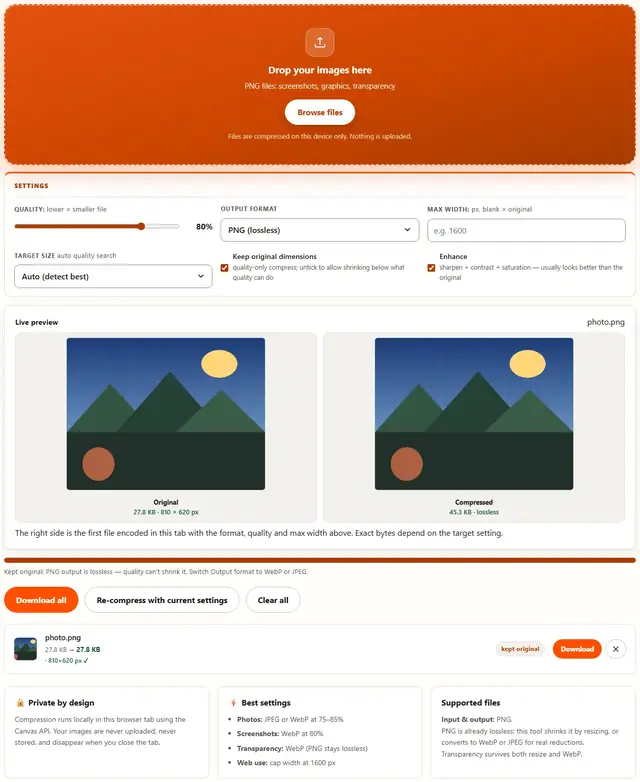
The right side is the first file encoded in this tab with the format, quality and max width above. Exact bytes depend on the target setting.
Compress PNG — illustrated, step by step
How to compress a PNG
Three steps, about ten seconds, no technical skills needed.
Add your PNG files
Drag screenshots, logos or graphics onto the dropzone, or click to browse. Batch processing is supported.
Choose how to shrink
PNG is lossless, so the quality slider doesn't change it: use Max width to resize without any quality loss, or switch Output format to WebP for much smaller files that keep transparency.
Download the result
The exact saved size appears on every row. Download one file or all of them at once.
PNG without the balloon
PNG stores every pixel exactly as it appears. That's the entire reason these files balloon: nothing gets guessed, quantized or cleverly approximated, so a 4 MB photograph saved as PNG is normal behaviour — and a terrible email attachment.
Three honest moves, in order of impact:
- Resize first. The single biggest win, before any compression algorithm runs. A 4000×3000 photo is 12 million pixels; an inbox needs maybe 2 of them.
- For flat graphics, expect the best wins. Icons, logos, illustrations and UI screenshots re-encode losslessly here with all metadata stripped — typically 10–30% off. The 60–90% palette trick is real, but it belongs to a dedicated palette-quantizer; this canvas path is lossless-only and we won't invent numbers for it. If your screenshot is actually a photo, WebP will always beat it.
- Photographs almost never belong in PNG. Convert them to JPEG or WebP instead and accept lossy — those formats are literally designed for it.
When PNG is unavoidable: logos on colored or transparent backgrounds (JPEG can't do transparency), screenshots of text, and anything where you need the exact pixel-perfect original.
One honest caveat: PNG's lossless promise is about reconstruction, not size. Anything you shrink here keeps every pixel — if the input is already well-optimized, the savings will be modest, and we'll say so rather than pretend.
Palette vs truecolor: what PNG stores
PNG comes in two personalities. Truecolor stores 24-bit pixels (plus optional 8-bit alpha); row filtering — None, Sub, Up, Average, Paeth — and DEFLATE squeeze out redundancy. Palette stores at most 256 indices at 1–8 bits each: an order of magnitude less raw data. A flat UI screenshot at 200 colors shrinks hard once palettized; a photo with a smooth sky shrinks the same way — and bands instead of blending.
Brutal honesty on quantization: it's sampling, not compression. Screenshots tolerate it — their palettes genuinely are small; photos don't: 16.7 million colors shoved through 256 buckets, and the contouring shows.
Two limits, plainly: PNG here is a fresh lossless encode — identical pixels, but EXIF, tEXt and time chunks are gone; the canvas never saw them. The browser can't write palettized PNG at all, so the real levers are pixel count (Max width) and WebP. An already-optimal PNG shrinks modestly — we'd rather say so.
- Truecolor PNG: exact pixels, biggest files; palette PNG: ≤256 colors, tiny, exact
- Quantization suits screenshots; it bands photos — physics, not settings
- Lossless means pixel-exact on decode, never small
- Re-encoding here strips all metadata (EXIF, tEXt, time) — fresh pixels, no baggage
- WebP beats PNG for photos and text screenshots — commonly half the bytes
Keep PNG when tooling demands exact pixels; reach for WebP when only eyes will decode it.
Your images never leave this device
Everything happens inside your browser tab. There is no upload step, no server processing and no file logging: the tool works even after you go offline. That makes it safe for confidential documents, client work and personal photos. Details in our file-handling policy.
PNG compression: FAQ
Why doesn't the quality slider affect my PNG?
PNG is a lossless format: there is no quality knob to turn. Size comes from pixel count, so Max width (resizing) is the lever that actually shrinks the file without losing anything.
Can I compress a PNG and keep transparency?
Yes. Resizing keeps the alpha channel intact, and WebP output supports transparency too. Only JPEG flattens transparent areas onto white.
WebP or PNG for a screenshot?
WebP at 80-85% is typically half the size with text still crisp. Keep PNG when another tool downstream needs exact pixels, such as pixel-art sprites or medical imaging.
My PNG is huge and resizing isn't enough. What now?
Convert to WebP with Output format: photographic screenshots shrink dramatically. If the file must stay PNG, crop away unused canvas area first: empty margins cost real bytes.
Shrink PNG files: resize losslessly or convert
PNG compresses the pixels that exist, not the number of pixels: a 4000-pixel screenshot stored losslessly is still huge because lossless techniques only recover redundancy, not detail. That's why Max width is the honest lever here: halving the width quarters the byte count with no visible change at normal zoom.
When the PNG must stay under a hard cap and resizing isn't enough, converting to WebP is the real reduction: modern encoders predict similar pixels the way JPEG does, but with modern tools and transparency support. Every browser that can open this page can open WebP, and if a downstream tool demands PNG, convert back with the Image Converter.
Learn more
Size limits, KB targets and form rejections: Compress a Photo to 20KB, 50KB or 100KB for Online Forms. Working the other way (bigger files, not smaller): Image Resizer.